You can’t change the desktop background if the image file is corrupt, the version of Windows is not yet activated, or due to bugs/system file corruption. If you’re using an activated version of Windows 11, you still can’t change the desktop background; follow these troubleshooting steps.
1. Restart your PC

Sometimes, bugs & glitches in the version of the operating system you are using may prevent you from changing the desktop background.
Restarting your Windows PC will fix issues triggered by bugs and glitches. To restart, press the Windows Key and then the Power Icon. On the Power Menu, select Restart. After the restart, try changing the desktop background again. This time, you can change the desktop background on your Windows PC.
2. Update your Windows
Another thing you can do to resolve the issue of not being able to change the desktop background on Windows is to update the operating system version to the latest.
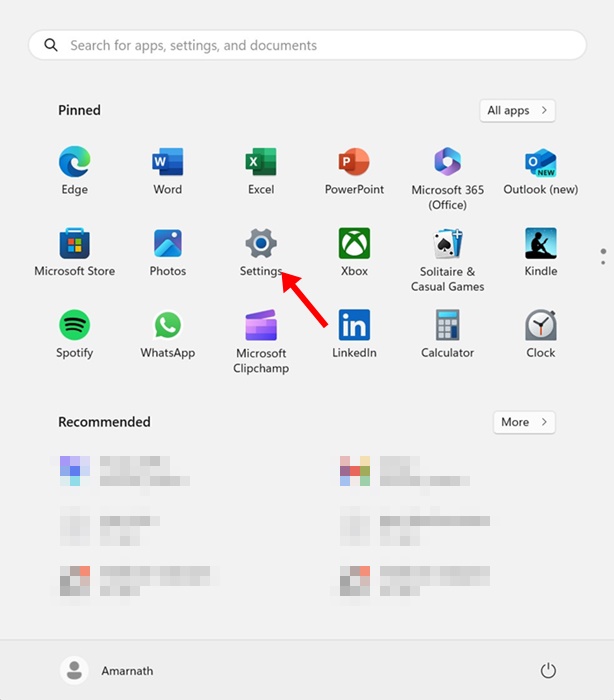
1. Press the Windows Key + I button on your keyboard. This will open the Windows Settings.
2. Switch to Windows Update.
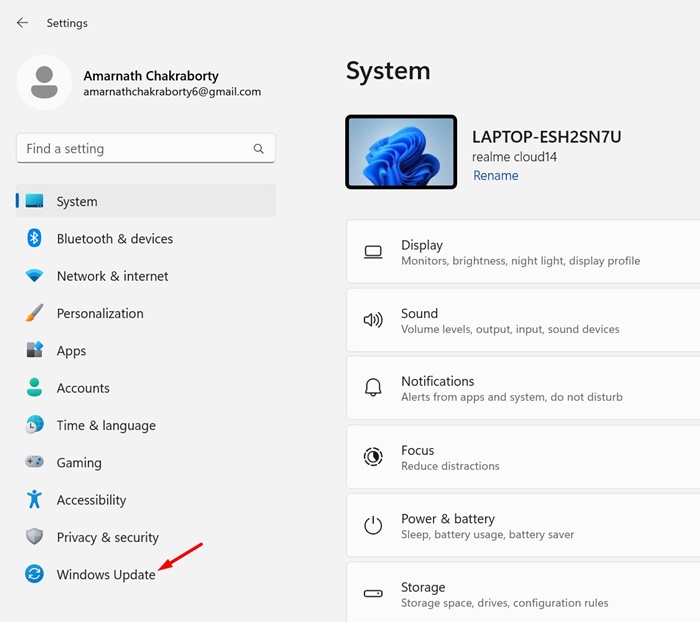
3. Click on Check for Updates.

Windows will automatically check for pending updates. If any update is available, click on the Download & install button.
3. Check the Accessibility settings
You can change the Windows Accessibility Settings to enable the desktop background.
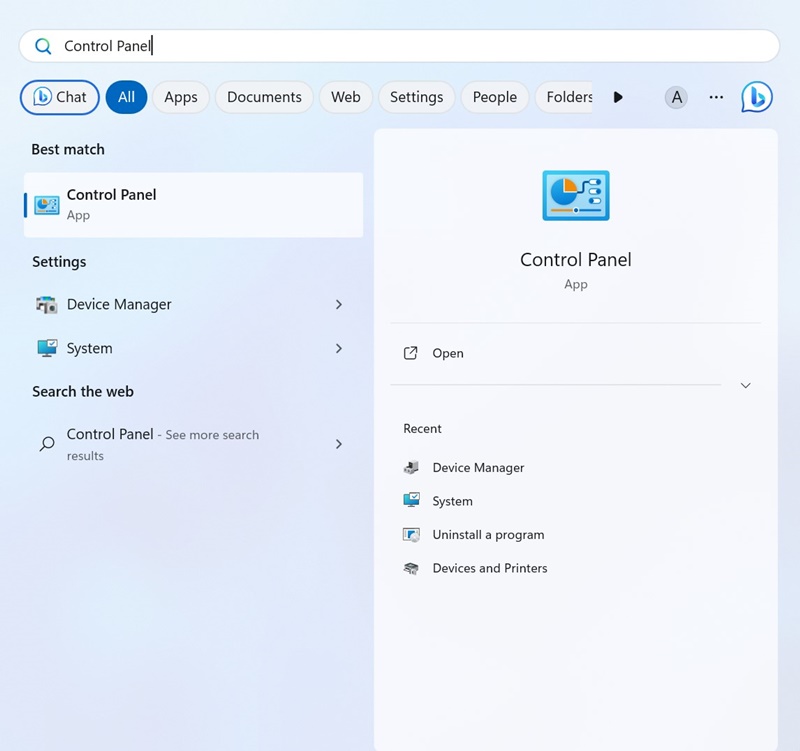
1. Open the Control Panel from the Windows Search.
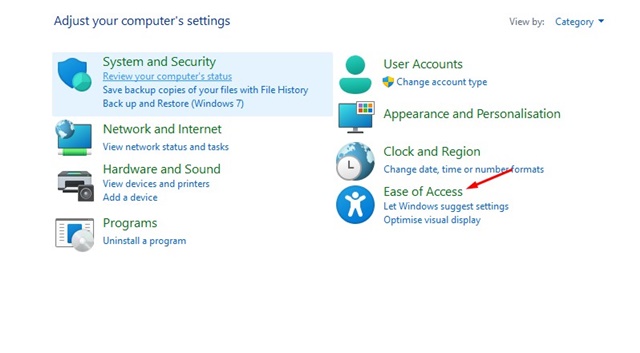
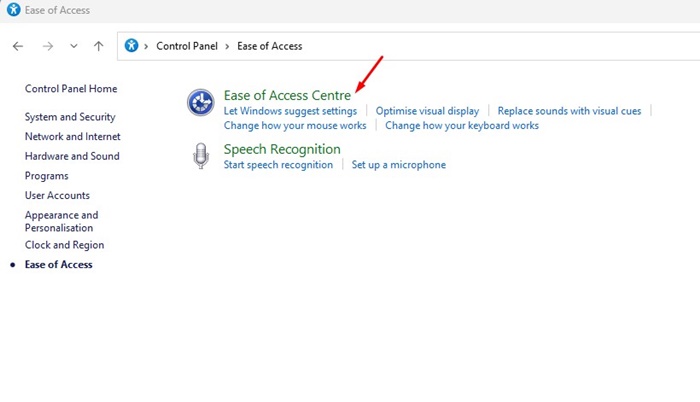
2. Click Ease of Access.
3. Click on the Ease of Access Centre.
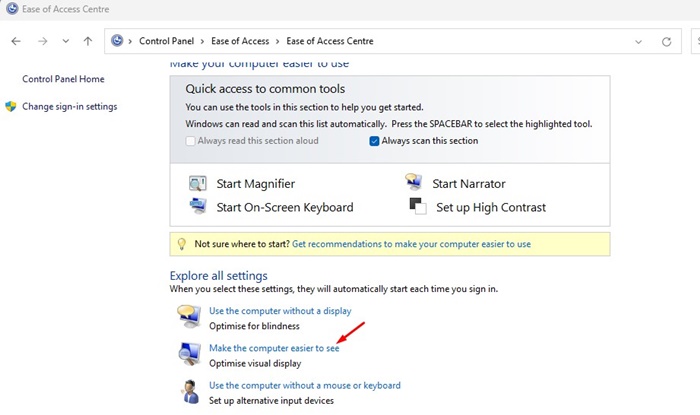
4. Click the Make the Computer Easier to See link.
5. Scroll down a bit and ensure the Remove Background Images (where available) option is unchecked.
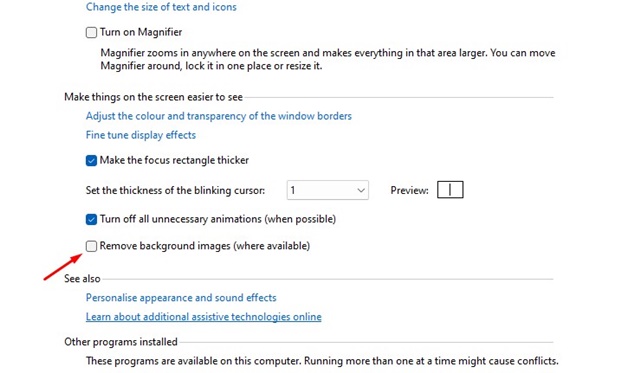
Save the changes and exit the Control Panel app. Now, try changing the desktop background again.
4. Check if Windows Has Been Activated
As we all know, Microsoft prevents users from changing the desktop background if the version of Windows is not activated. So, if your Windows isn’t yet activated, you can’t change the background image. Before you try other methods, you need to check if Windows OS has been activated.
1. Press the Windows + I keys to open Settings.
2. Switch to System.
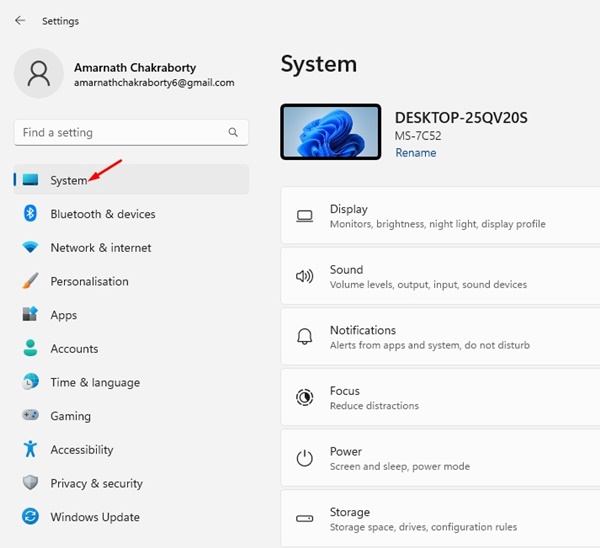
3. Click on Activation.
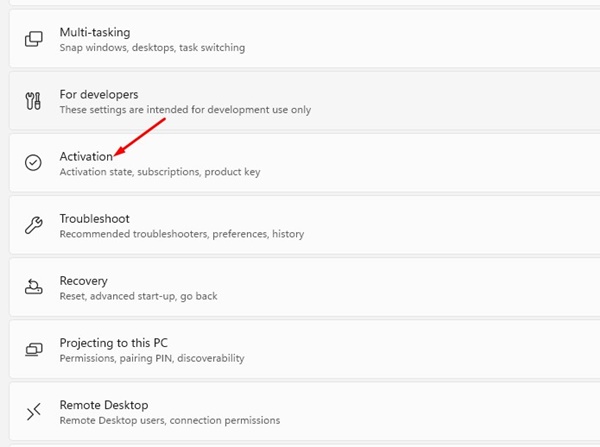
4. Check the Status under the Activation State. If it shows Active, your Windows OS is activated.
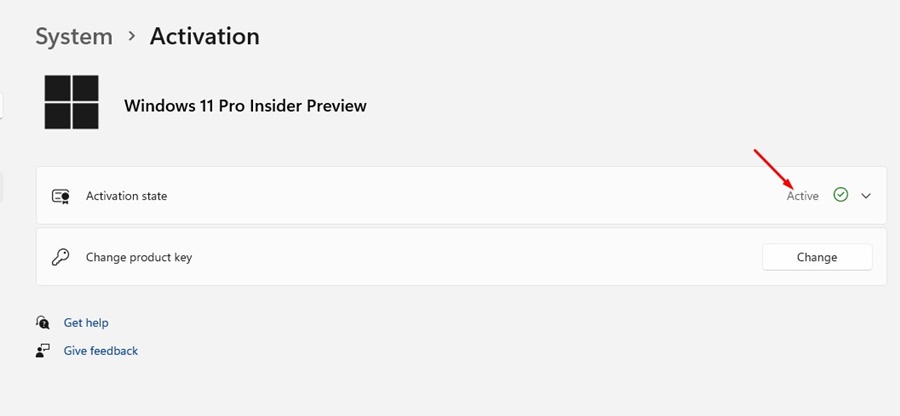
5. If the status is not activated, you need to activate it before changing the desktop background.
5. Make Changes to the Local Group Policy
If you often share your PC or laptop with other users, check whether the Local Group Policy prevents you from changing the desktop background.
1. Open the Edit Group Policy from the Windows Search.
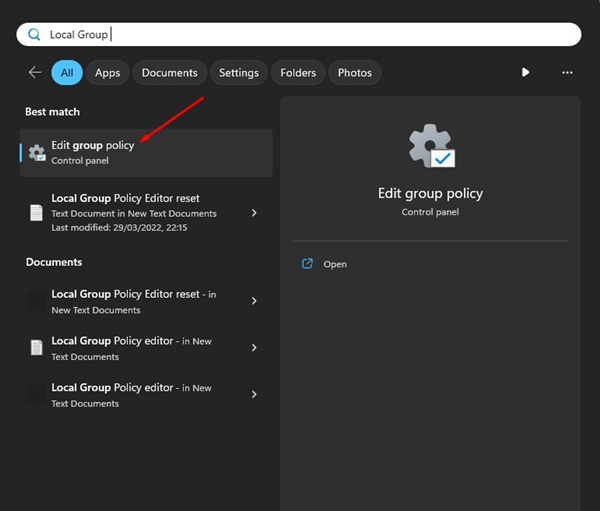
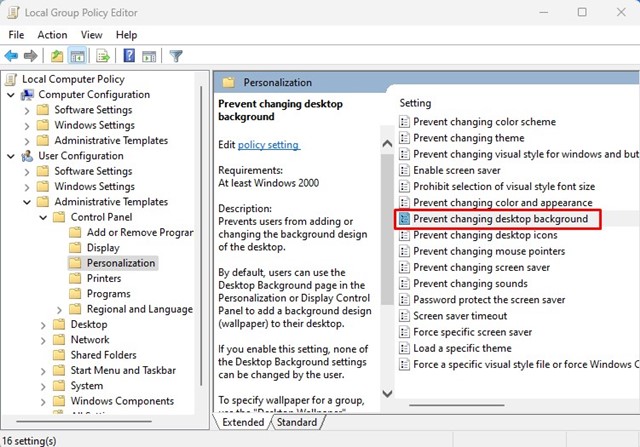
2. This will open the Local Group Policy Editor. Navigate to this path:
User Configuration > Administrative Templates > Control Panel > Personalization
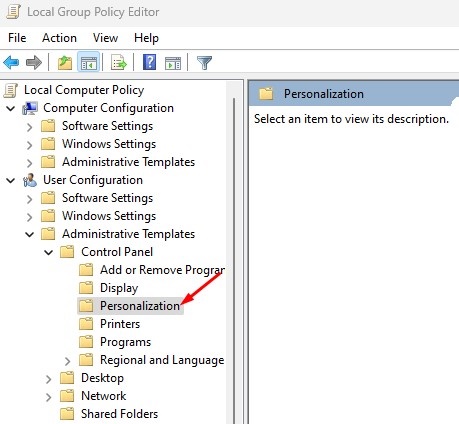
3. Double-click on the Prevent changing desktop background policy.
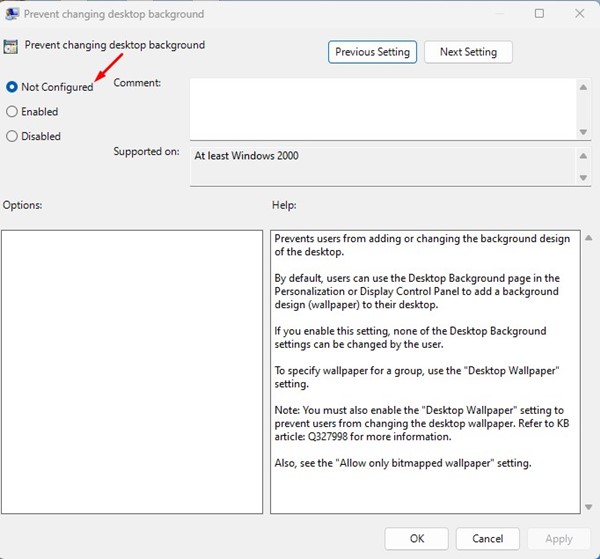
4. Select either Not Configured or Disabled. Once done, click Apply.
Close the Local Group Policy Editor and restart your Windows PC. After the restart, try changing the desktop background again.
6. Make Changes to the Registry
You can make some minor changes to the Windows Registry Editor to enable changing the desktop background.
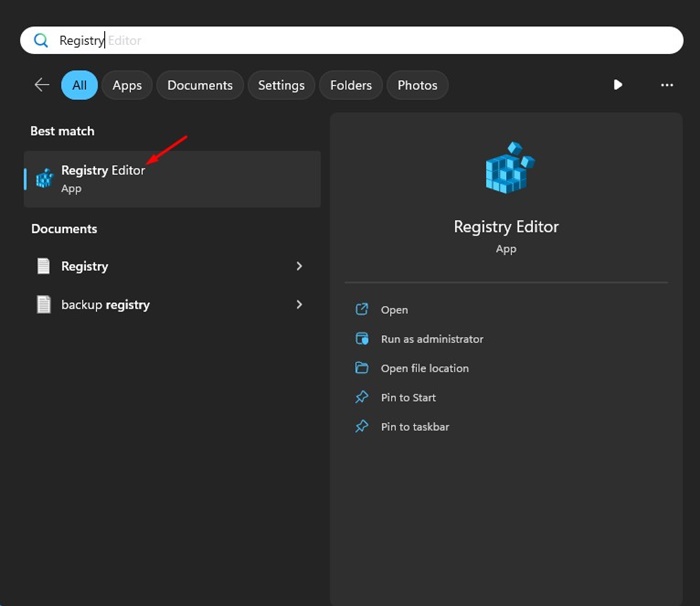
1. Open the Registry Editor from the Windows Search.
2. When the Registry Editor opens, navigate to this path:
HKEY_CURRENT_USER\SOFTWARE\Microsoft\Windows\CurrentVersion\Policies\ActiveDesktop
3. Double-click on the NoChangingWallpaper REG_DWORD key.
4. On the prompt, type 0 in the Value Data field and click OK.
After making the changes, close the Registry Editor and restart your Windows PC. Then, try changing the desktop background again.
7. Fix the TranscodedWallpaper file
When you set an image as your desktop background or slideshow, Windows automatically imports a copy and stores it as the TranscodedWallpaper file. If the TranscodedWallpaper file becomes corrupt, you won’t be able to set the wallpaper as your desktop background. You can try renaming the wallpaper file and see if it helps.
1. Press the Windows Key + R button on your keyboard. This will open the RUN dialog box.
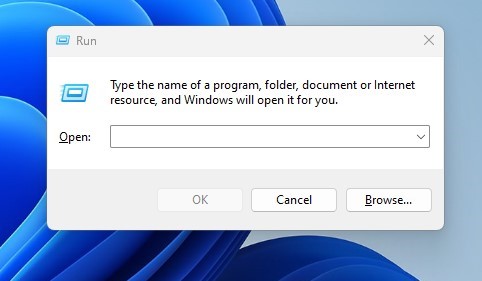
2. In the RUN dialog box, type the following address & press Enter.
%USERPROFILE%\AppData\Roaming\Microsoft\Windows\Themes\
3. Right-click on the TranscodedWallpaper & select Rename from the context menu.
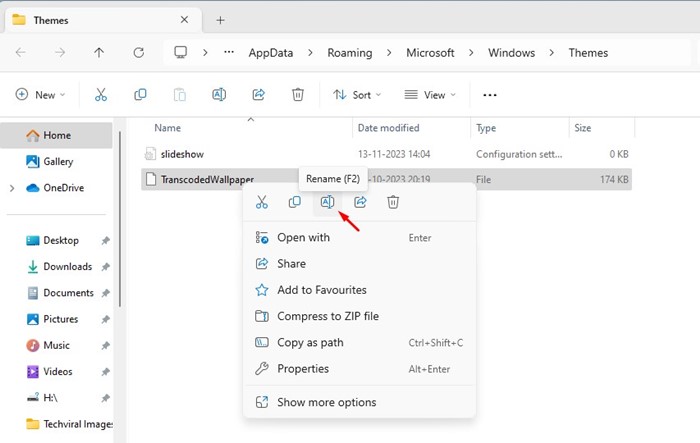
4. Rename the TranscodedWallpaper file to TranscodedWallpaper.old
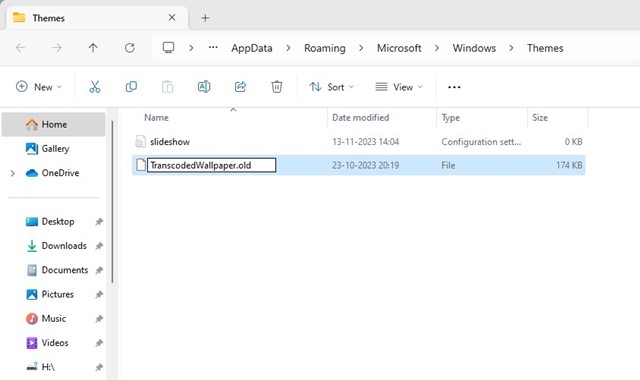
After making the changes, restart your Windows PC.
These are the best ways to fix the “can’t change desktop background” issue on Windows. If you have followed all the methods, you can probably now change the desktop wallpaper. Let us know if you need more help changing the desktop background in Windows.