If you’ve been using Siri for a while, you might be bored with the voice she uses to respond to you. At times, you may want to change Siri’s voice on your iPhone.
How to Change Siri’s Voice on iPhone
It is possible to change Siri’s Voice on an iPhone by making some changes to the Settings. Here’s what you need to do.
1. Open the Settings app.
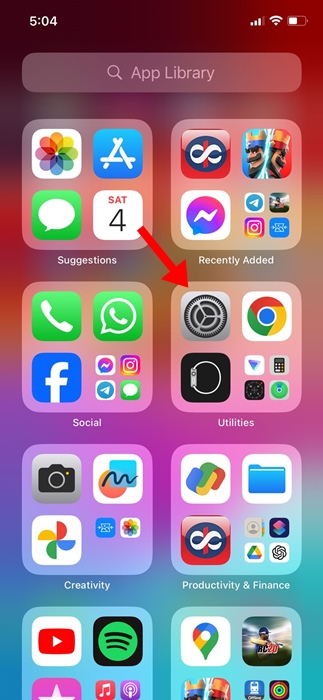
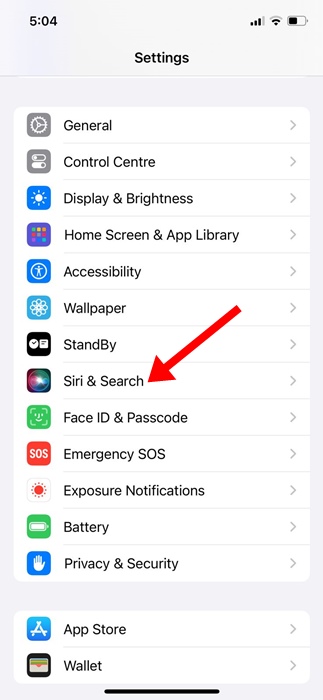
2. Tap on Siri & Search.
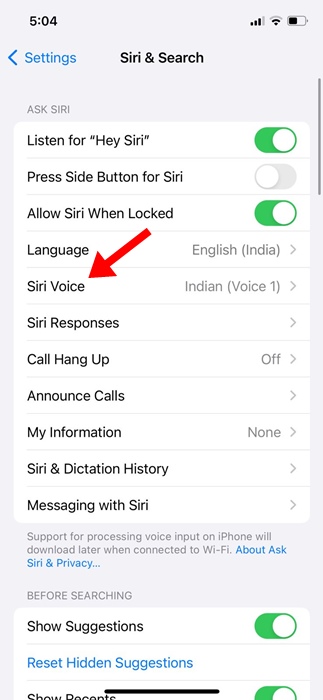
3. Tap on Siri Voice.
4. You will be able to see all of Siri’s accent and voice options. Under the Variety, you can choose the accents for your selected language.
5. Select your preferred voice option.
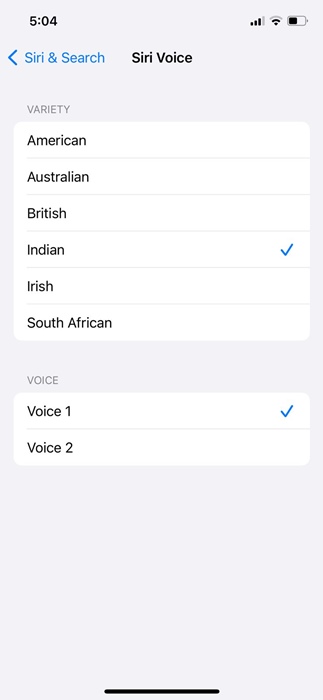
7. You can tap on the voice to hear an audio sample. If you’re satisfied with the voice option, you can select it.
Another key thing to keep in mind is that Siri offers various voice profiles based on the language you select. So, if you don’t like any of the available voices, you can try changing Siri’s language to get more options.
Change Siri’s Language on iPhone:
It’s essential to know how to change Siri’s language to get additional voice profiles. Here’s how you can change Siri’s language on iPhone.
1. Launch the Settings app.
2. Tap on Siri & Search.
3. Select Language.
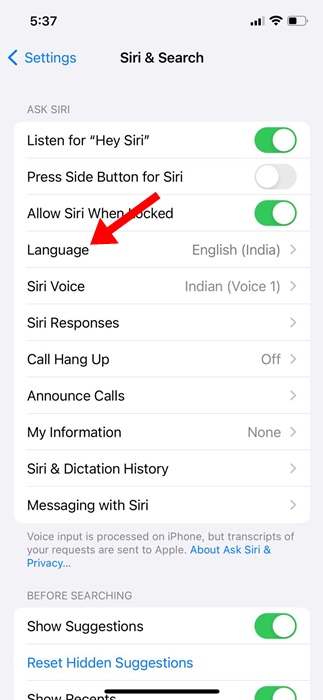
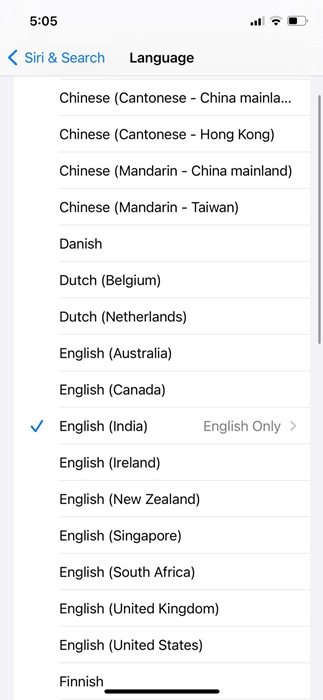
4. Select the language that you want Siri to respond to you.
Frequently Asked Questions:
Yes, you can get different voices for Siri by following the steps outlined in the article. You can also change the Siri language to explore different voice options.
To change Siri to your personal voice, you need to save your Personal Voice on your iPhone. To create your personal voice, head to Settings > Accessibility > Personal voice. Next, follow the on-screen instructions to record your voice.
Yes, we understand you are just curious to know the voice actor behind Apple’s first iteration of Siri. The voice actress is Susan Bennett from Atlanta, Georgia.
You can change Siri’s voice from male to female by going through Settings > Siri & Search > Voice. Next, select the voice style to change Siri’s voice from male to female.
Since Apple allows you to choose from various voice profiles, you can follow these steps to change Siri’s voice the way you want. If you need more help in changing Siri’s voice on iPhone, let us know in the comments.