
You won’t have to redownload the Windows ISO files if you already have a bootable USB. Converting any Bootable USB to an ISO is possible on Windows. Here are the two best ways to do it.
1. Create a Bootable USB Using AnyBurn
1. Download the latest version of AnyBurn from this webpage.
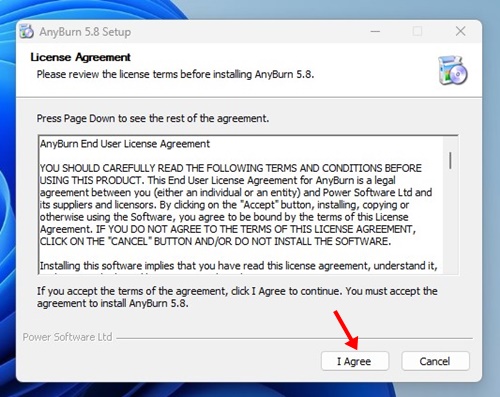
2. Click on I Agree and continue with the installation.
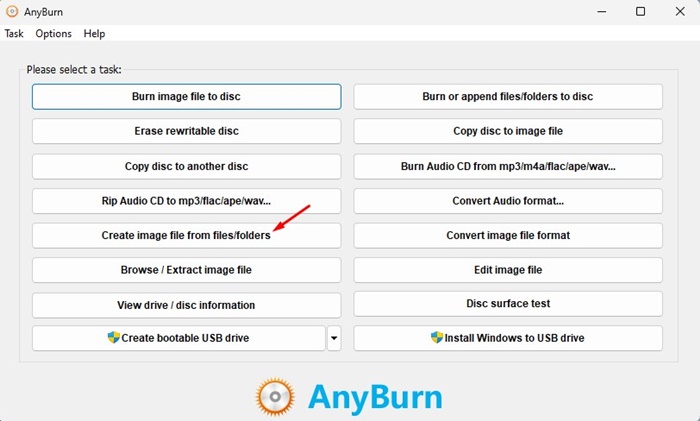
3. You will see the program’s main interface; click Create image file from files/folders.
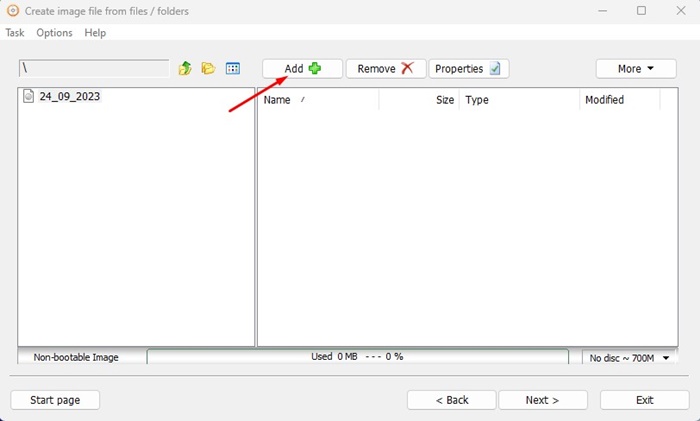
4. Click Add.
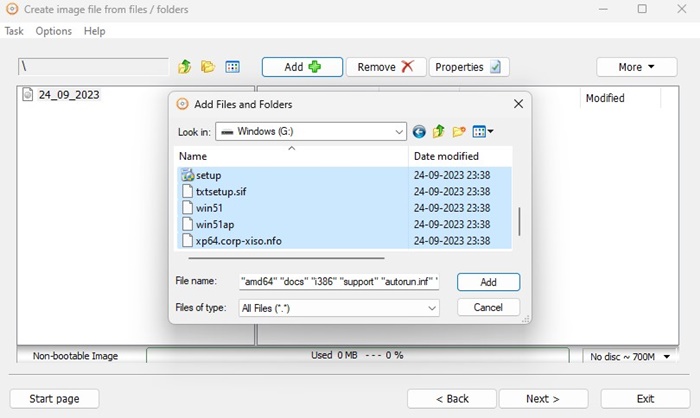
5. Browse the USB Bootable Drive & select all its folders. You need to click Add.
6. The tool will automatically fetch all files required for creating a Bootable ISO. Click Next.
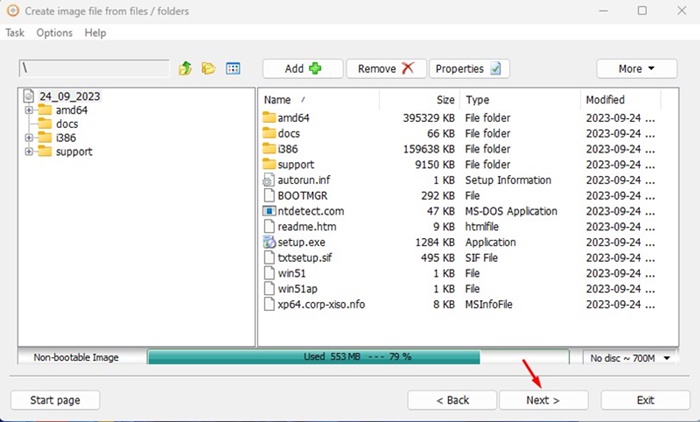
7. Click the Folder button in the Destination image file section. Select the location where you want to save the ISO Image file.
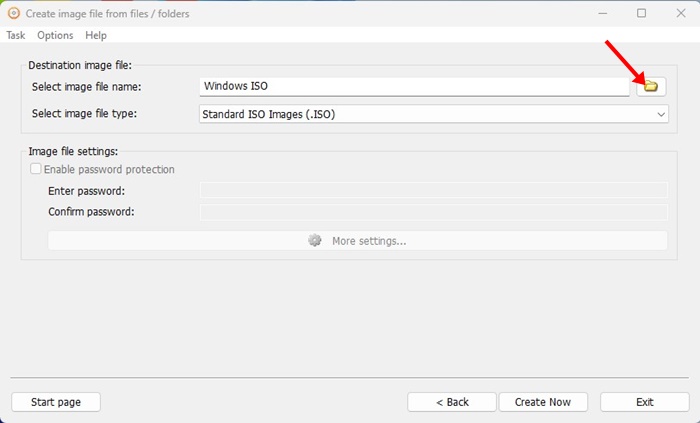
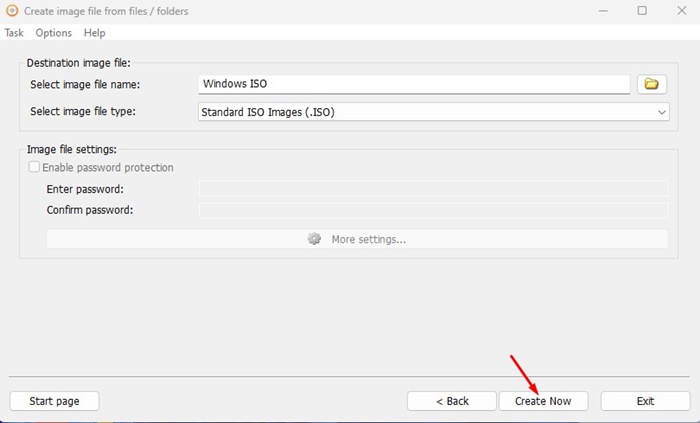
8. Click Create Now.
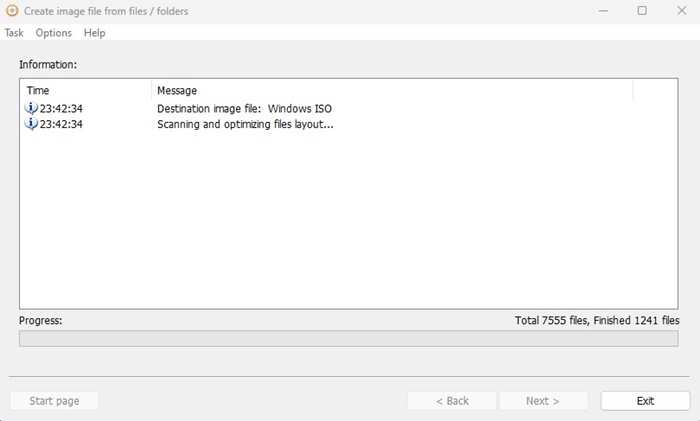
9. Wait until AnyBurn creates an image file from your selected files/folders.
10. Once completed, move to the destination path. You will find the image ISO File.
2. Convert Bootable USB to ISO using ImgBurn
ImgBurn is another great utility that can convert a bootable USB to an ISO File. Like AnyBurn, ImgBurn is free to download & use. Here’s how to convert a Bootable USB to an ISO on a Windows PC.
1. Download the latest version of ImgBurn from this website.
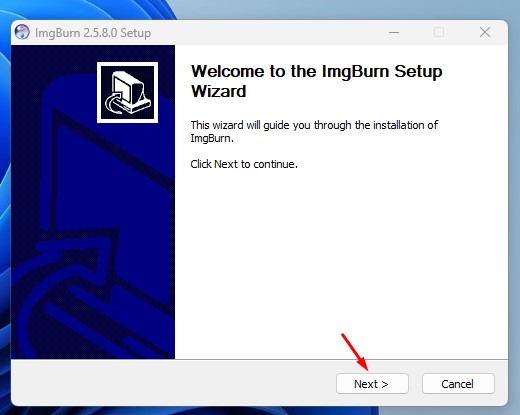
2. Open the executable file and complete the installation.
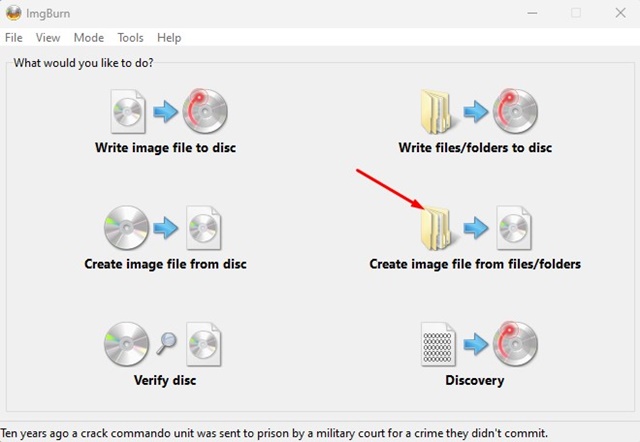
3. Click Create image file from files/folders.
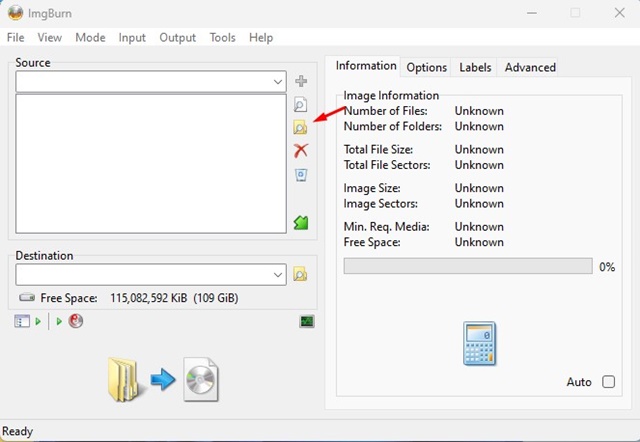
4. Click the Browse icon.
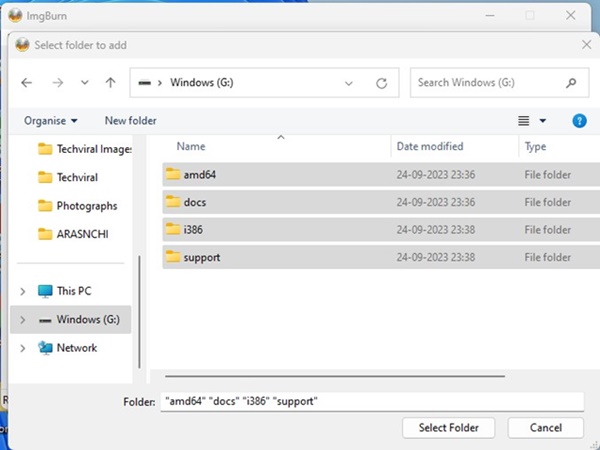
5. Select all folders available on your Bootable USB Drive.
6. Switch to Advanced > Bootable Disc. Check the Make Image Bootable option.
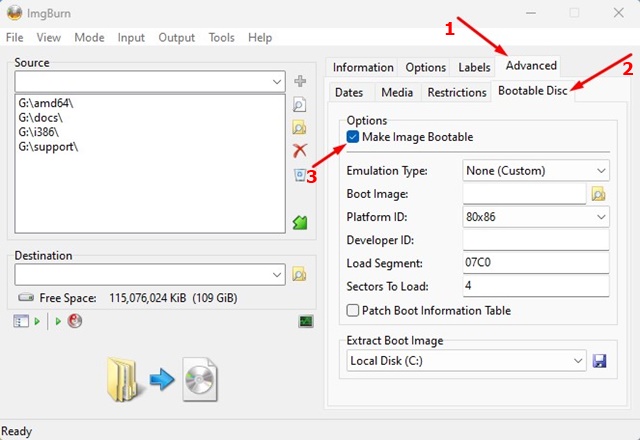
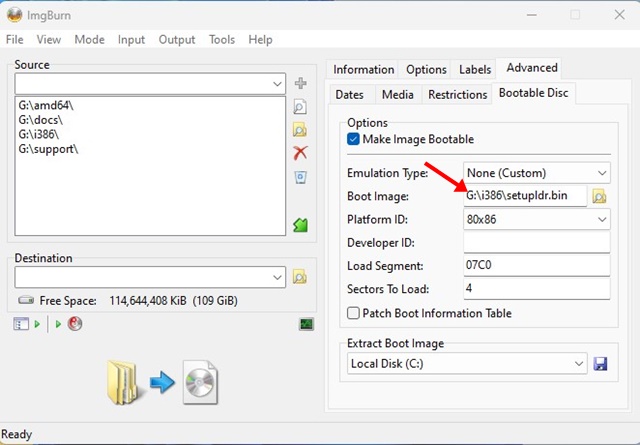
7. Click on the folder search icon on the Boot Image and select the Boot Image file. The Boot image file is usually named setupldr.bin or etfsboot. You will find it in the Boot folder on your Bootable USB Drive.
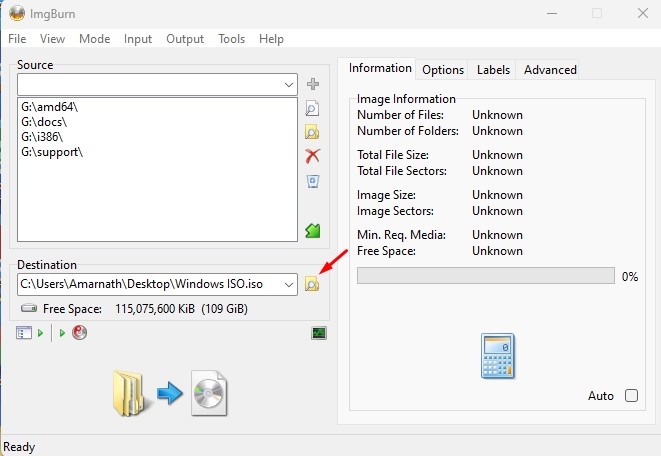
8. Set the Destination folder (Where you want to save the ISO file).
9. Click Convert.
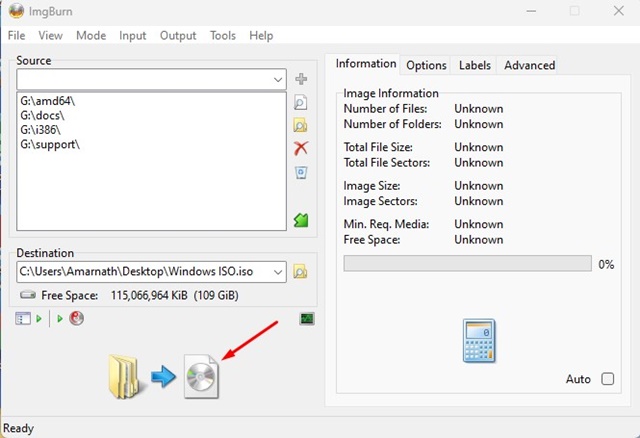
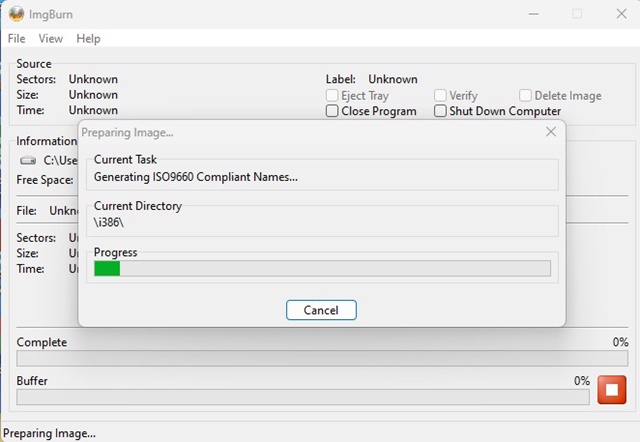
10. You need to wait until ImgBurn prepares the image file.
11. You will see a success prompt.
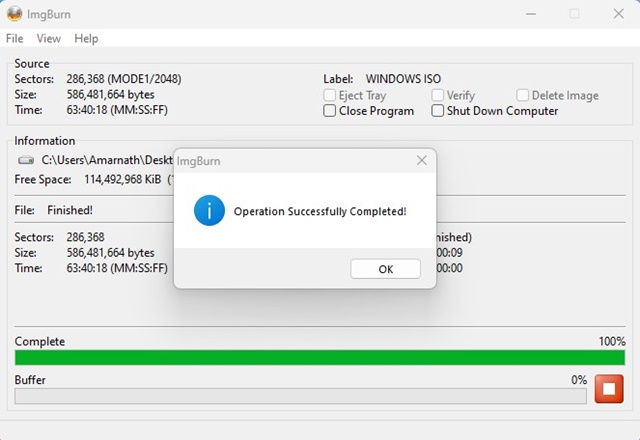
Head to the destination path. You will find the converted image file there.
Other Ways to Convert a Bootable USB to an ISO File
Like AnyBurn and ImgBurn, few other tools available on the Internet that do the same thing. However, most of those tools are outdated and attempt to install adware on your system.
The two programs we used in the article are 100% free and safe to download and use. They can also convert Windows, Linux, and Mac Bootable USB drives to Image files.
If you can’t convert your Bootable USB drive to an ISO File for any reason, you can download the ISO file directly from the official sites.
Frequently Asked Questions:
You may still have many questions related to how to create an ISO file from a Bootable USB drive.
Can I create an ISO File from a bootable USB?
Yes, you can create an ISO file from a bootable USB drive. You just need to use the tools we have shared & follow the steps. It’s very easy to create an ISO file from a bootable USB drive.
Can Rufus create an ISO from a USB?
Rufus has an option to download ISO Files and create a bootable USB drive. However, as of now, there’s no option to create an ISO from a USB using the Rufus tool.
How do I change my bootable USB to normal?
Formatting the drive is the easiest way to make your bootable USB to its default state. You can just format your USB drive to restore its factory state.
How to Create a Windows Bootable USB Drive?
You can use softwares like the Media Creation Tool or Rufus to create a bootable USB drive for Windows. It’s a lengthy process and requires having an ISO File. For a detailed guide, check our article –
This guide explains how to convert a bootable USB to an ISO on Windows 10/11. You can follow these two methods to convert any Bootable USB media drive to an ISO image file.


“any burn” program is trash!!!
not usable if you want to convert bootable usb flahsdisk to “bootable” iso file
its make only “non bootable” iso… who need that trash?