
DISM is often used alongside the SFC (System File Checker) to resolve various system problems. If you’re facing problems due to system images, here’s how you can run the DISM commands to repair them.
Run Command Prompt As an Administrator
All commands listed in the article are required to be executed on an elevated Command Prompt.
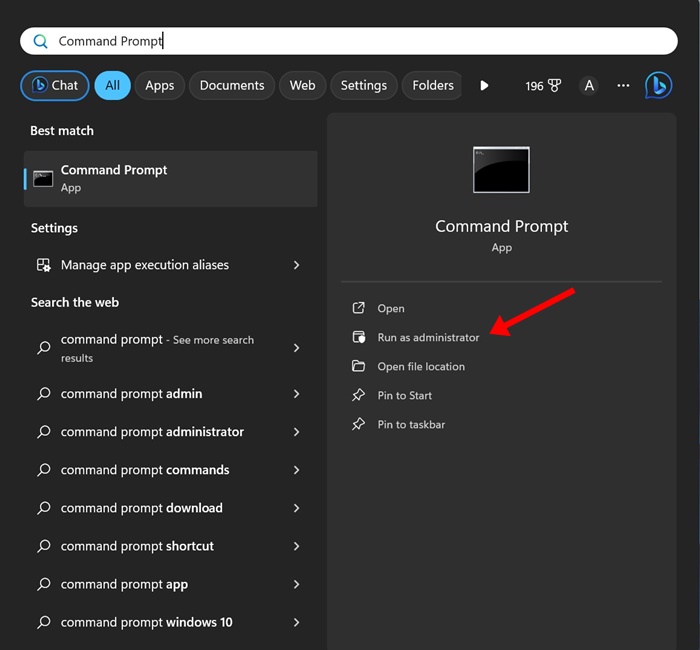
1. Type in Command Prompt in the Windows 11 Search.
2. Right-click on the Command Prompt and select Run as administrator.
1. Check the File Integrity
Checking the file integrity will tell you if there are any issues with the current Windows image.
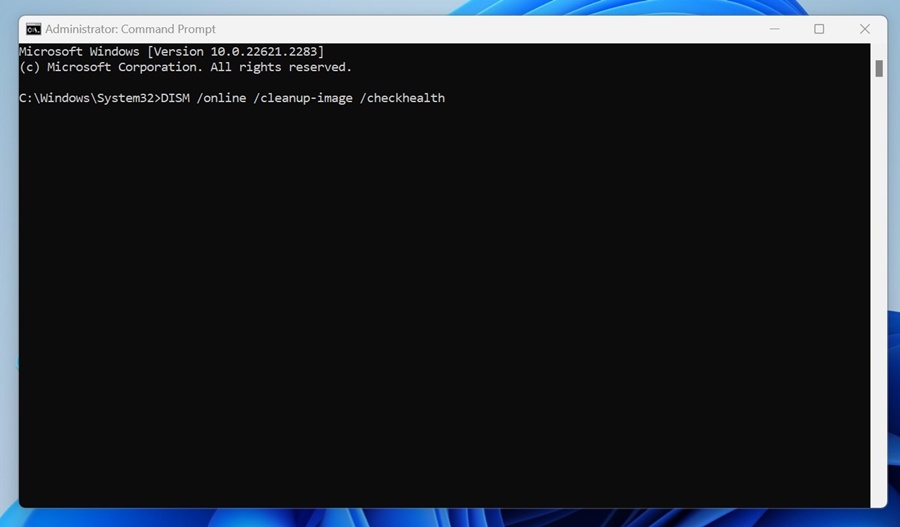
Check Health
This command checks the health of the current Windows image. This will run a quick scan to determine whether the Windows image is repairable.
DISM /online /cleanup-image /checkhealth
Scan Health
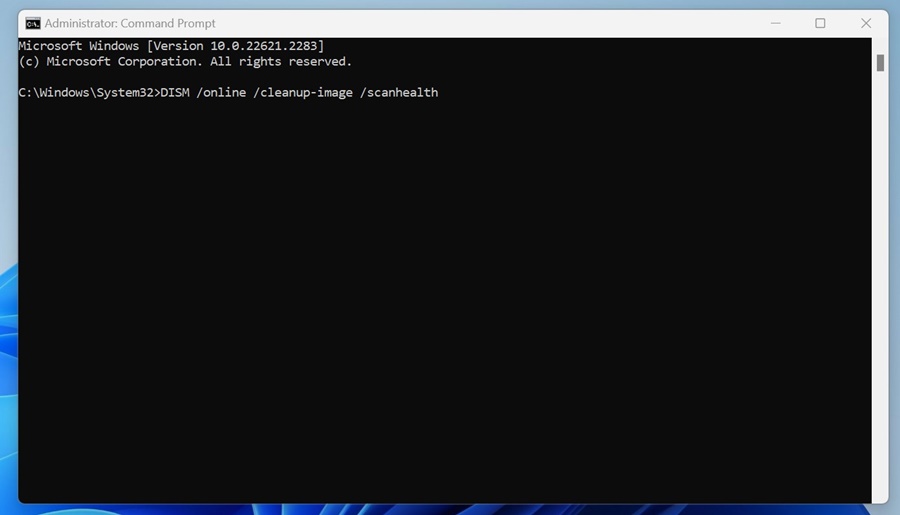
This command will not fix errors or problems, but will check for system file corruption. You need to run it on an elevated command prompt.
DISM /online /cleanup-image /scanhealth
2. Repair the Corrupted System Files
After executing the two commands, if the DISM tool returns with any corrupt or missing system files, you need to repair them.
If your PC is connected to the internet, execute this command in the Command Prompt.
DISM /Online /Cleanup-Image /RestoreHealth
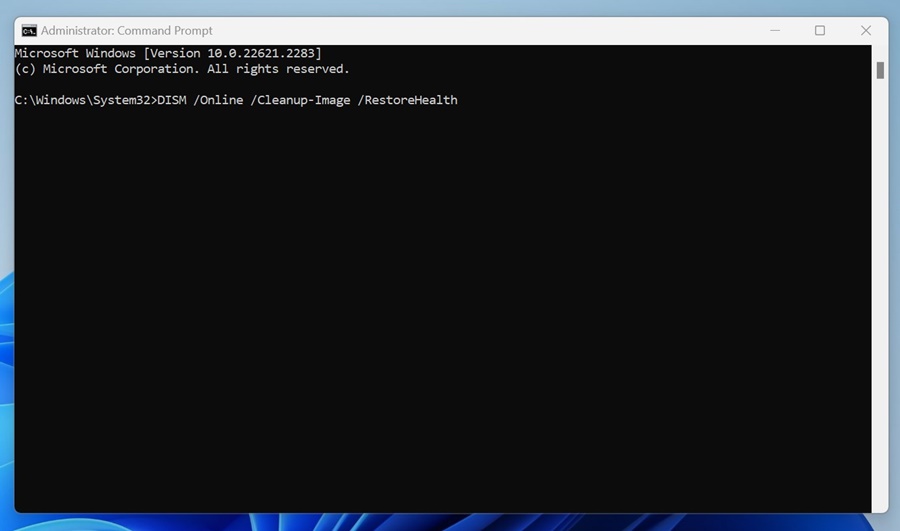
The command may take a while to complete, so do not close the Command Prompt utility.
Repair the Corrupted System Files Manually
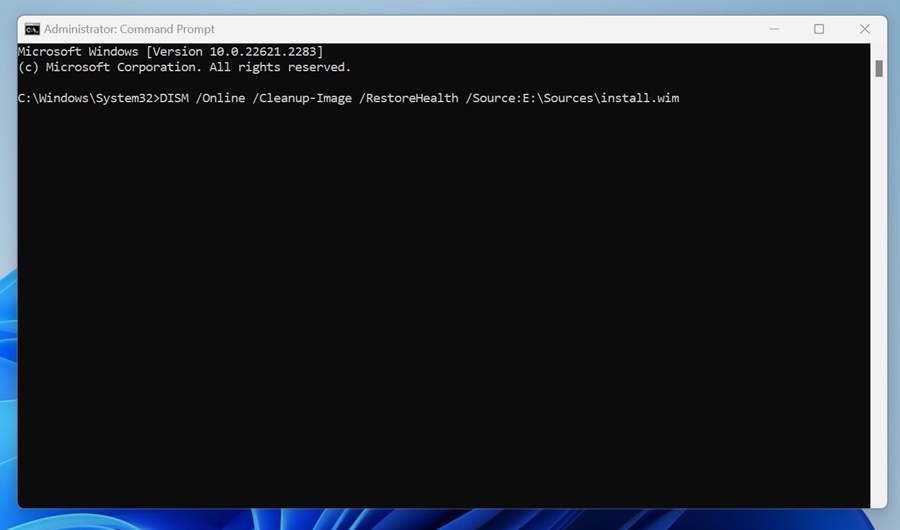
There’s a modified version of the above command to repair the image. To repair your System image offline, grab the Windows 11 ISO file and mount it as a virtual drive. Once done, execute this command in the command prompt.
DISM /Online /Cleanup-Image /RestoreHealth /Source:E:\Sources\install.wim
Important: In the command, replace ‘E’ with the ISO mount point drive letter. You can check the mount point drive in the Windows 11 File Explorer.
Prevent the DISM tool from using Windows Update as a Repair Source
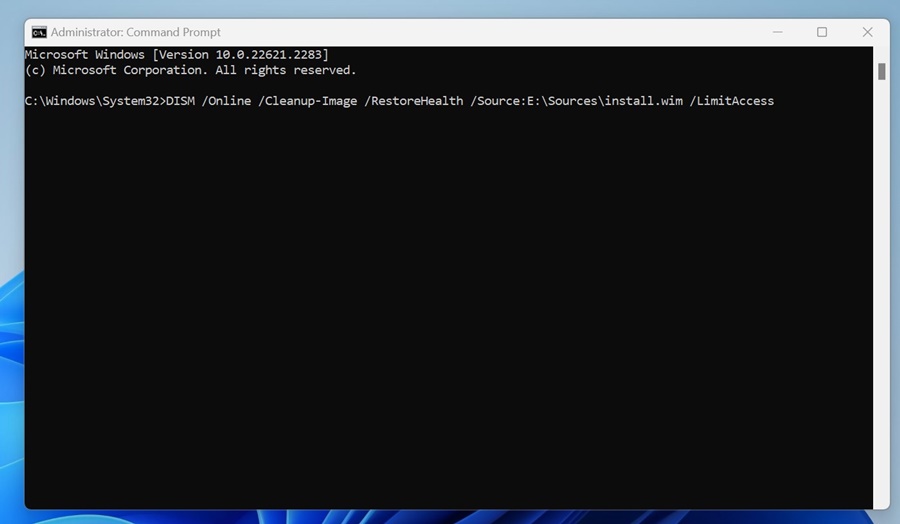
The DISM tool can attempt to repair the system image from your source instead of Windows Update. An alternate variant of the command can prevent the DISM tool from using Windows Update as a repair source or as a backup repair source for online images.
DISM /Online /Cleanup-Image /RestoreHealth /Source:E:\Sources\install.wim /LimitAccess
The command will limit the use of Windows Update.
This guide explains how to use DISM commands to repair Windows 11 system images. DISM is a great tool because it makes finding and replacing corrupt system files and Windows Images easy.