If you take privacy very seriously, you may want to hide your location in Google Maps’ location history. How to do so? This article will explain.
1. Use the Incognito Mode of Google Maps
The easiest way to avoid location history tracking is to use the app’s incognito mode. Incognito Mode doesn’t save your browsing or search history on your account.
1. Launch the Google Maps app.
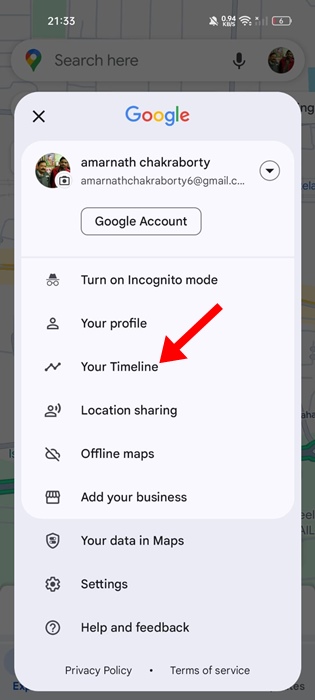
2. Tap on your profile picture in the top right corner.
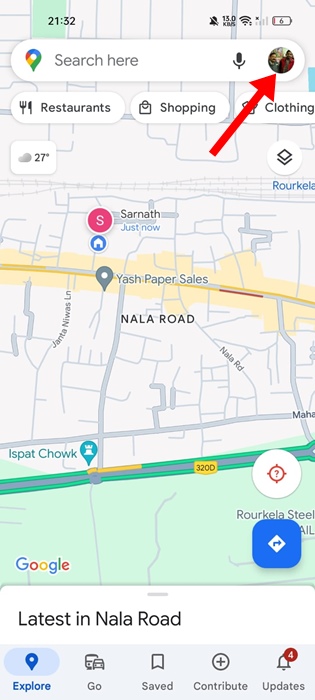
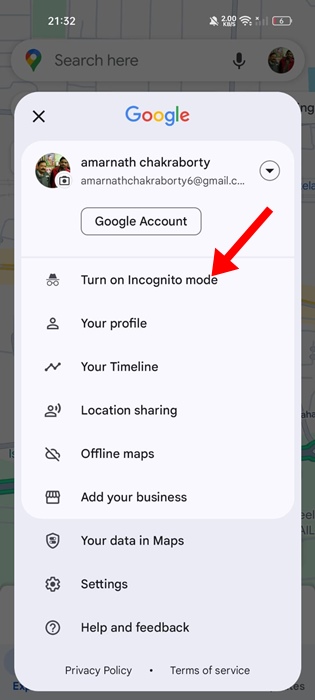
3. On the menu that appears, select Turn on Incognito mode.
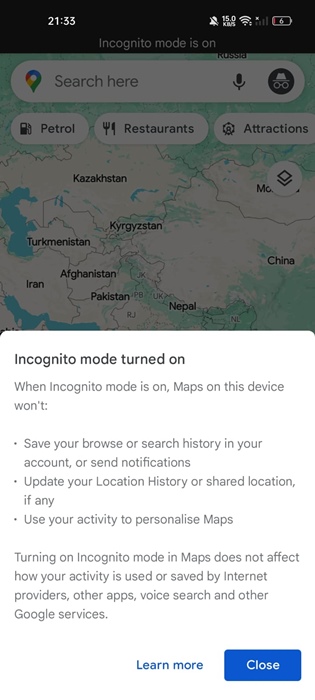
4. You will see a prompt about the Incognito Mode. Simply tap Close.
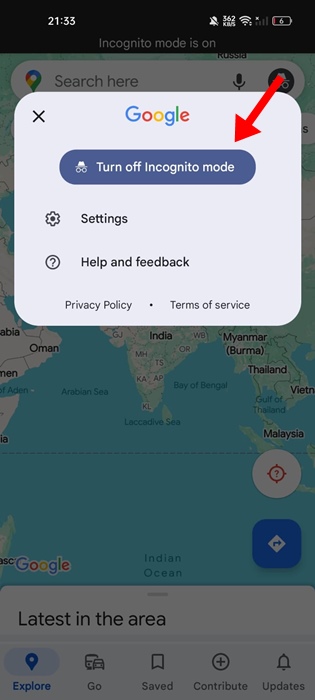
5. To exit Incognito Mode, tap the profile picture again and select ‘Turn Off Incognito Mode’
2. Delete Your Location History Data from the Timeline
If you don’t want your location history to appear in the Google Maps Timeline, delete your existing data from the Google Maps account.
1. Open the Google Maps app on your phone.
2. Tap your profile picture in the top right corner.
3. On the menu that appears, select Your Timeline.
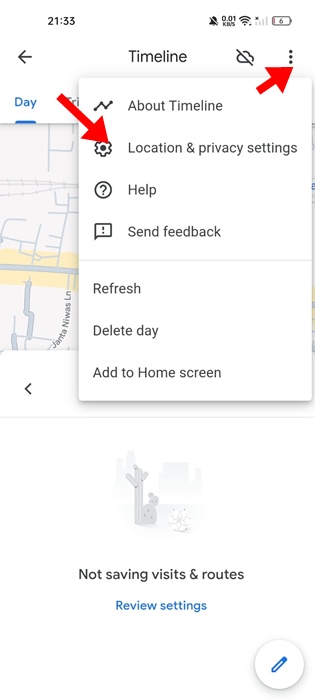
4. Tap the three dots at the top right corner and select Location & privacy settings.
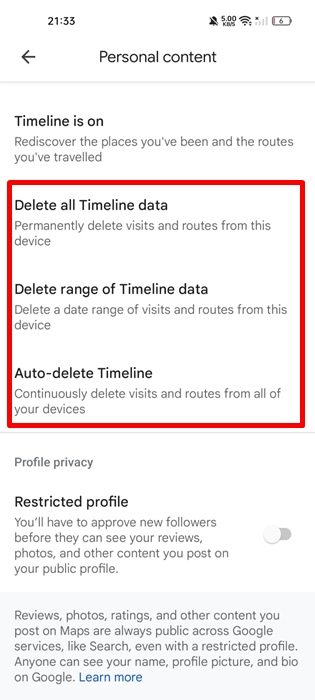
5. Scroll down and find these three options:
- Delete all Timeline Data
- Delete Range of Timeline Data
- Auto-Delete Timeline.
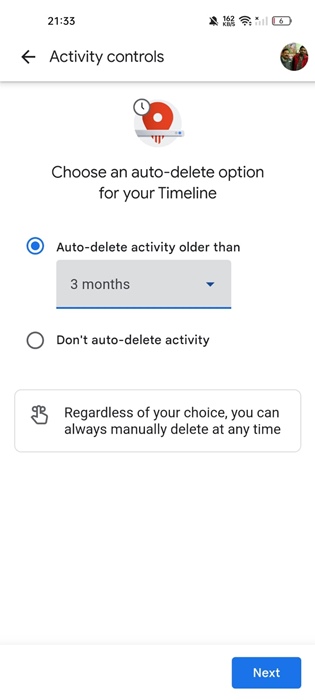
6. You can choose among the given options. You can also set up the Auto-Delete timeline option.
3. Disable the Web & App Activity
Web & App Activity is a feature that saves your activity on Google sites and apps. You can disable this feature to prevent your location history from being saved.
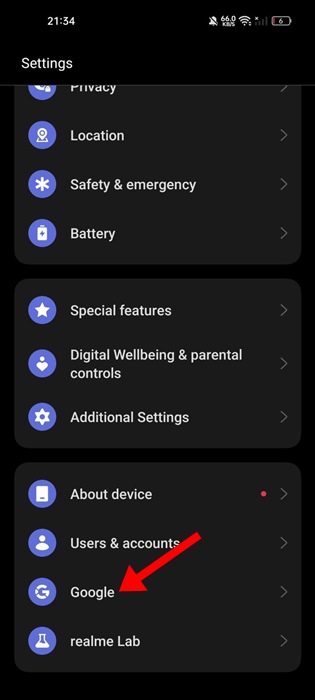
1. Launch the Settings app.
2. Scroll down and tap on Google.
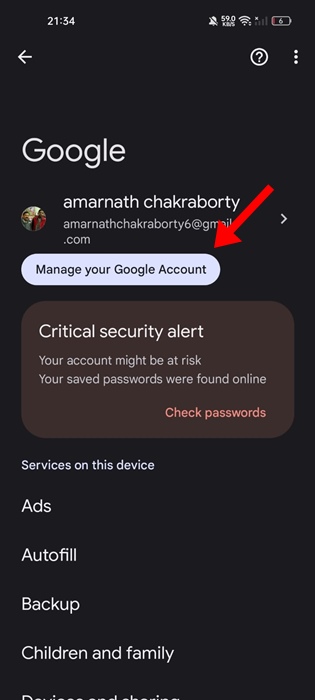
3. On the next screen, tap on Manage your Google Account.
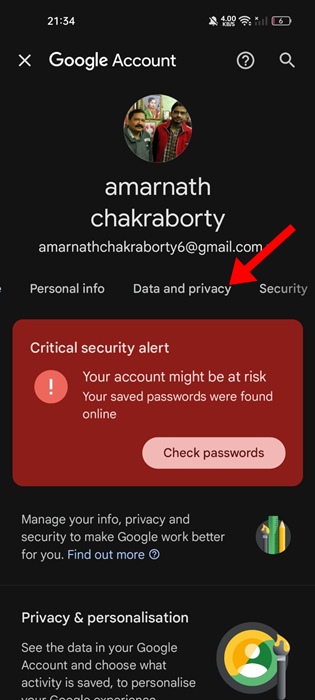
4. Switch to the Data and Privacy tab.
5. Tap on the drop-down next to Web & App Activity and select Turn Off.
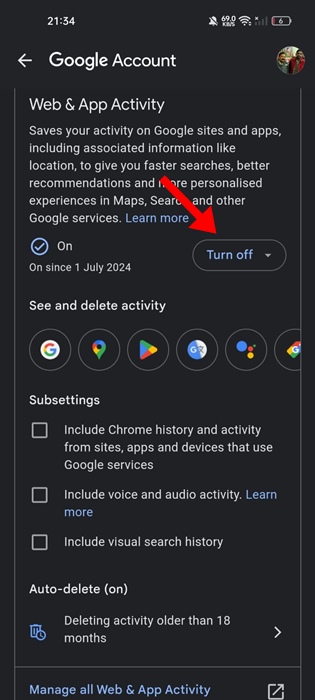
From now on, Google Maps won’t save the locations you’ve visited and will not update the timeline data.
These are a few simple methods to protect your location data while using Google Maps on Android. If you need more help on this topic, let us know in the comments.