There could be various reasons why your iPhone may be silencing calls. Here are some of them:
- Do Not Disturb Mode is turned on.
- Silent Mode is turned on.
- Silencing Unknown Callers is turned on.
- iPhone is connected to a Bluetooth device
- Sleep Schedule is turned on.
- Call Forwarding is Active.
These are the most probable reasons why your iPhone calls are silenced. If you don’t know whether you have turned on these features, follow the next part.
1. Set the Ringer Volume to Maximum
You need to ensure that the Ringer volume on your iPhone is set to maximum.
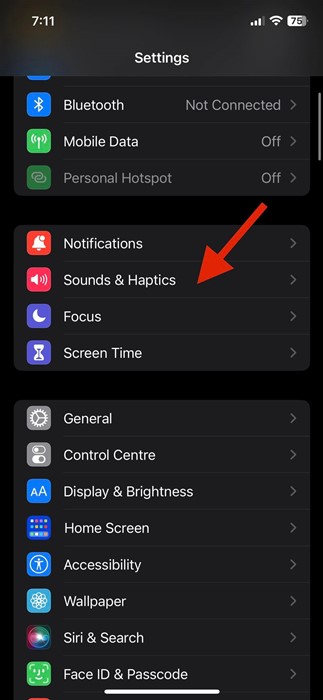
1. Open the Settings app on your iPhone and select Sounds & Haptics
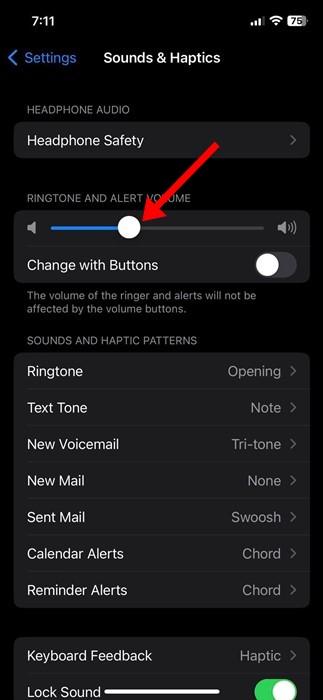
2. Scroll down to the Ringtone and Alert Volume.
3. Drag the slider to the maximum. You can also enable the Change with Buttons option to change the ringer volume with the volume buttons.
2. Turn Off the Silence Mode
If you are still not getting sound for your calls, check whether the Silence mode is enabled.
If the Silence mode is enabled, your iPhone won’t ring. So, you need to turn off the Silence mode using the dedicated button.
3. Turn Off Silence Unknown Caller
It’s easy to disable silent unknown callers on iOS; follow the steps below.
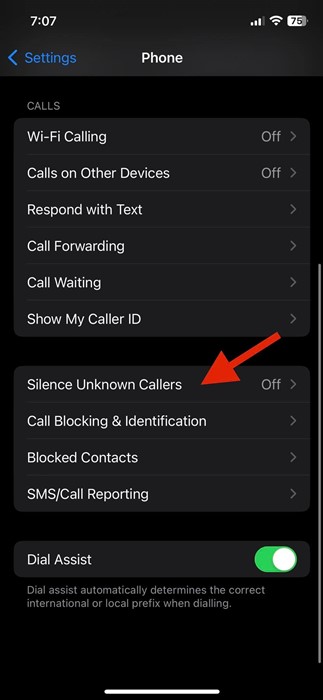
1. Open the Settings app on your iPhone and select Phone.
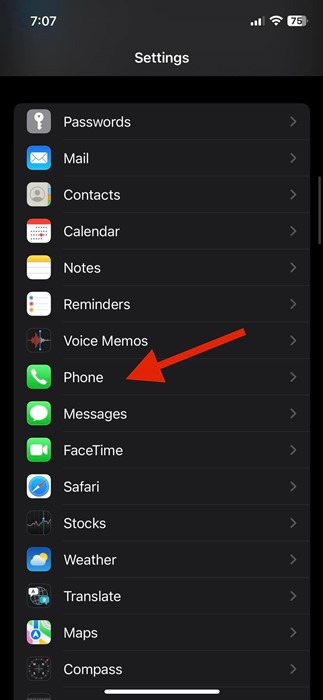
2. Scroll down and tap Silence Unknown Callers.
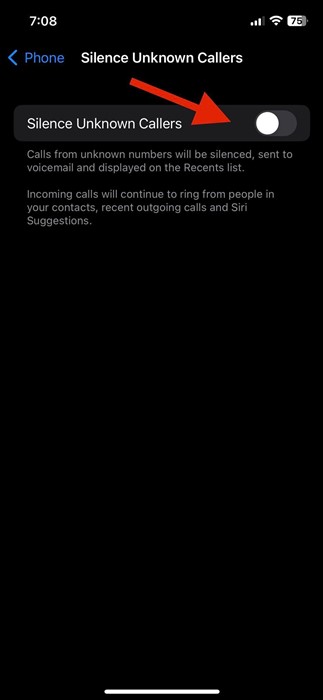
3. Turn off the toggle for ‘Silence Unknown Callers’
4. Disable the Focus Mode on iOS
If your Focus mode is active with a specific profile, disable it to unsilence calls on your iPhone. Here’s how to turn off the Focus mode.
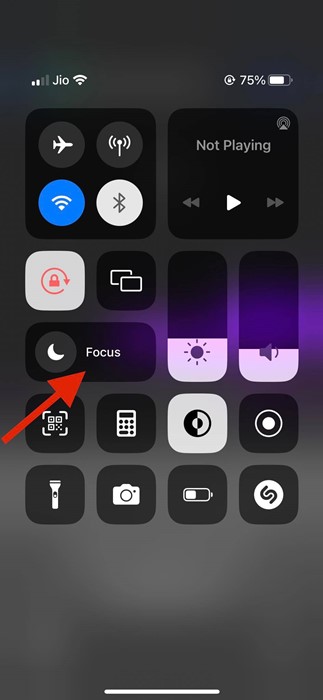
1. Open the control center on your iPhone and long-press Focus.
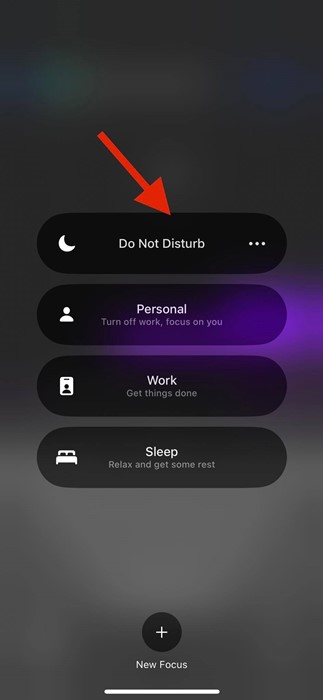
2. Tap on the active Focus profile to disable it.
5. Change the Screen Time Limit on iOS
On the iPhone, you get a screen time feature that allows you to limit who can call you when the screen time is active. You can change it to unsilence calls on iPhone.
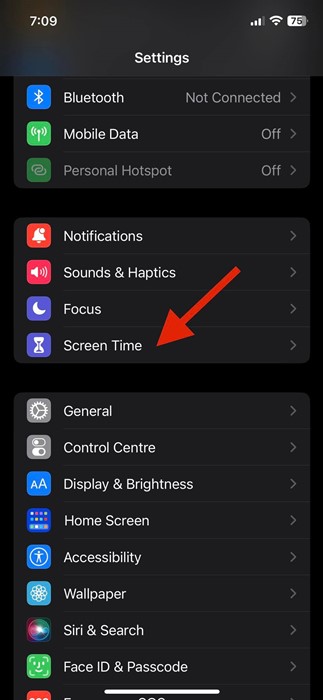
1. Open the Settings app on your iPhone and tap on Screen Time.
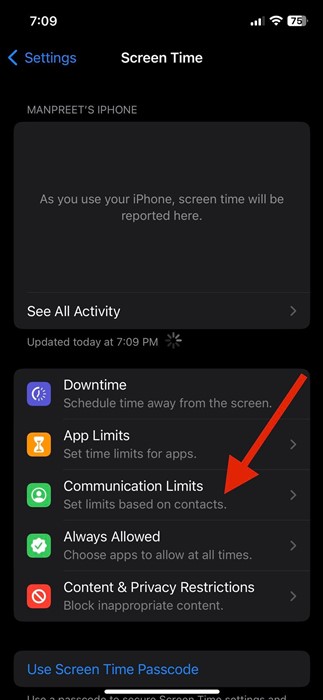
2. Tap Communication Limits.
3. Tap During Screen Time.
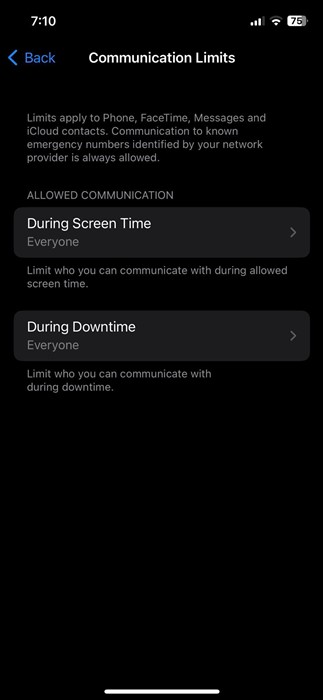
4. From the list of options, select Everyone.

6. Allow Contacts to Call You in Focus Mode
When the Focus Mode is enabled with Do Not Disturb, your iPhone silences all calls and notifications. You can make changes and allow selected people to call you even when Do Not Disturb is turned on.
1. Open the Settings app on your iPhone and select Focus.
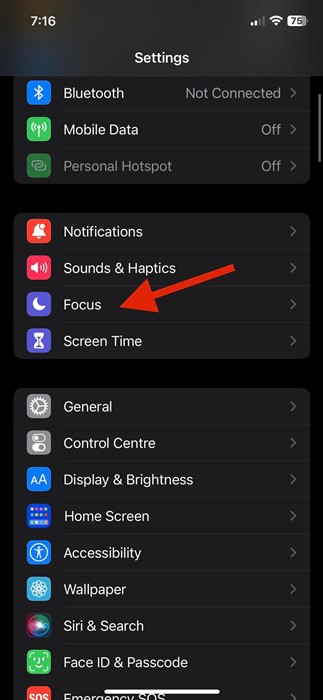
2. Select Do Not Disturb.

3. On the Do Not Disturb screen, tap People.
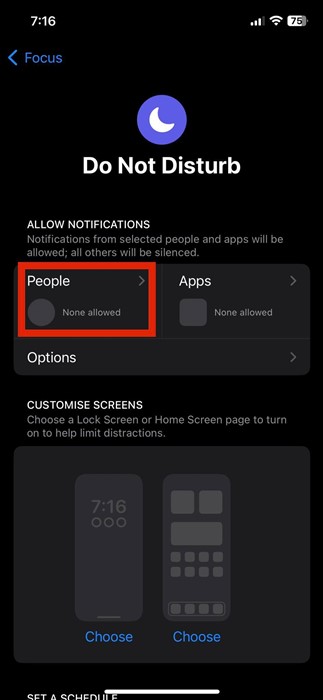
4. Select Allow Notifications From and tap on the (+) to add contacts.
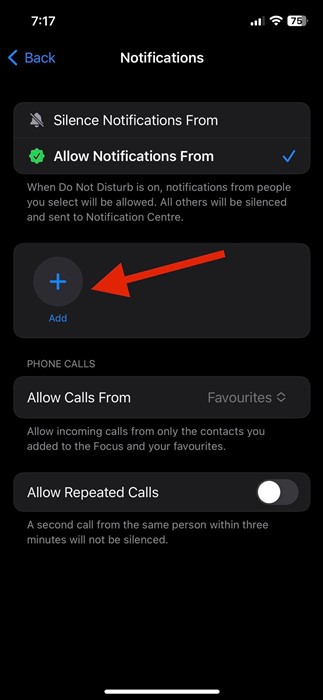
Add all contacts whose calls you want to receive when the Do Not Disturb mode is turned on.
7. Disable Call Forwarding on iPhone
iPhone also has a call forwarding feature that allows you to forward calls to another number or mailboxes. So, you should rule out the possibility of call forwarding as well.
1. Open the Settings app on your iPhone and select Phone.
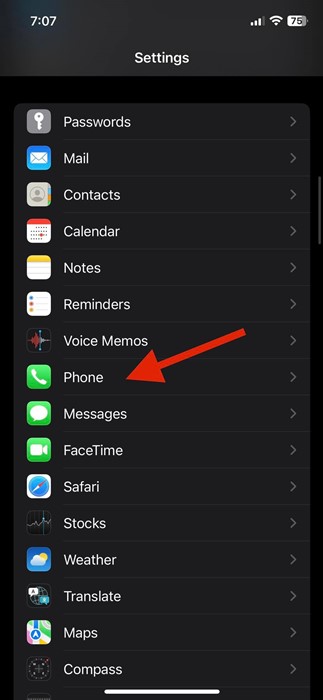
2. Scroll down and tap Call Forwarding.
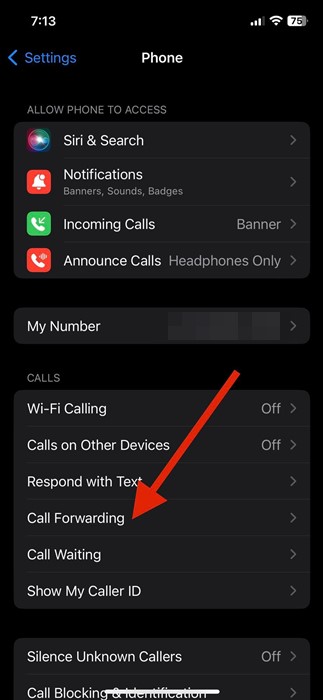
3. Turn off the toggle beside Call Forwarding.

8. Disconnect the Bluetooth Devices
If your iPhone is connected to a Bluetooth device, regardless of what you do, you won’t hear any sound for incoming calls. This is because the call notifications were transferred to your connected Bluetooth device. You need to check whether any Bluetooth device, especially a headset, is connected to your iPhone.
1. Open the Control Center on your iPhone.
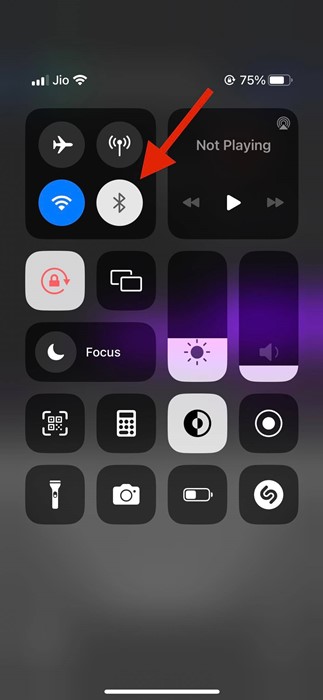
2. Tap on the Bluetooth icon to turn it off.

3. To check the connected Bluetooth device, press the Bluetooth icon.
You can unsilence calls on your iPhone by disconnecting the Bluetooth devices.
Also read: How to Merge Duplicate Photos on iPhone
These are the best and simplest methods to unsilence calls on an iPhone. If you need more help in unsilencing iPhone calls, let us know in the comments below.