If you’re an office worker or use your PC for accounting purposes, you may want the NUM Lock key to always be enabled. You can make some changes to the system to permanently enable the Num Lock. Here’s what you need to do.
1. Turn Off the Fast Startup
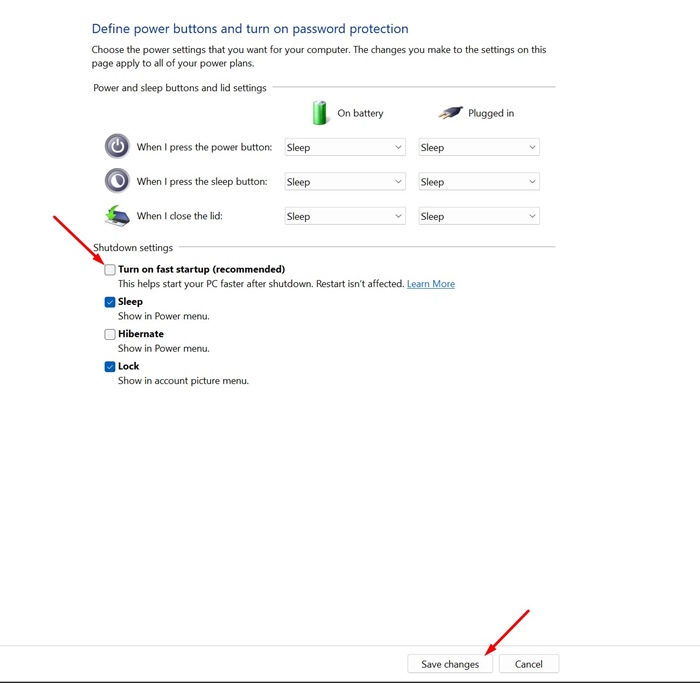
You should turn off Windows 11’s Fast Startup feature to retain your Num Lock Preference.
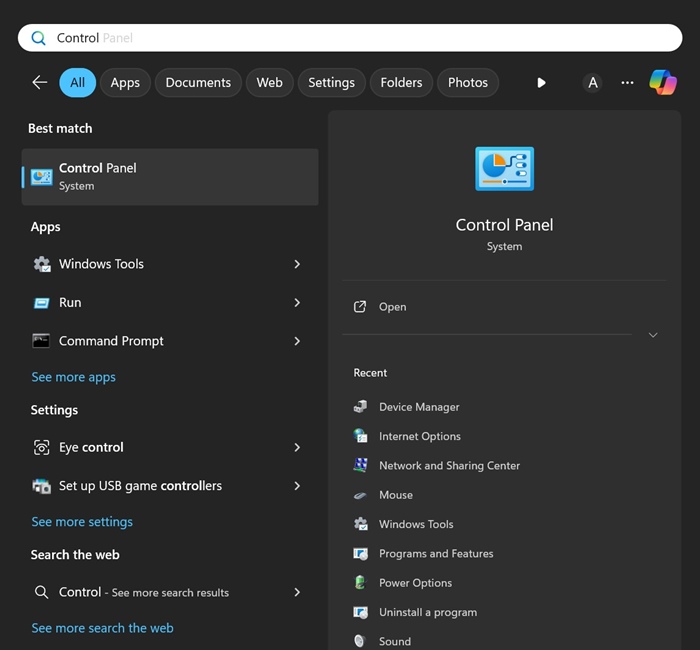
1. Open the Control Panel from the Windows Search.
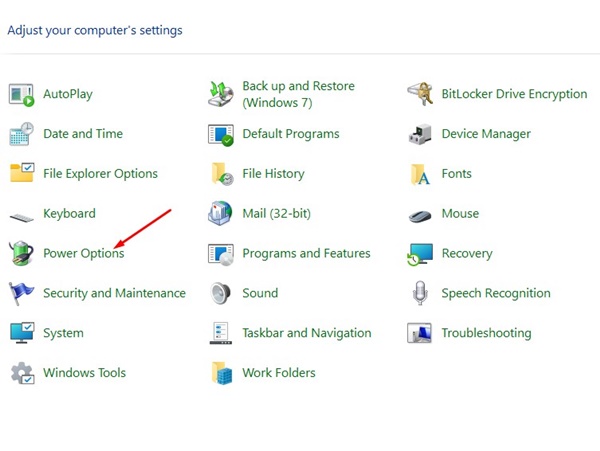
2. Click Power Options.
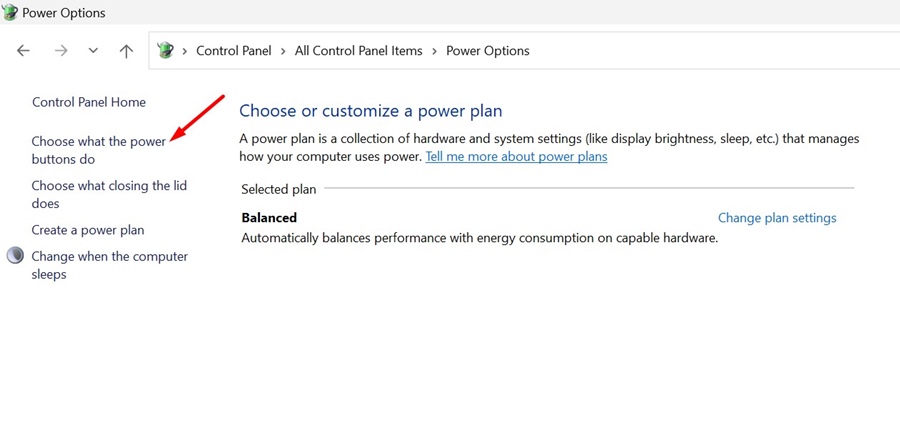
3. Click Choose what the power buttons do.
4. Click Change Settings that are currently unavailable.
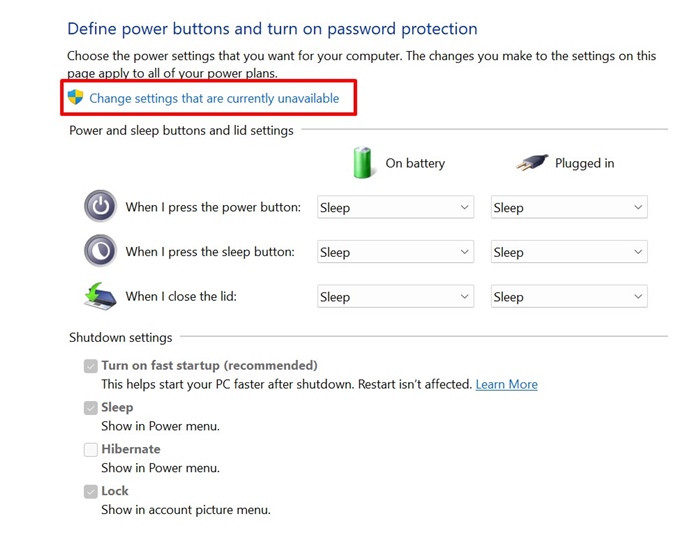
5. Uncheck the Turn on fast startup (recommended) option and click Save Changes.
2. Modify the Registry to Keep NUM Lock Enabled
If you don’t want to turn off the Fast Startup option, you can permanently enable Num Lock by modifying the Registry file.
Note: Make sure to back up the Registry files before making changes to them.
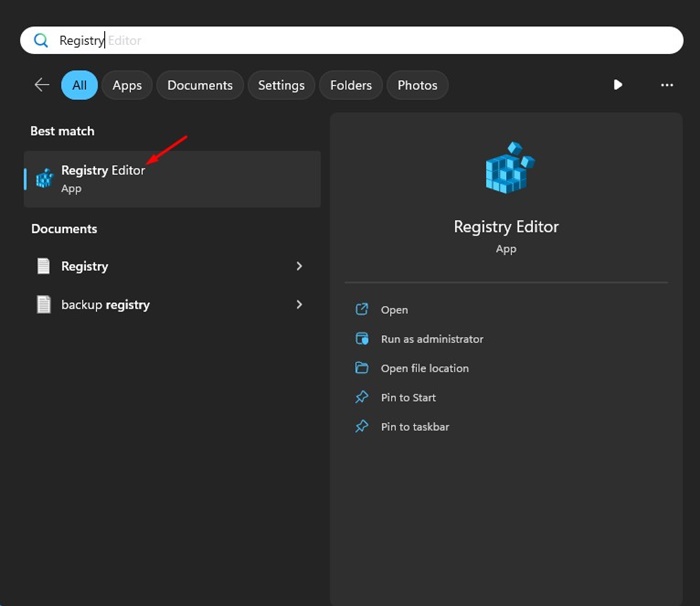
1. Open the Registry Editor from the Windows Search.
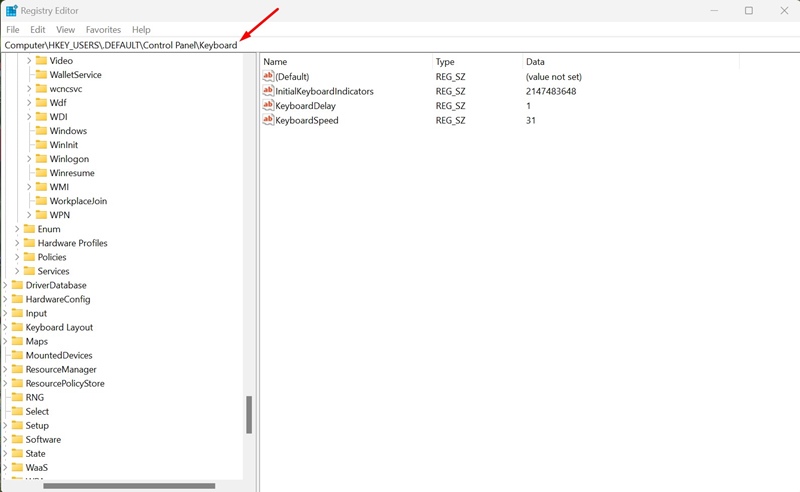
2. Navigate to this path:
Computer\HKEY_USERS\.DEFAULT\Control Panel\Keyboard
3. Double-click InitialKeyboardIndicators.
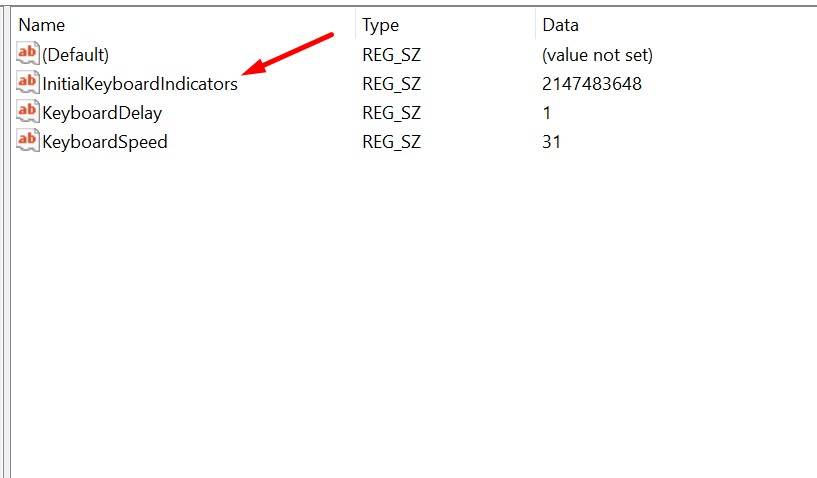
4. In the Value Data field, type 2 and click OK.
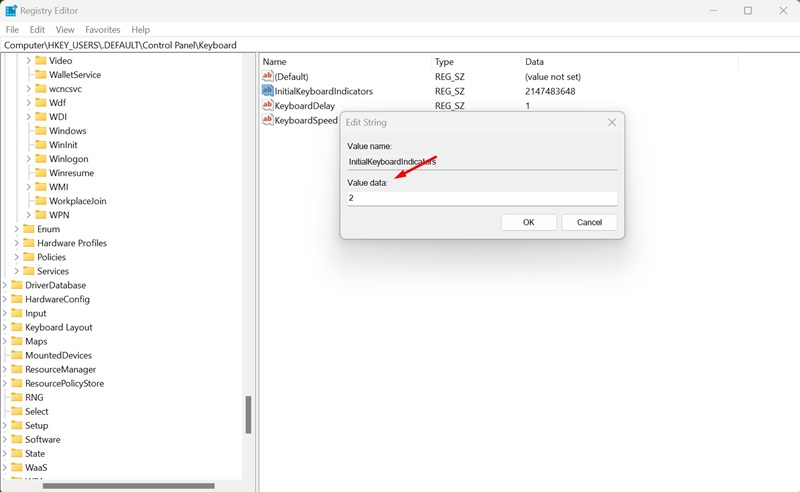
Restart your Windows 11 PC. Your Num Lock key will be enabled all the time from now on.
3. Create a Script to Keep Num Lock Permanently Enabled
You can also create a script and set it to run automatically at Startup. This will always keep the Num Lock enabled.
1. Open Notepad on your Windows 11 PC.
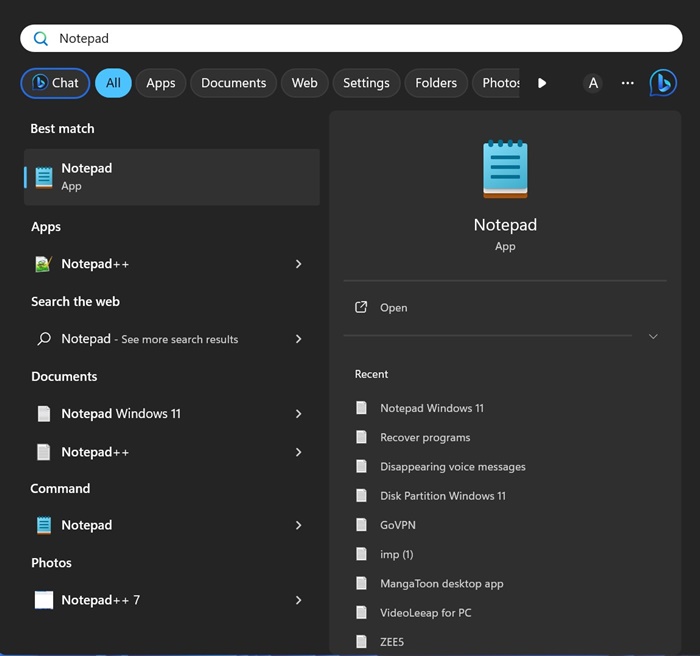
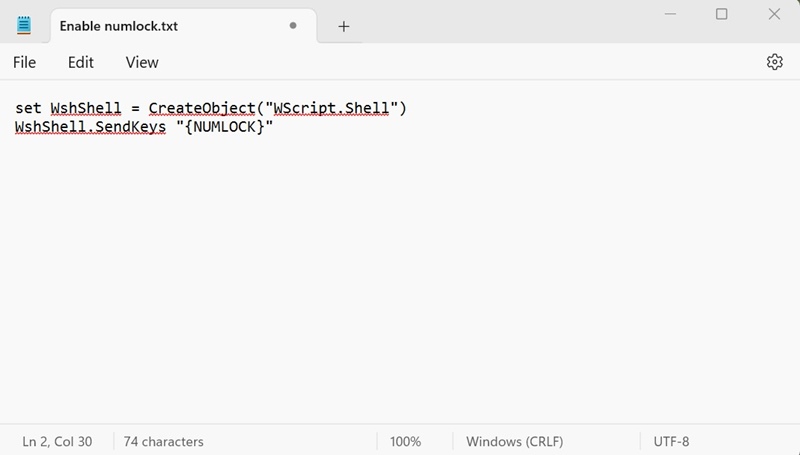
2. Paste the given script into it:
set WshShell = CreateObject("WScript.Shell")
WshShell.SendKeys "{NUMLOCK}"
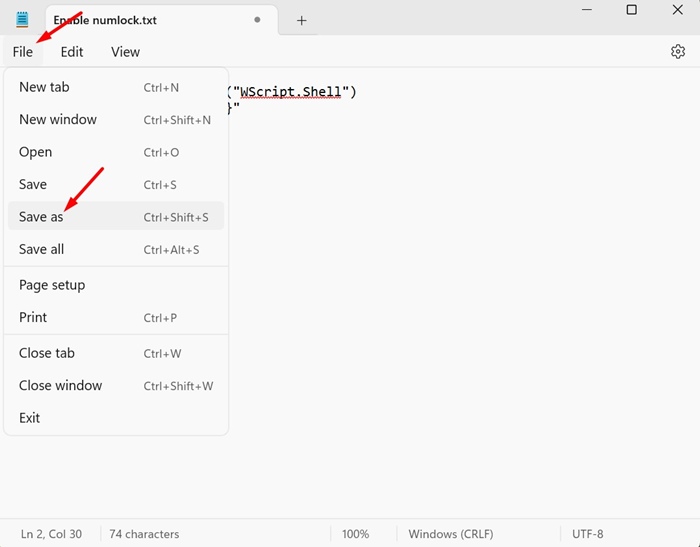
3. Click on File and select Save As.
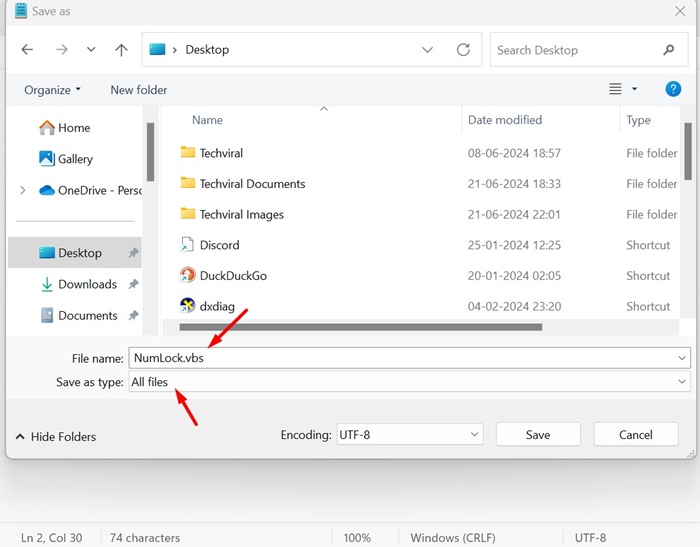
4. On the Save As Prompt, save the file with any name with the .vbs extension. Also, make sure ‘All files’ is selected in the Save as type.
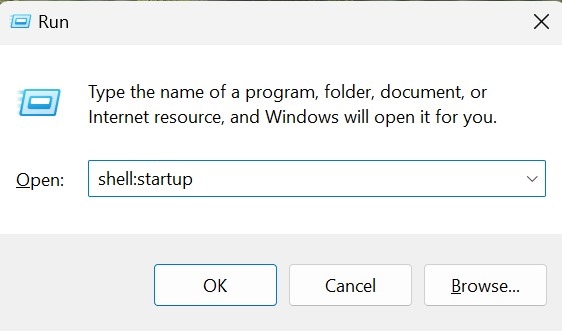
5. Copy the .vbs file you’ve created and open the File Explorer. In the File Explorer, paste shell:startup in the Address bar and press Enter. Alternatively, press Windows Key + R and in the RUN dialog box, type the same address and press Enter.
6. Paste the .vbs file you’ve created.
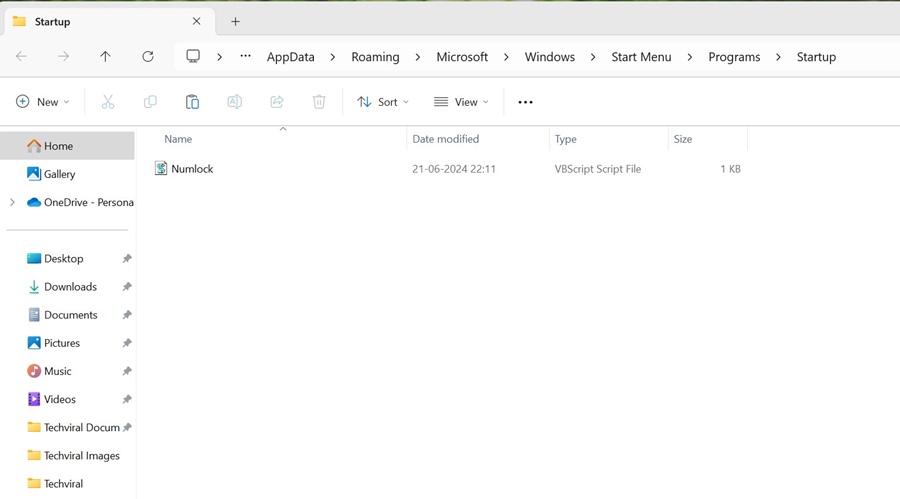
After every restart or shutdown, the .vbs file will run automatically and keep the Num Lock enabled.
These are a few simple methods to keep the Num Lock enabled all the time on a Windows 11 PC. If you need more help with this topic, let us know in the comments.