Windows 11 lets you share your computer with others, and each user can have an account to keep their settings, files, and apps separate. However, if someone forgets to sign out, their data will remain loaded into the system.
So, before starting a new session, you should sign out other users on Windows 11. Here are the best ways to do it.
1. Sign Out Other Users from the Task Manager
We will use Windows 11’s built-in Task Manager utility to sign out other users.
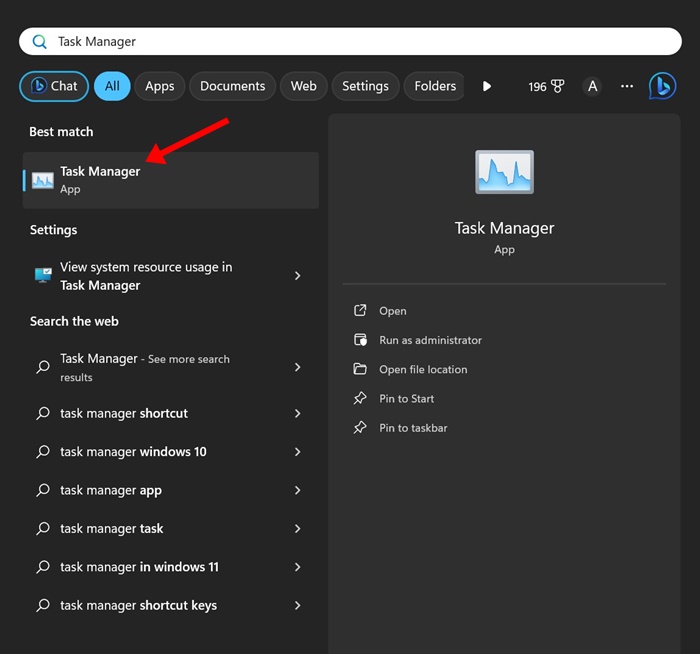
1. Type Task Manager in the Windows 11 Search and open it.
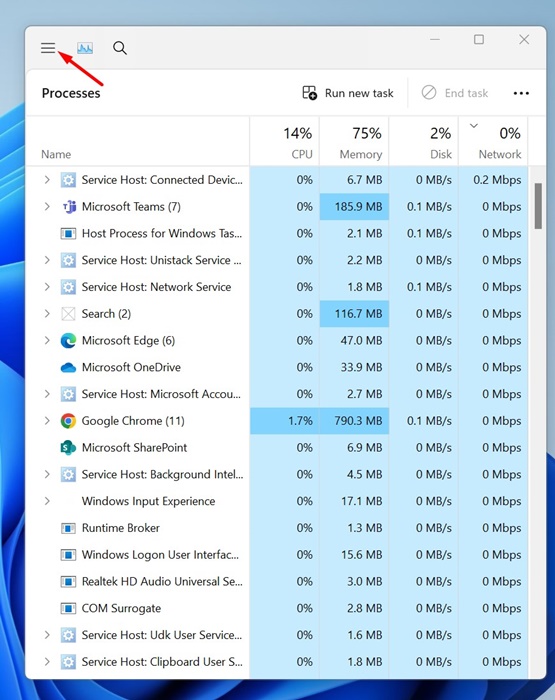
2. Click on the Navigation menu at the top left corner.
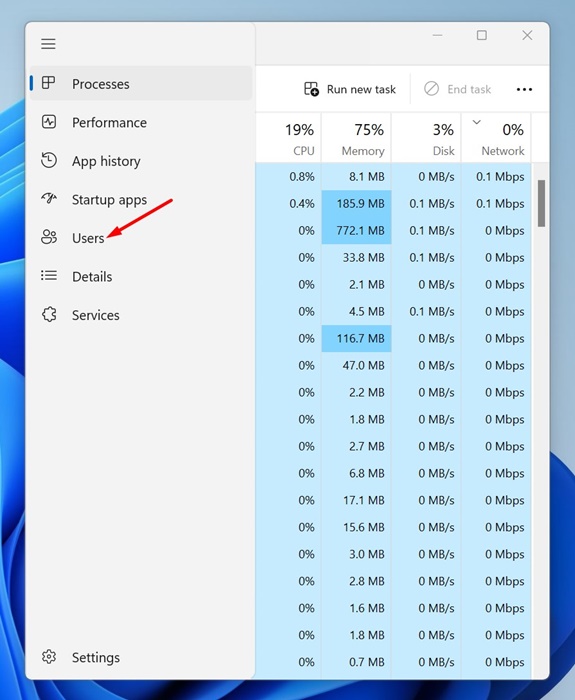
3. Switch to Users.
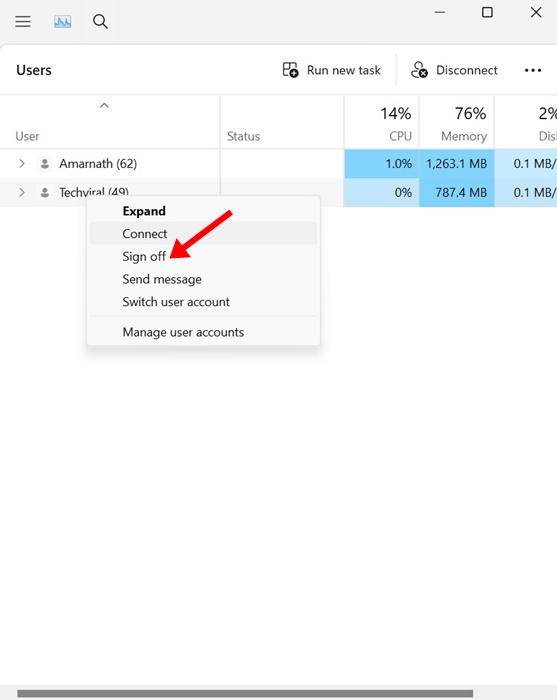
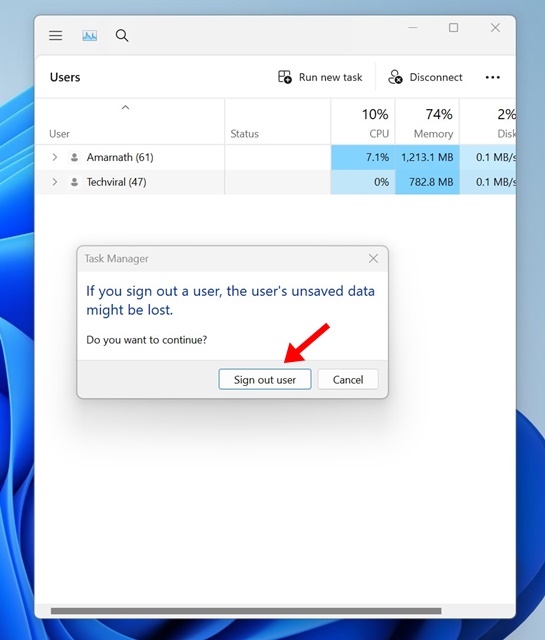
4. Right-click on the user account to which you want to sign out and select Sign off.
5. Click Sign out user.
2. Sign Out Other Users on Windows 11 Using Command Prompt
You can use the Command Prompt utility to sign out other users on Windows 11 computers.
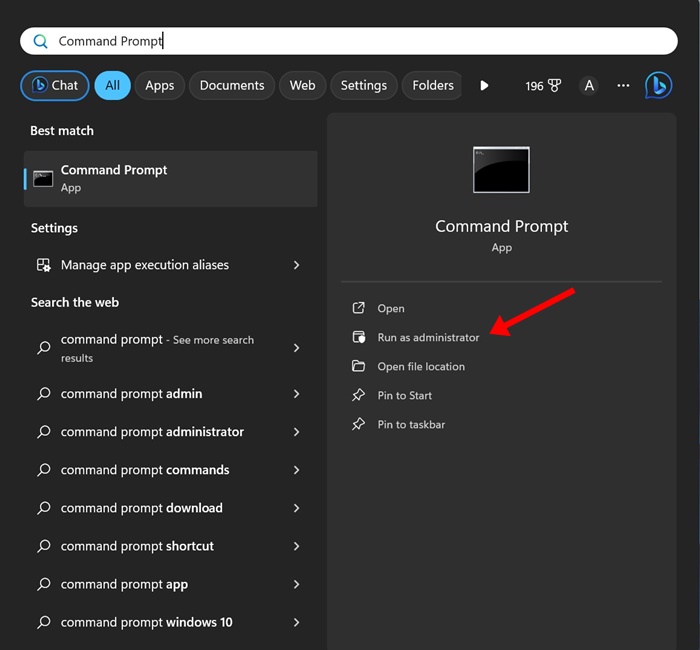
1. Type in Command Prompt on the Windows 11 Search. Next, right-click on the Command Prompt and select Run as administrator.
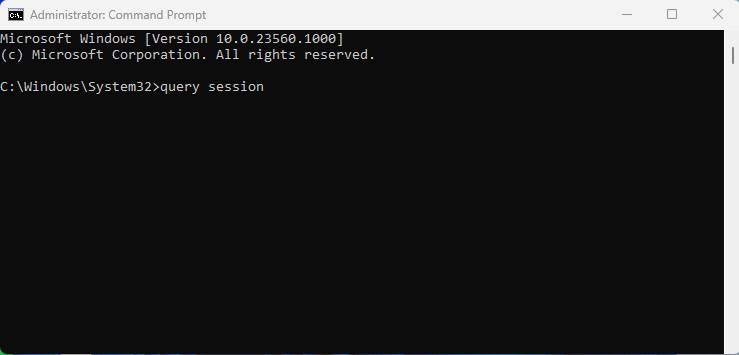
2. Execute the command to check all signed-in users.
query session
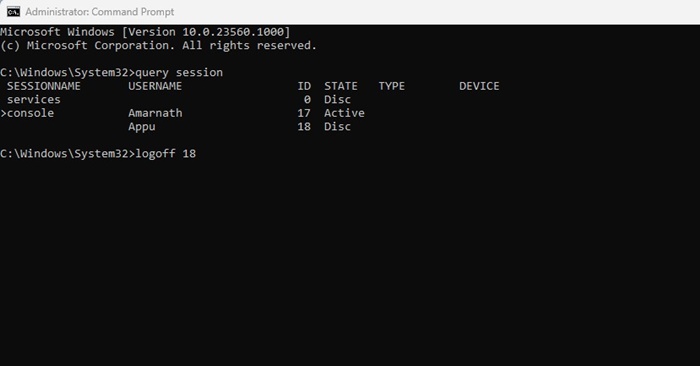
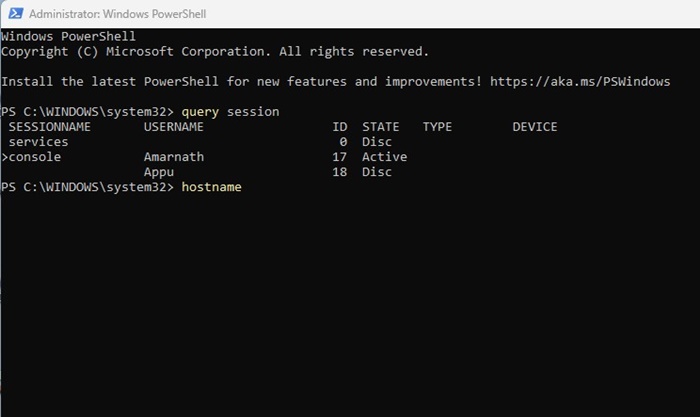
3. You will see all signed-in users on Windows 11. Note the ID number associated with the account you want to log off.
4. Execute this command to sign out the user account:
logoff ID-Number
Important: Replace ID-Number with the number associated with the user account.
3. Sign out other users on Windows 11 using PowerShell
You can even use the PowerShell utility to sign out other users on Windows 11.
1. Type PowerShell in the Windows 11 search. Right-click on PowerShell and select Run as administrator.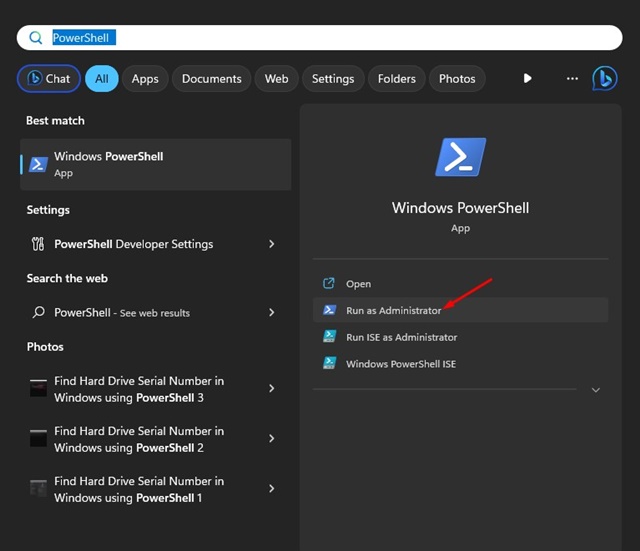
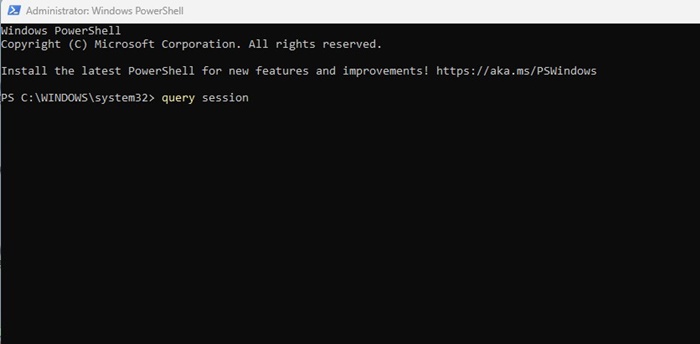
2. Execute this command:
query session
3. Execute the given command to get the name of your computer:
hostname
4. Execute this command by replacing ‘Computer_Name’ with the hostname and ‘User_Name’ with the user you want to sign out:
$sessionID = ((quser /server:'Computer_Name' | Where-Object { $_ -match 'User_Name' }) -split ' +')[2]
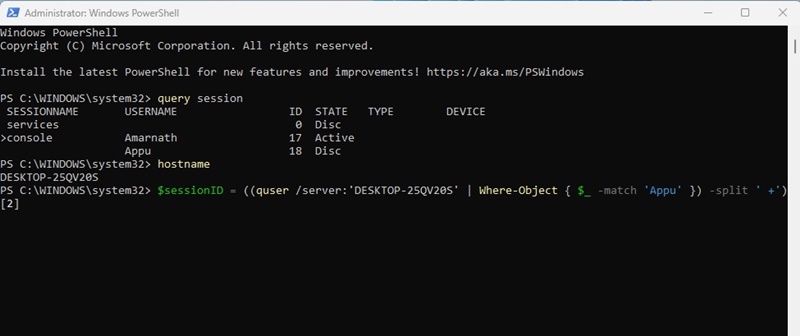
Important: Replace ‘Computer_Name’ and ‘User_Name’ in the command. For example, the final command would look like this:
$sessionID = ((quser /server:'DESKTOP-25QV20S' | Where-Object { $_ -match 'Appu' }) -split ' +')[2]
These are the best methods to sign out other users on Windows 11 without switching accounts. You can sign out other signed-in users using these methods whenever you want to free up system resources.