Even though the Always-On display is a great feature, you may still want to remove it for a specific reason. First, if your iPhone’s battery is degrading, having this feature turned on all the time will lead to faster battery drain.
You may also want to get rid of the Always-On Display to keep your notifications private. Whatever the reason is, the feature can be disabled or customized right from the iPhone Settings.
How do you turn off the Always-On Display on an iPhone?
It’s super easy to turn off the Always-On Display on your iPhone. Here are the steps you should follow.
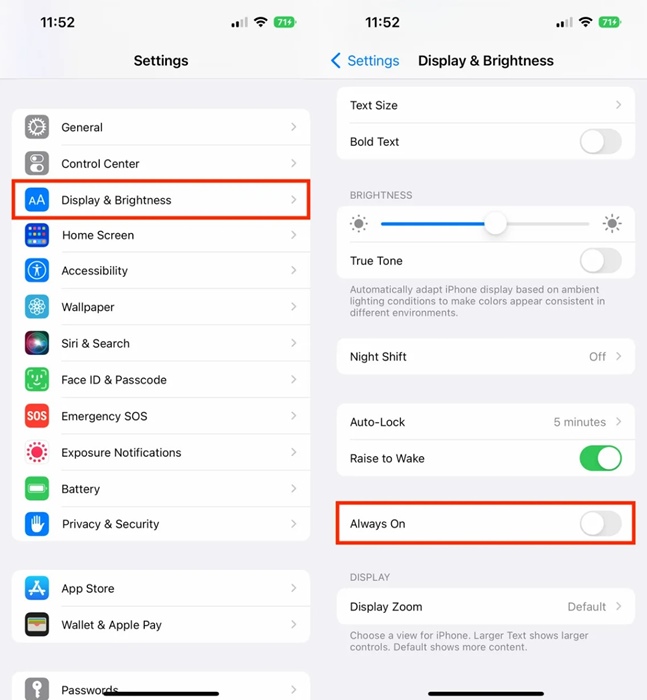
1. Launch the Settings app on your iPhone.
2. When the Settings app opens, tap on Display & Brightness.
3. On the Display & Brightness screen, scroll down a bit and find Always On. Simply turn off the toggle next to it.
How do you customize the Always On Display on iPhone?
If you don’t want to turn off the Always On Display, you can customize it to show one or both of your notifications and wallpapers.
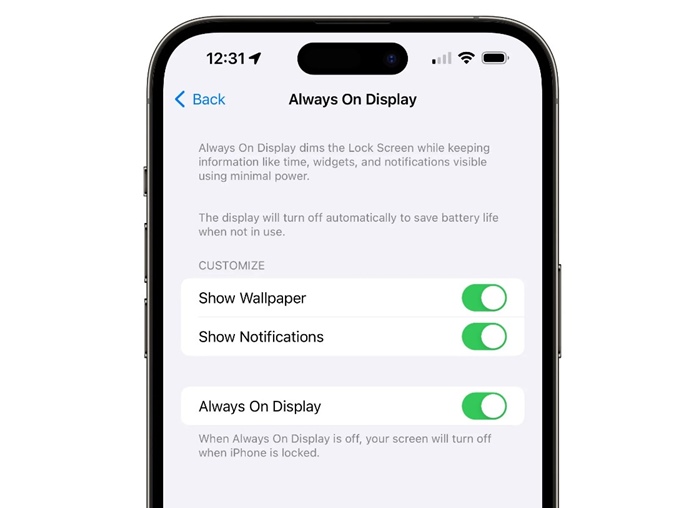
1. Launch the Settings app on your iPhone.
2. When the Settings app opens, tap on Always On Display.
3. Turn on or off any of the customization options, like ‘Show Wallpaper’ or ‘Show Notifications’.
This guide explains what Always On Display (AOD) is on iPhones and how you can turn it off. Let us know if you need more help with this topic in the comments.