There are two different ways to unhide apps on your iPhone; if you have locked an app using Face ID, you will have to unlock it and then unhide it. Alternatively, you can hide the apps without locking them using the App ID.
How to Access Hidden Apps on iPhone?
If you want to access the hidden apps, not unhide them, follow these steps.
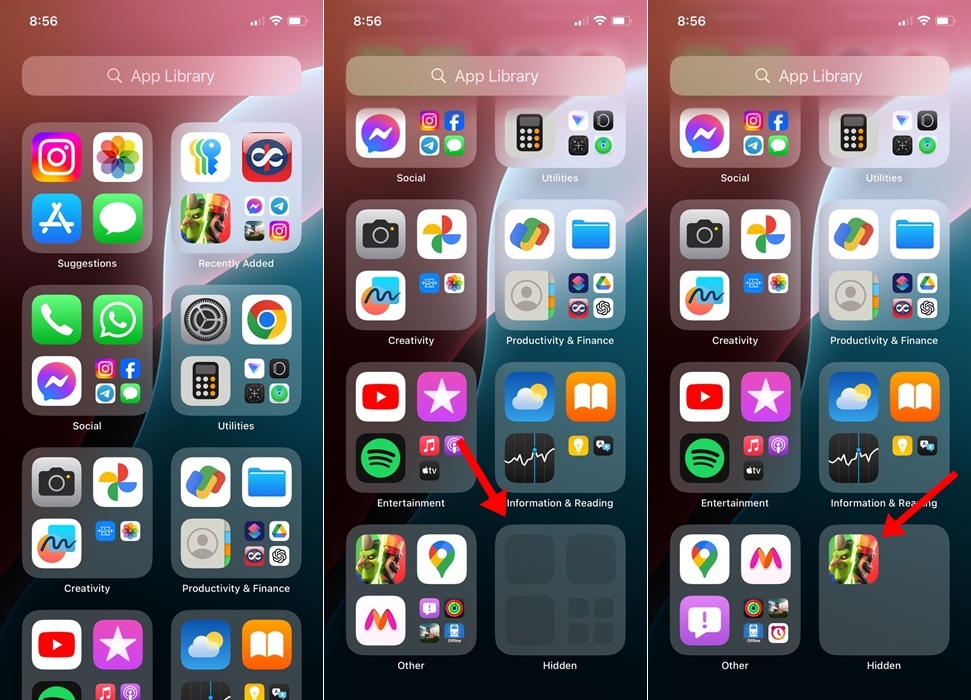
- Move to the home screen of your iPhone.
- From the home screen, swipe left past all pages.
- On the App Library, scroll down to the bottom.
- You will find the Hidden Folder.
- Tap the Hidden folder and authenticate using your Face ID.
This will show all apps that you’ve hidden on your iPhone. But this won’t unhide or unlock the app.
How to Unhide Apps on iPhone?
After accessing the hidden apps, if you wish to unhide some of them, follow these steps.
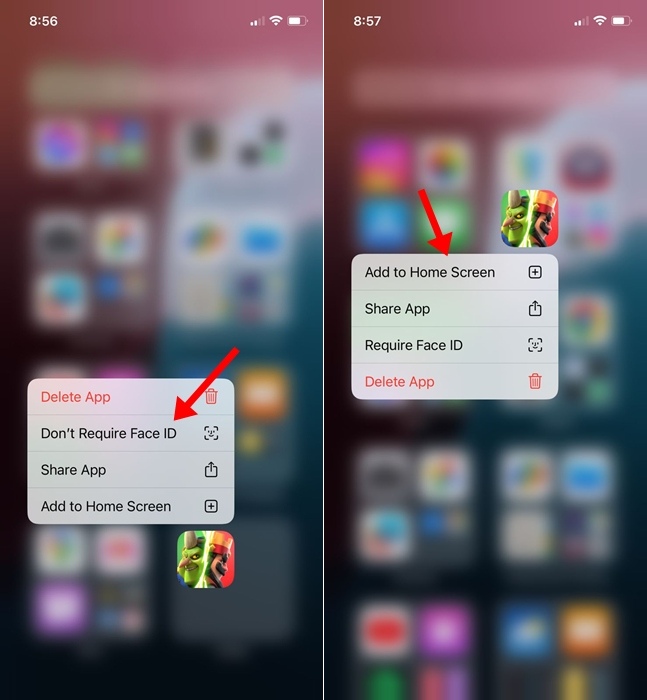
- Move to the home screen and swipe left past all the pages to reach the App Library.
- Scroll to the bottom and tap Hidden Folder.
- Unlock the Hidden folder.
- Long-press the apps that you wish to unhide.
- On the menu that appears, select Don’t Require Face ID.
- Access the Recently Added folder in the App Library.
- Find the app that you’ve unhidden. Long-press the app icon and select Add to Home Screen.
This will unhide the app and bring its icon back to your iPhone’s home screen.
iPhone users have always wished for the ability to hide apps. With this addition, users don’t need to rely on third-party app hiders or app lockers anymore. If you need more help unhiding apps on your iPhone, let us know in the comments.