
You may have to update the existing drivers for specific reasons. There are several ways to update drivers on Windows 11; here are a few.
1. Update Windows 11
One of the best and safest ways to update drivers on Windows 11 is to update the operating system version. Windows 11 automatically takes care of your missing drivers during the update procedure.
1. Click on the Windows 11 Start Button and select Settings.
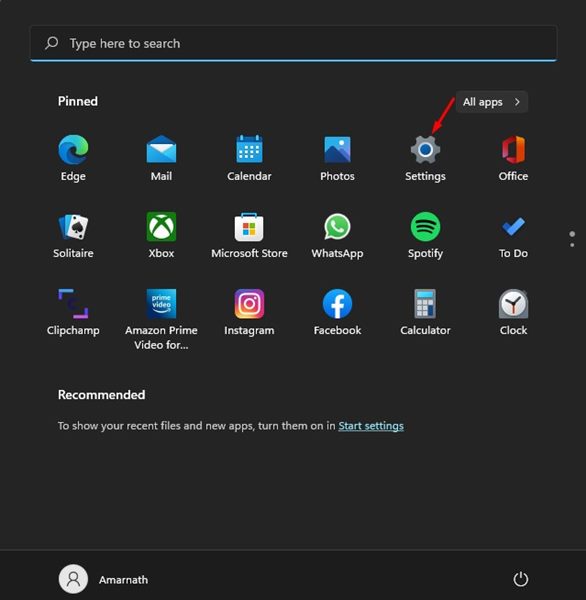
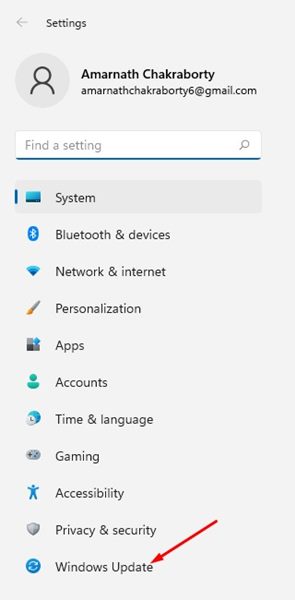
2. Switch to the Windows Update.
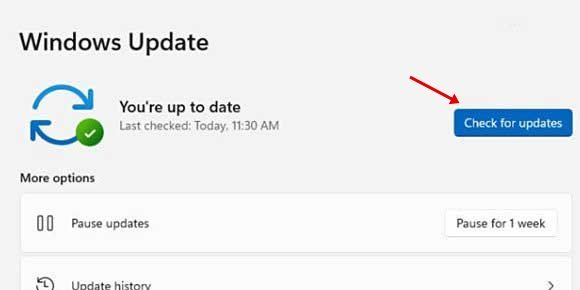
3. Click Check for Updates.
2. Manually install the Driver Updates from the Optional Updates
You get an option to install only the optional updates; you can explore the settings and manually select the driver updates. This way, Windows updates will only download and install the driver updates.
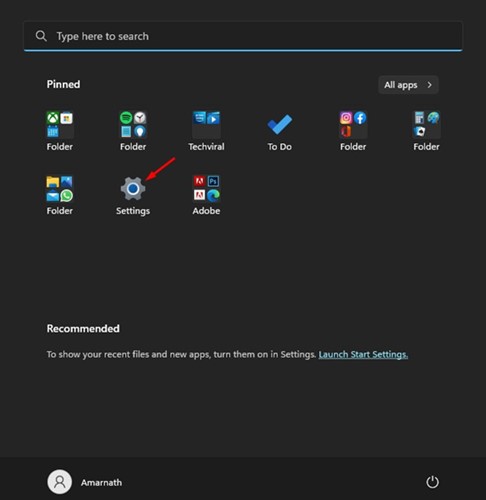
1. Click the Windows 11 Start button and select Settings.
2. Click Windows Update.
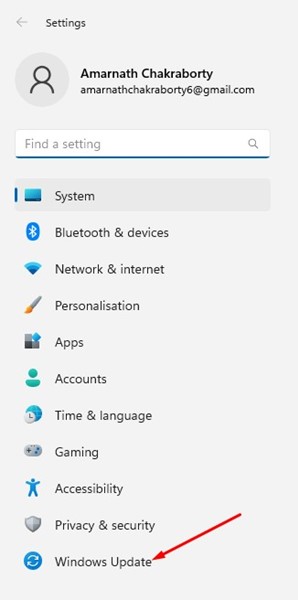
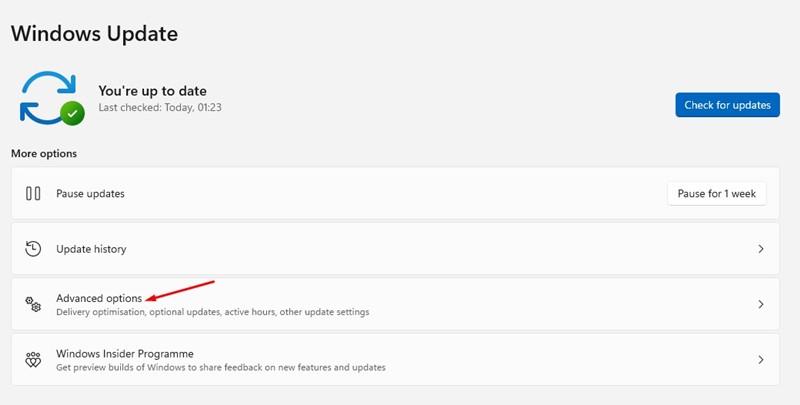
3. Scroll down and click on Advanced Options.
4. Click on Optional updates under the Additional Options section in Advanced Options.
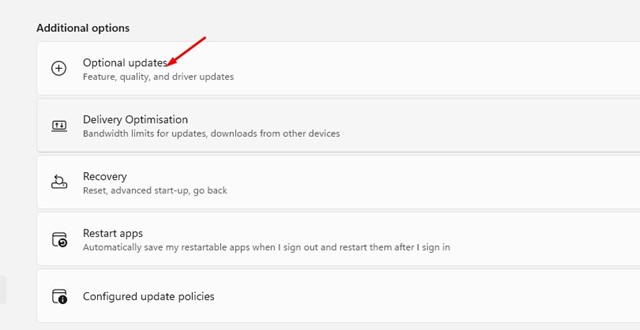
5. On the Optional updates screen, expand the Driver Updates.
6. Select the drivers you want to install and click the Download & Install button.
3. Update Drivers via Device Manager
You can also update drivers using the Device Manager utility on Windows 11. Here’s how to do so.
1. Open Device Manager from the Windows 11 Search.
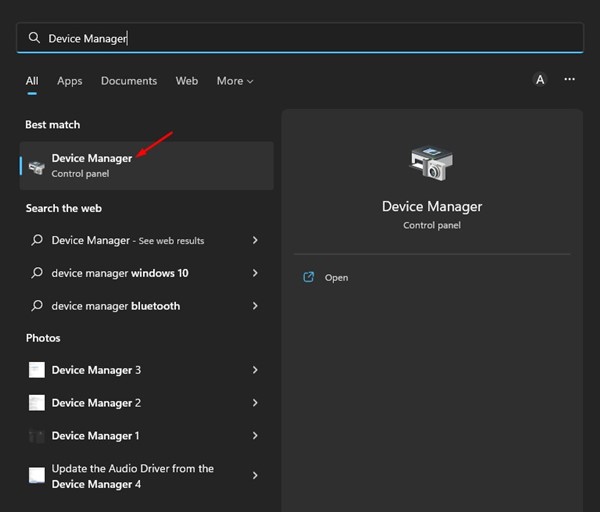
2. Expand the device you want to update in Device Manager. Now select the device and click on Update Driver.
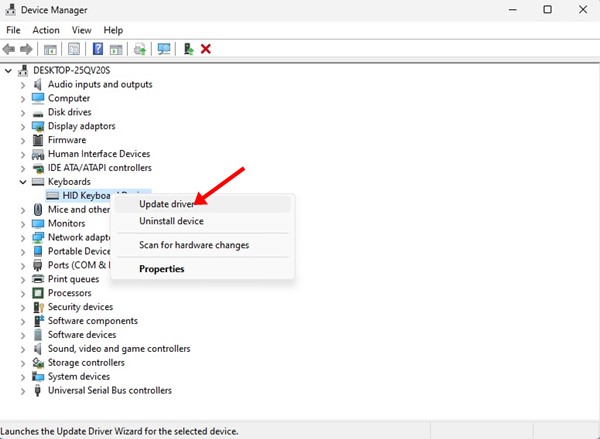
3. On the Update Driver Window, you will find two options:
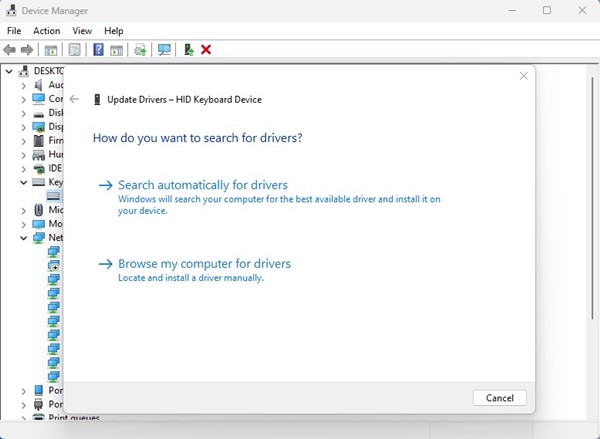
- Search Automatically for Drivers: Pick this option if you want Windows 11 to download & install the drivers automatically.
- Browse my computer for drivers: Pick this option if you install the driver manually.
4. Choose the first option if you want Windows 11 to download and install the latest version of the driver automatically.
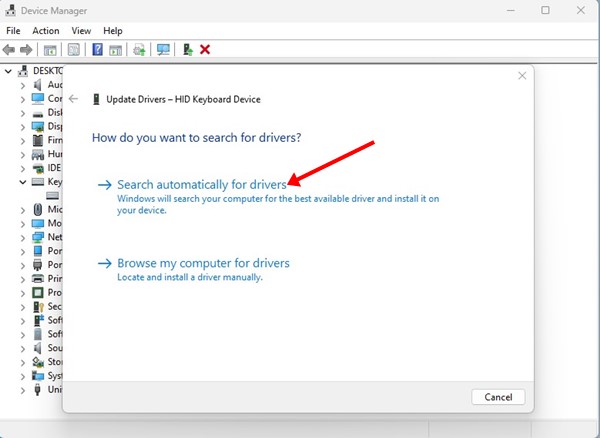
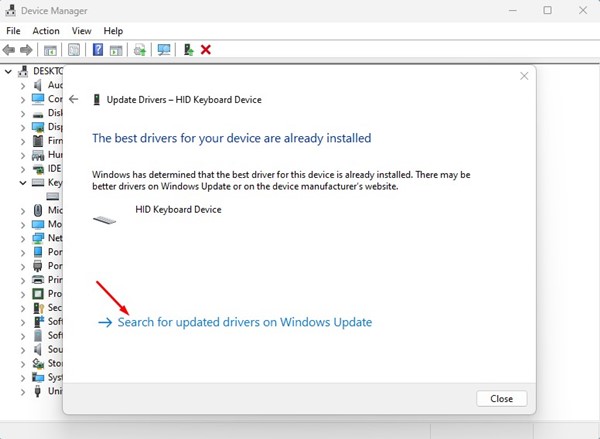
5. If you see the screen telling you, ‘The best driver for your device is already installed, ‘ select Search for updated drivers on Windows Update.
6. If you have selected the second option, ‘Browse your computer for drivers’, pick the driver you want to install or choose Let me pick from a list of available drivers on my computer.
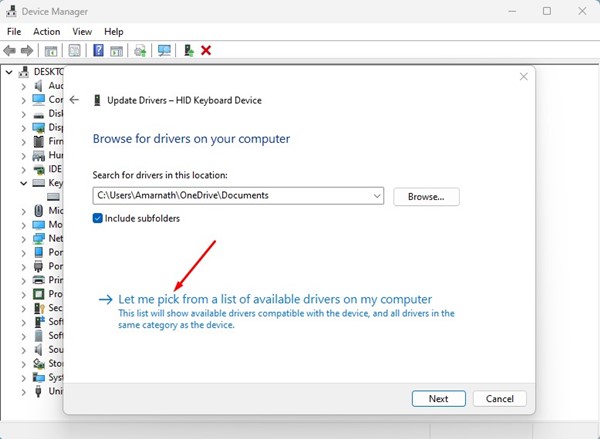
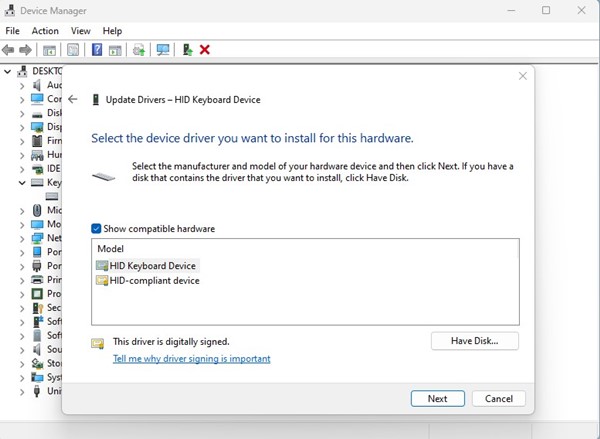
7. Windows 11 will display the compatible drivers available on your computer. If you want to install that driver, select it and click on the Next button.
4. Update Drivers from the Official Websites
Another way to update drivers on Windows 11 is to download them from the official site and install them manually.
For example, if you have just installed a new sound device (speaker), you can visit its manufacturer’s website and download the appropriate driver.
This is the same for every device connected to your PC, such as a mouse, keyboard, sound card, WiFi card, or GPU.
5. Use Third-party driver updaters for Windows 11
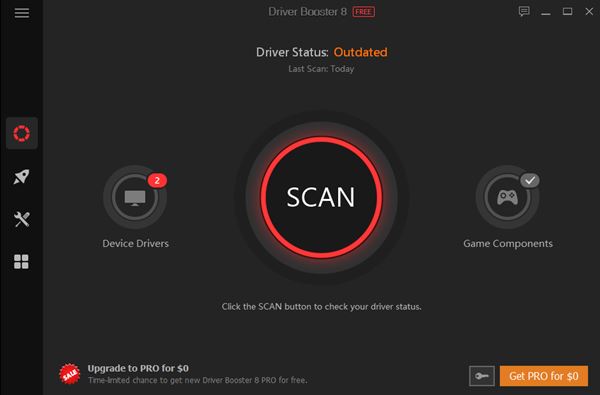 You can use a third-party driver updater to install the latest version of device drivers. However, the drawback of third-party driver updaters is that they try to install adware on your system. So, make sure to download & use a reliable and trusted driver updating tool on Windows 11.
Also read: How to Stop Automatic Updates on Windows 11
These are some of the best ways to update device drivers on Windows 11. If you need more help, let us know in the comments below.