You have an option to restart your iPhone with a shortcut. Not only that, but you can even add a ‘Restart iPhone’ shortcut directly to your iPhone’s control center. Here’s how you can create a restart iPhone Shortcut.
1. Create the Restart Shortcut
The first step is to create your own restart shortcut.
1. Launch the Shortcuts app on your iPhone.
2. Tap the (+) icon.
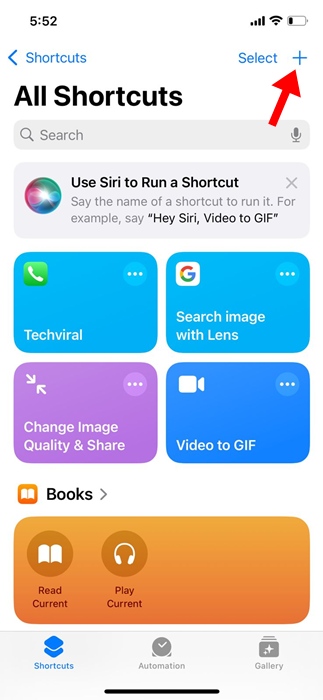
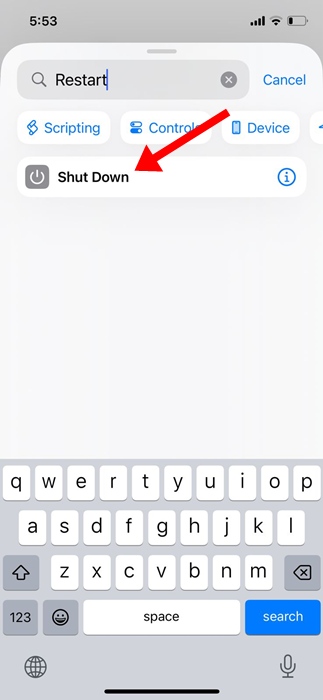
3. Type Restart in the search field and select Shutdown action.
4. Tap the Shutdown action highlighted in Blue.
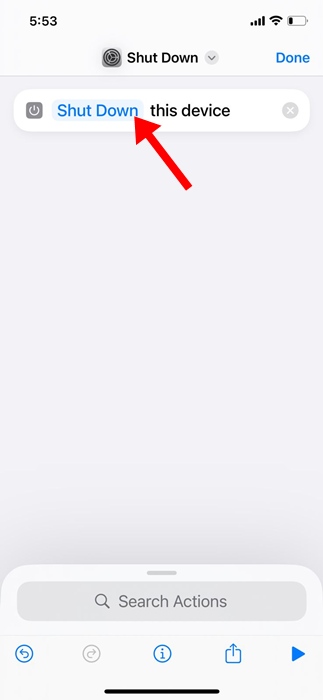
5. Select Restart.
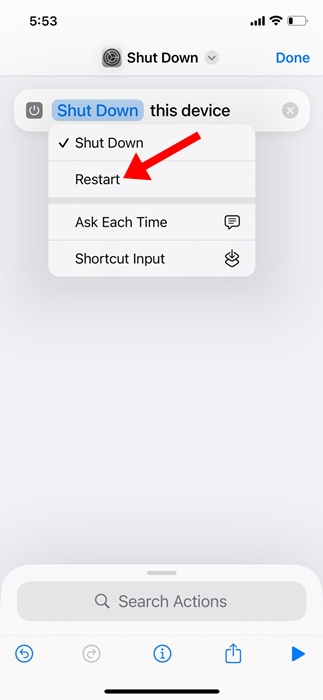
6. You can rename the shortcut. To do that, click on the Shut Down drop-down and select Rename.
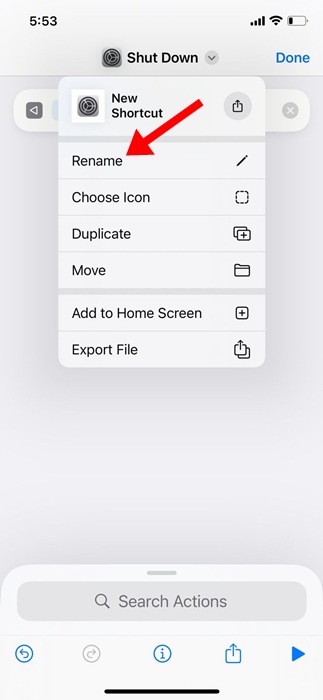
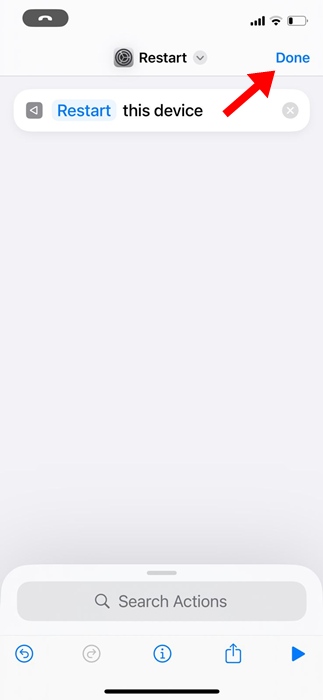
7. Name the new shortcut whatever you want, like Restart or Restart iPhone. To save the new name, tap Done.
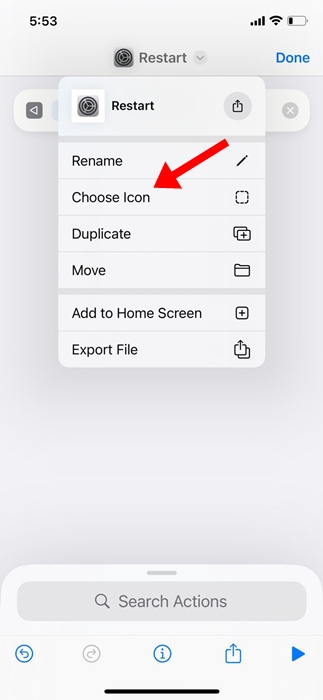
8. You can also add a custom icon to the shortcut. Select Choose Icon.
9. Tap Done at the top right corner.
2. Adding the Restart Shortcut to Control Center
Now that you’ve created a shortcut to restart your iPhone, the next thing you will want to do is add the shortcut to the Control Center. Here’s how to add the shortcut to the Control Center.
1. Open the Control Center on your iPhone.
2. Tap the (+) icon at the top left corner of the screen.
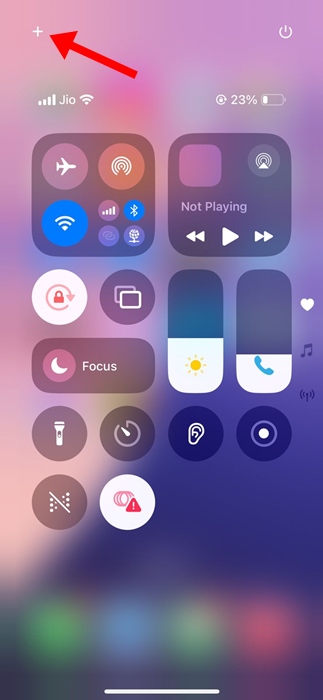
3. Tap Add a Control.
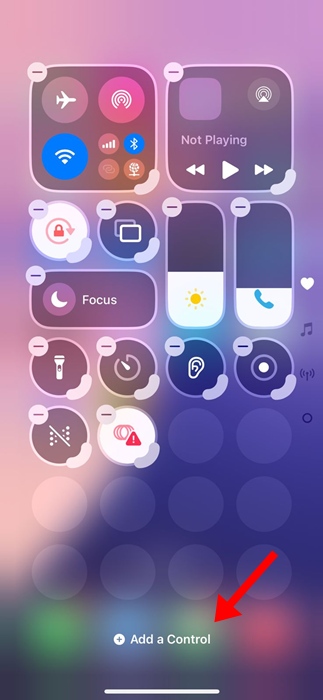
4. Type Shortcut and select it.
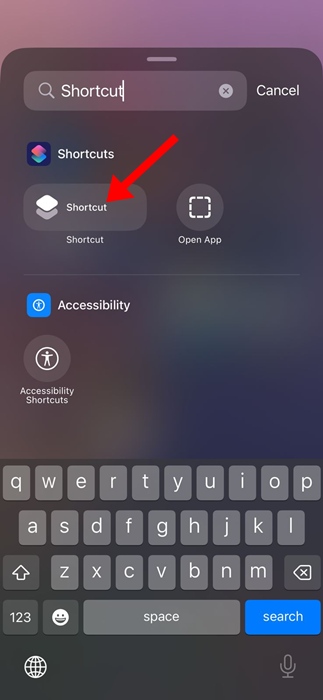
5. Pick the Restart iPhone shortcut that you have created.
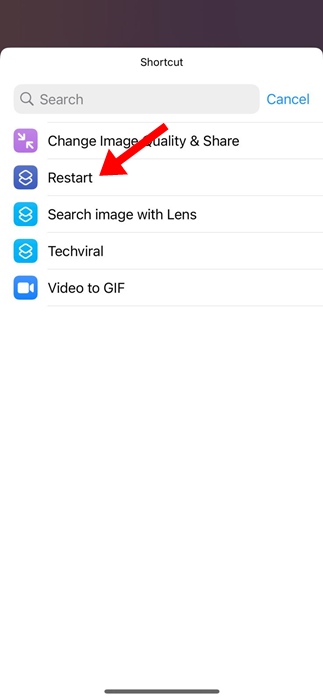
6. The restart shortcut will be added to your Control Center.
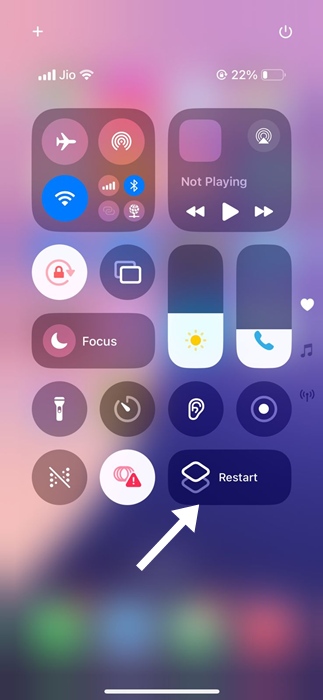
7. Tap the shortcut on the Control Center to open the Restart confirmation dialog.
This article explains how to create a restart shortcut on an iPhone and add it to the Control Center. If you need more help on this topic, let us know in the comments.