Winhance is a third-party tool that’s designed to debloat, optimize, and customize Windows 11 without performing a clean installation. It brings a wide range of options for you, like uninstalling apps, improving system performance, and managing privacy settings – all from one place.
How to Debloat Windows 11 Using Winhance
1. Download & install the Winhance tool on your Windows 11.
2. Once installed, open it.
3. Switch to the Software & Apps.
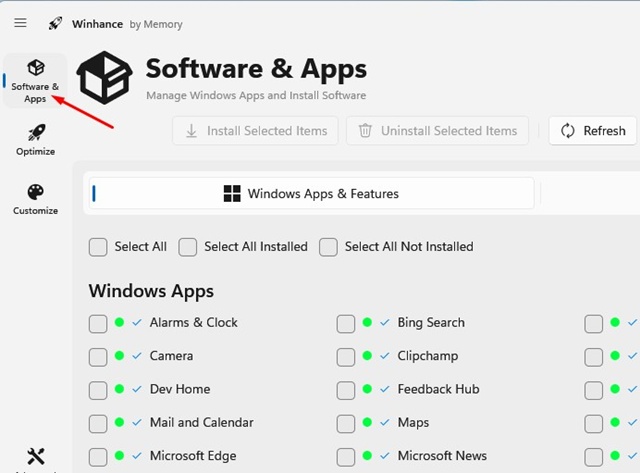
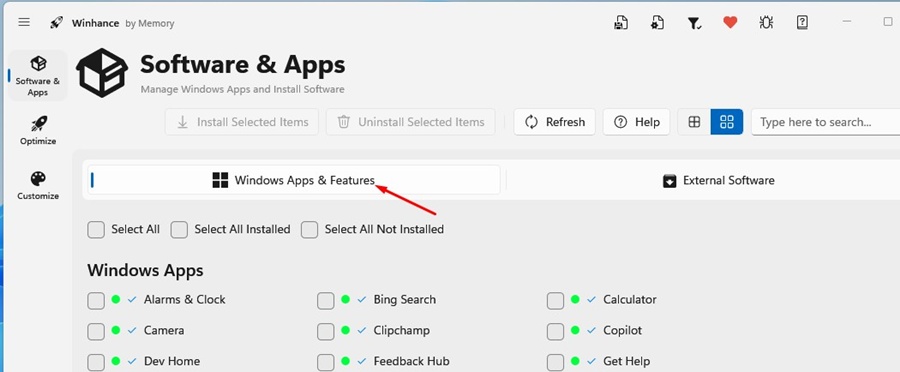
4. Click the Windows Apps & Features tab.
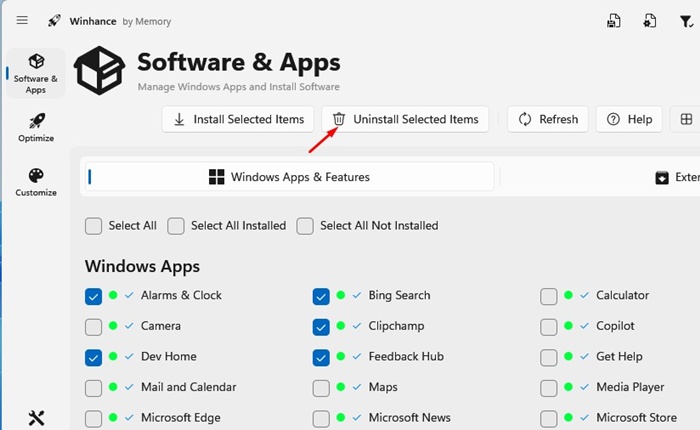
5. Select the bloatware you want to remove and click Uninstall Selected Items.
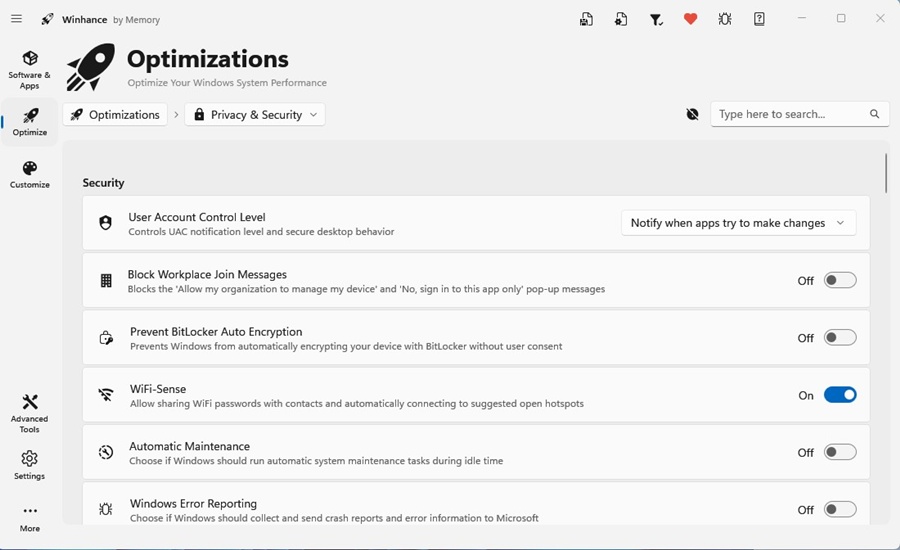
6. Switch to the Optimizations tab and control many other things. You can customize how you use the Account Control feature, disable Remote Assistance, and turn off telemetry collection, etc.
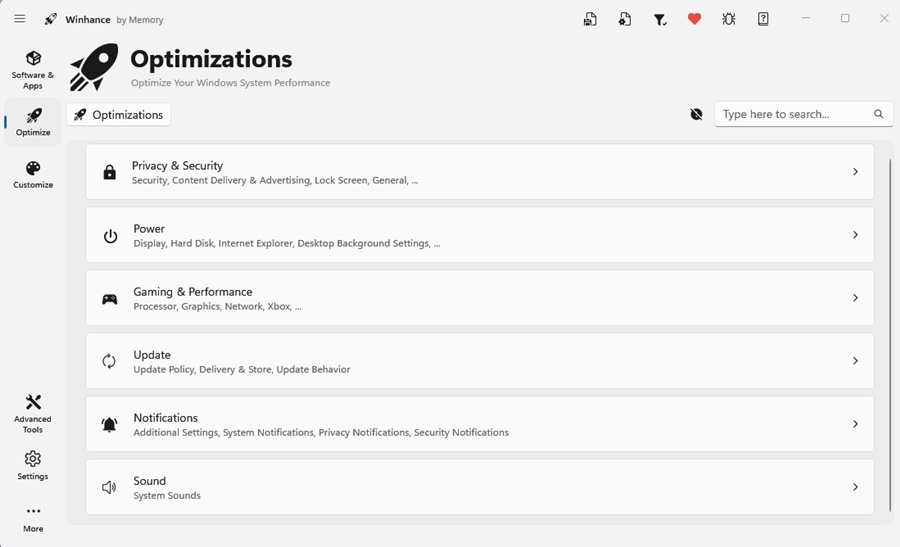
7. Winhance offers plenty of optimization settings, organized into six categories: Privacy & Security, Power, Gaming & Performance, Update, Notifications, and Sound.
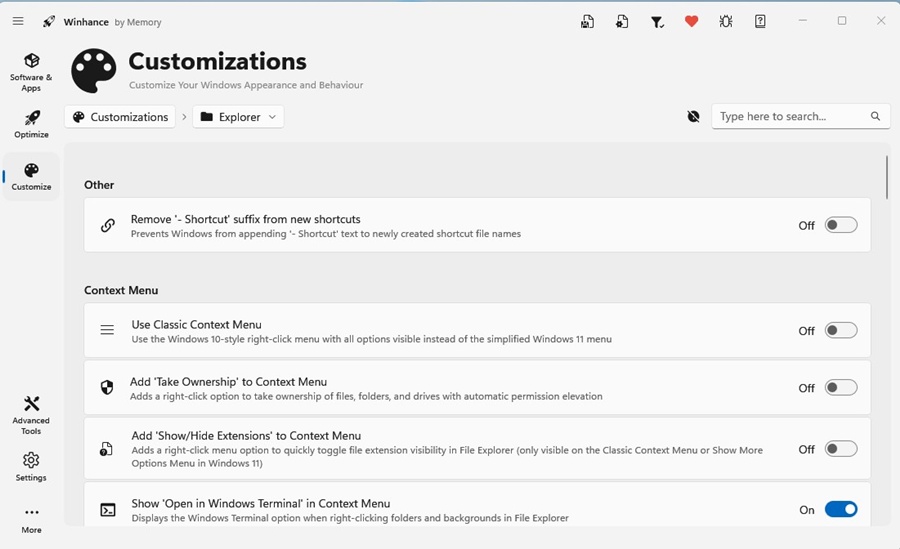
8. Switch to the Customization options and make the changes as per your needs.
Winhance is a free utility that lets you debloat, optimize, and customize Windows 11 as per your needs. You get to manage lots of things from a single panel. So, what’s your take on the new Winhance debloat tool for Windows 11? Let us know in the comments.