The drawback of automatic driver updates is that Windows 11 may install drivers with bugs, which might cause some issues. If you prefer using a specific driver version, you should disable automatic driver updates on Windows 11. Here’s how you can do it.
1. Disable Automatic Driver Updates via System Properties
You can make some changes in Windows 11 System Properties to disable automatic driver updates.
1. Press the Windows Key + R button on your keyboard. This will open the RUN dialog box.
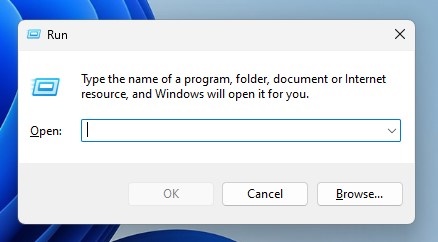
2. Type sysdm.cpl and press Enter.
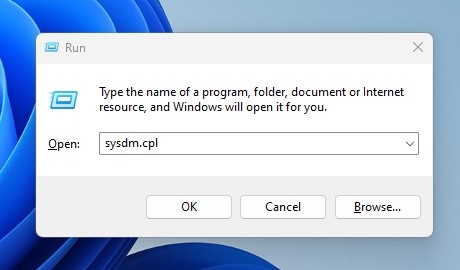
3. Switch to Hardware.
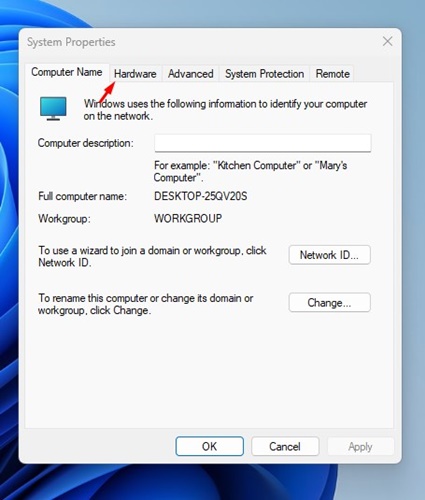
4. Click Device Installation Settings.

5. In the Device installation settings, select No (your device might not work as expected). Click Save Changes.

2. Disable Automatic Driver Updates via Local Group Policy
You can also use the Local Group Policy Editor to enable or disable the automatic driver updates on Windows 11.
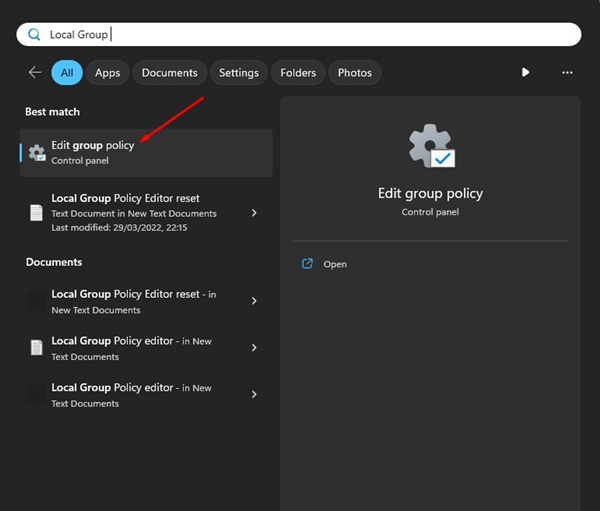
1. Open the Local Group Policy Editor app from the Windows Search.
2. Navigate to this path:
Computer Configuration > Administrative Templates > Windows Components > Windows Update > Manage updates offered from Windows Update.
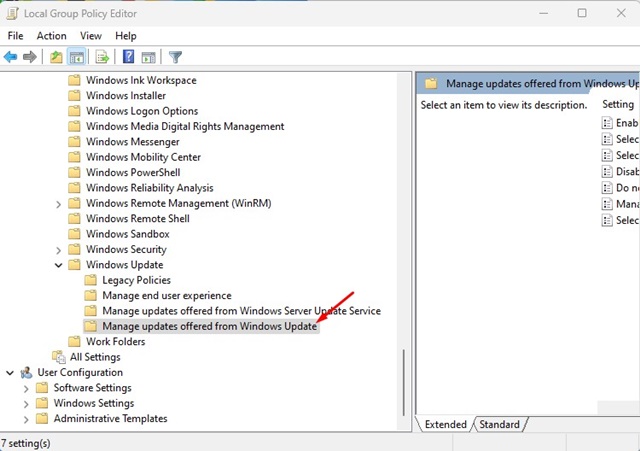
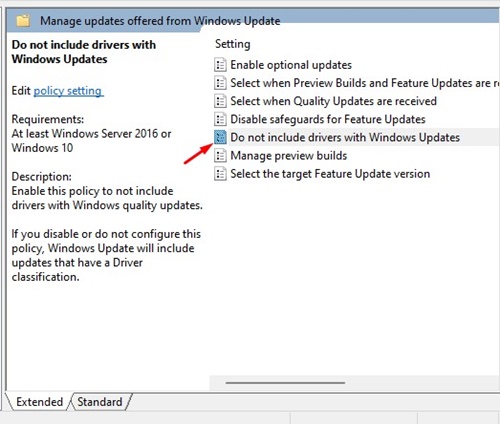
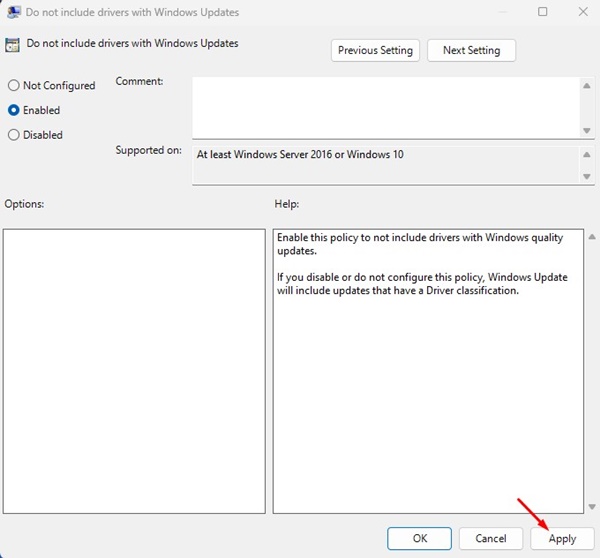
3. Find and double-click on the Do not include drivers with Windows Updates.
4. On the Do not include drivers with Windows Updates dialog box, select Enabled.
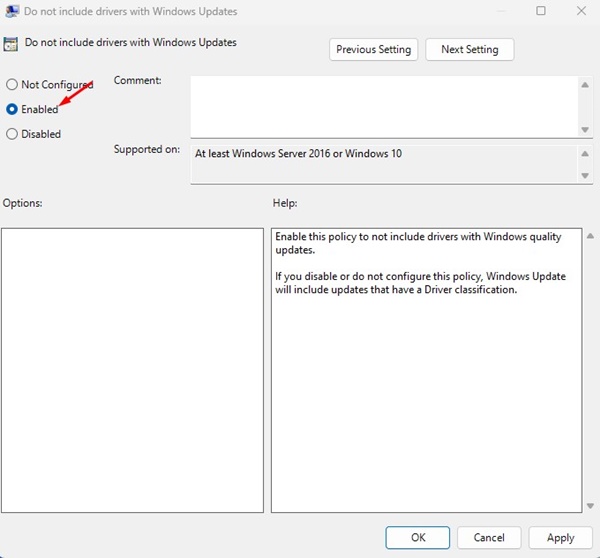
5. Click Apply.
3. Turn Off Automatic Driver Updates via Registry Editor
If you cannot disable automatic driver updates on Windows 11, the next best option is to turn them off.
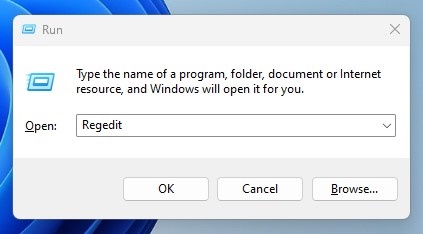
1. Press the Windows Key + R button on your keyboard. Type regedit and press Enter.
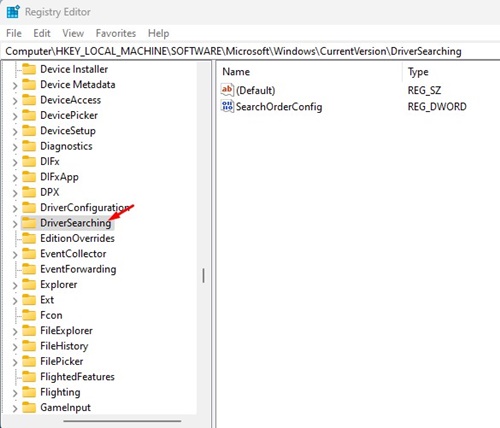
2. Navigate to this path:
HKEY_LOCAL_MACHINE \SOFTWARE\Microsoft\Windows\CurrentVersion\DriverSearching
3. Double-click on the SearchOrderConfig REG_DWORD key.
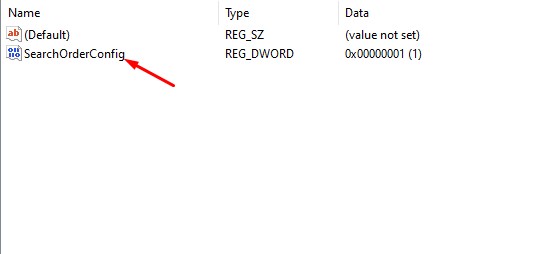
4. On the value data field for SearchOrderConfig, enter 0 and click OK.
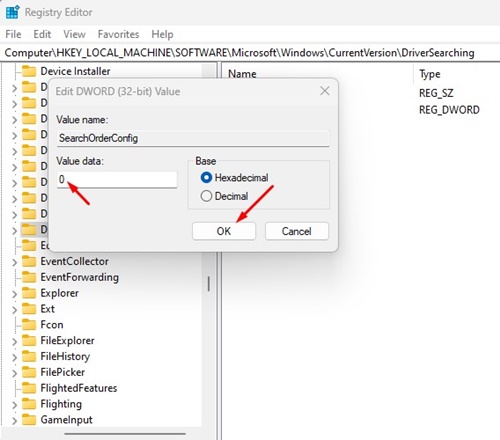
Close the Registry Editor and restart your Windows 11 PC. This should disable automatic driver updates in your Windows 11 PC.
How to Uninstall or Roll Back Driver Updates?
You can uninstall or roll back driver updates from the Device Manager. Here’s what you should do.
1. Open Device Manager from the Windows Search.
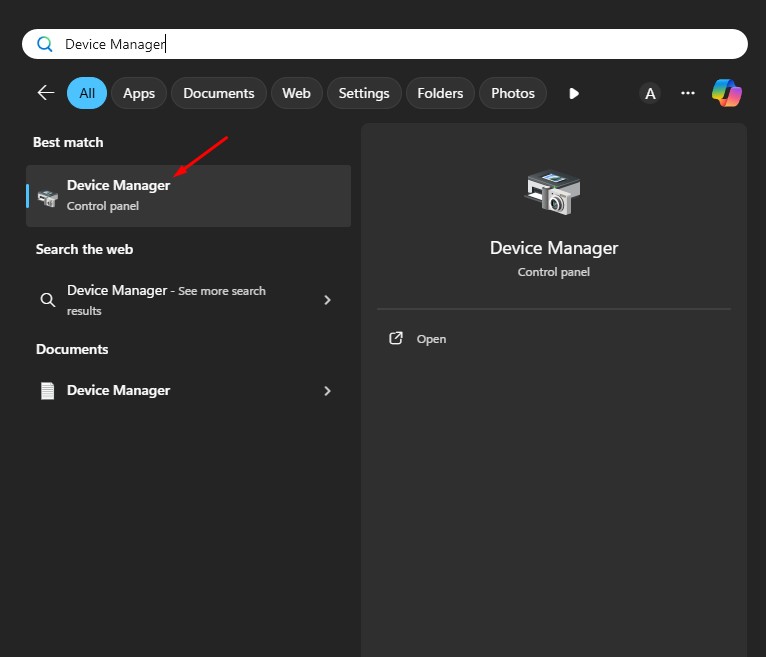
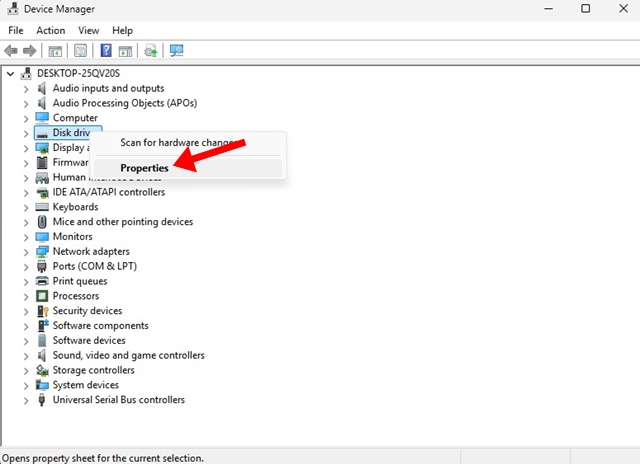
2. Find the target device you want to roll back the drivers for.
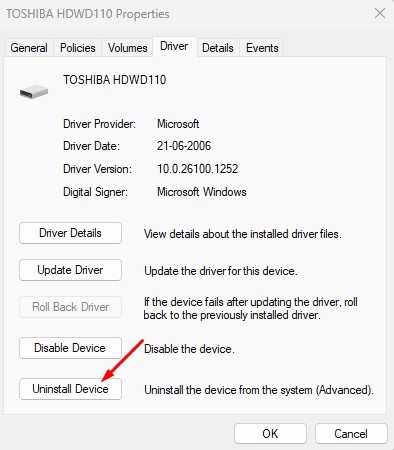
3. Right-click on the device and select Properties.
4. Switch to the Driver tab and select the Roll Back Driver.
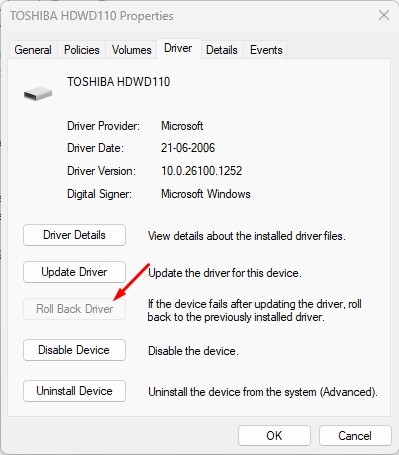
5. Click Uninstall Device.
These are the best ways to disable automatic driver updates in Windows 11 computers. If you have followed all methods correctly, automatic driver updates are likely already disabled.