OpenAI recently launched a new app named Codex. It’s a desktop program that is helpful if you’re into AI-assisted coding and agent workflows. In this article, we will discuss OpenAI’s Codex app and how to download & install it.
What is Codex?
Codex is an app from OpenAI, introduced as a separate interface from ChatGPT. The app allows you to run multiple coding agents simultaneously, manage long-running tasks, work with repositories, etc.
Basically, it’s your AI assistant for work; you can use it as a research assistant, create spreadsheets, decks, visuals, messages, tools, automations, prototypes, plans, etc.
So, whether you’re building a website, creating an app, or maintaining a large software project, Codex provides access to tools designed to accelerate development and improve productivity.
How to Download Codex on PC?
Getting started with the official Codex app is pretty simple. You can use it on both Windows and MacOS. Here are the steps to follow.
1. Visit the official Codex website from this link.
2. Then, sign in with your ChatGPT account.
3. Download the Codex desktop app for your operating system:
4. Windows users need to run the installer and follow the on-screen instructions to complete the installation.
5. Mac users need to drag the app to the Applications folder.
6. After the installation, launch the Codex app and sign in with your ChatGPT account.
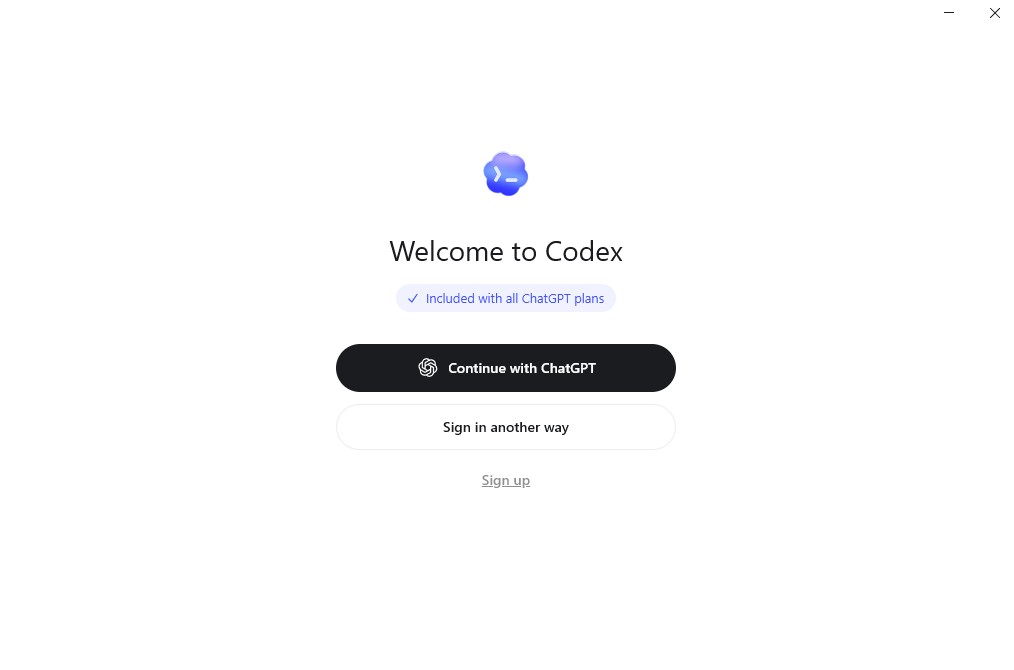
Is the Codex App free?
Yes, every ChatGPT plan includes Codex. You can also use Codex with API credits by signing in with an OpenAI API key.
The free plan provides limited access, but it’s suitable for testing features and handling basic coding tasks. It’s not meant for advanced tasks.
Users who want a higher user limit can upgrade to paid ChatGPT plans like Go, Plus, Pro, Business, Edu, or Enterprise.
Using GPT 5.5 on Codex
Even if you’re using the free plan, you can use Codex to use the latest GPT-5.5 model, which is OpenAI’s latest and most intuitive model. To use it, follow these steps.
1. Launch the Codex desktop app.
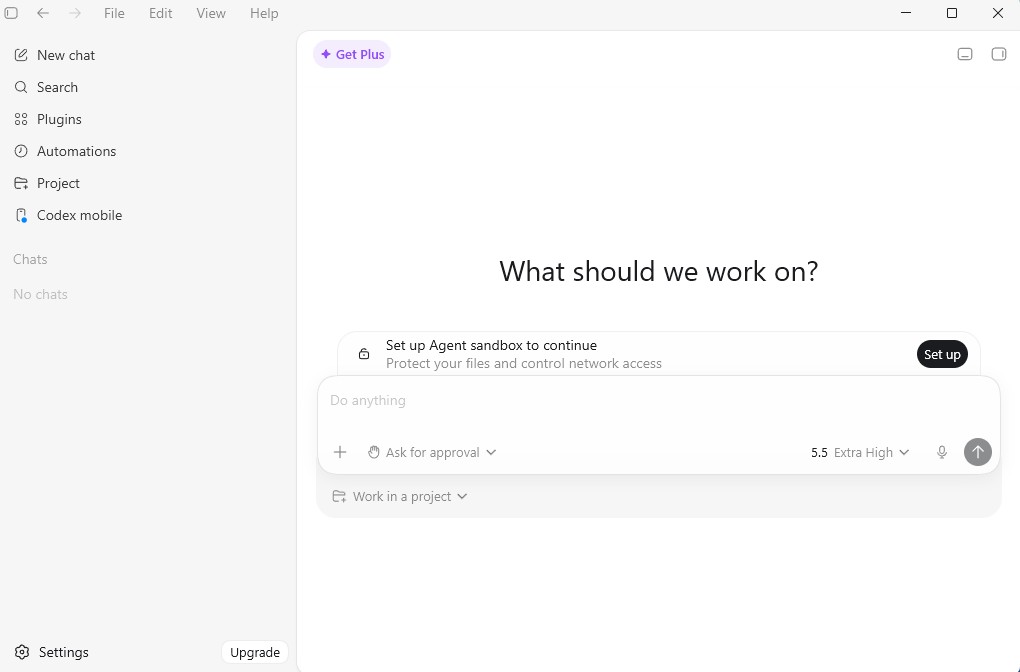
2. On the main screen, click the model drop-down and select the GPT 5.5 model. You can even select the reasoning models.
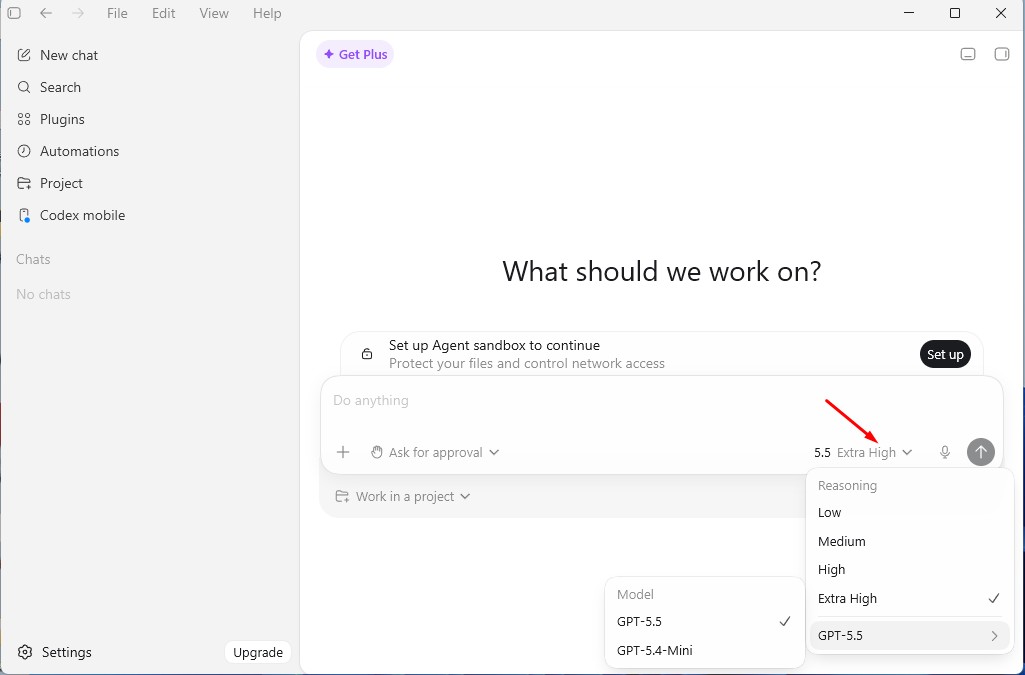
3. Simply type the prompt and use it on the Codex app.
This article explains what the Codex app from OpenAI is and how to download and install it. If you need more help installing the Codex app, let us know in the comments below.