Let’s say you have a Windows PC but want to experience Linux. With VirtualBox, you can run Linux alongside Windows. VirtualBox is an open-source software that aids in running an operating system within another operating system.
System Requirements for VirtualBox
You not only need to have a mid or high-end PC, but also a compatible processor to run VirtualBox. Here are the system requirements for running VirtualBox on a PC.
- Processor: A CPU with ‘Virtualization technology’ is necessary. You also need a multi-core processor with at least 4 Cores to run it on a device.
- Storage: Minimum 20GB for each virtual machine.
- RAM: A minimum of 4GB is required for Virtualization. 8GB is recommended for smoother performance.
- GPU: Mandatory if you want to run graphics-intensive applications on the virtual machine.
Even if your Processor has the virtualization technology, you may have to enable it from the BIOS/UEFI screen.
Download VirtualBox for PC Latest Version
Since VirtualBox is open-source software, it’s free, and anyone can download & install it without spending anything.
- Download VirtualBox 7.2.4 for Windows
- Download VirtualBox 7.2.4 for MacOS/Intel
- VirtualBox Download for Linux
These are the direct download links fetched from the official site of VirtualBox. All downloads are free from viruses & malware and are completely safe to download and use.
How to Install VirtualBox on PC
After downloading VirtualBox, follow these steps to install it on your computer.
1. Download & install the VirtualBox installer on your PC. You can get the download links from the above section.
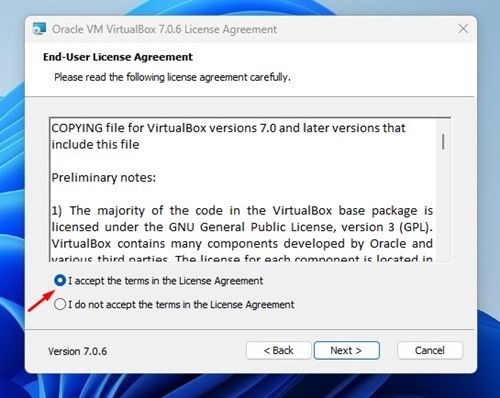
2. Once downloaded, run the Oracle VM VirtualBox installer and accept the terms in the License Agreement.
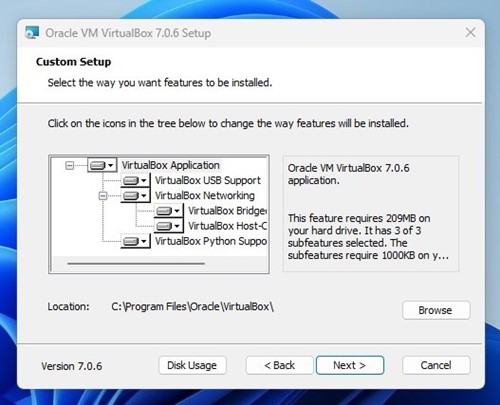
3. Select the location to install VirtualBox and click Next.
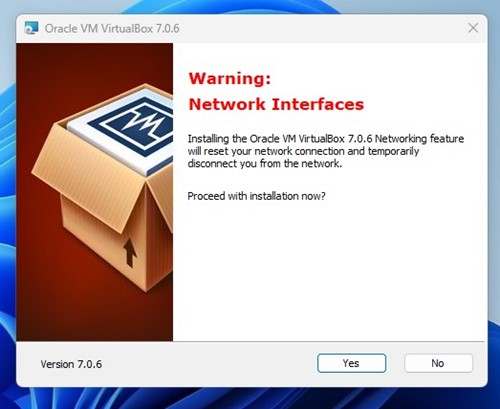
4. You will see the Network Interfaces warning. Click on Yes. This will temporarily disconnect you from your internet.
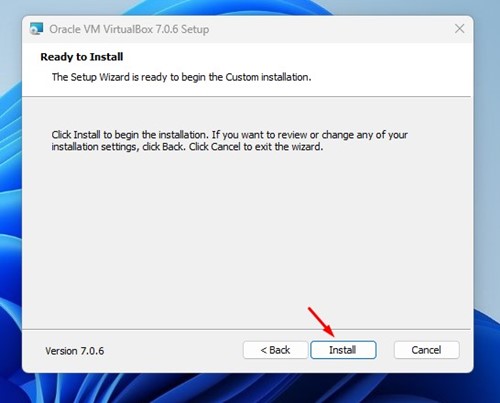
5. On the ready-to-install screen, click on Install.
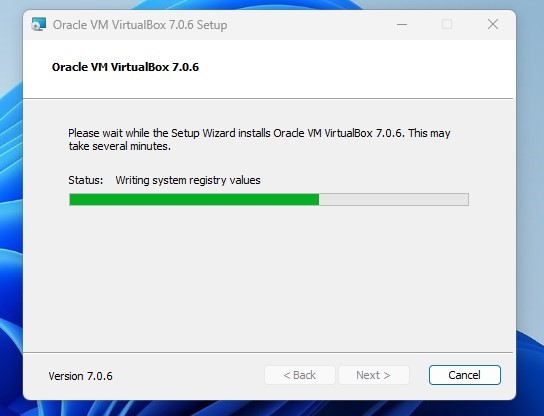
6. Wait until VirtualBox is installed on your computer.
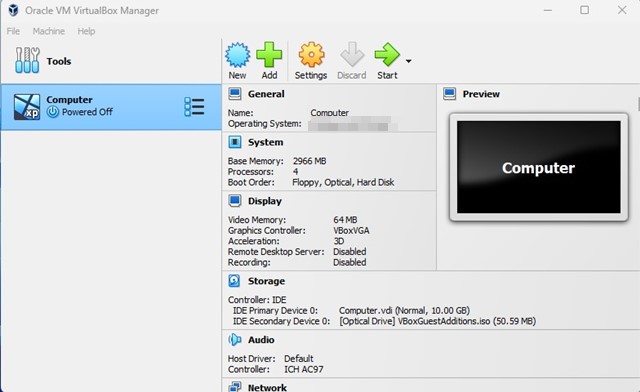
7. Open VirtualBox on your computer from the Start Menu. You will see a similar screen.
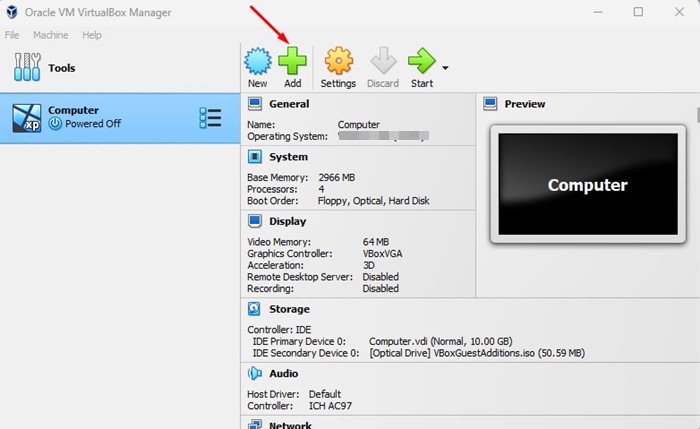
8. To add a virtual machine, click the New icon.
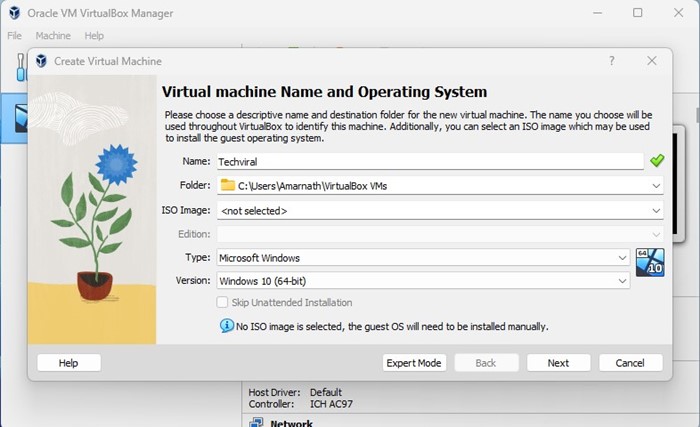
9. Name the new Virtual Machine, select the virtual machine installation folder, and the ISO file of the operating system you want to install.
Important: You will be prompted to enable Virtualization before installing a virtual machine. The steps to enable Virtualization depend on the processor and motherboard you have. You can watch videos on YouTube to learn how to enable Virtualization or SVM mode on your processor.
Also read: Windows 11 ISO Free Download
This is how you can download & install VirtualBox on your PC. If you need more help installing VirtualBox on a PC, let us know in the comments.