For those who don’t know about the Two-Finger Scroll, it’s just a touchpad gesture that lets you scroll up and down using the two-finger swiping motion.
It is a very common and most used gesture that helps users scroll up & down on a page by dragging two fingers upward or downward on their laptop’s touchpad.
Enable the Two Finger Scroll on Windows
Now that you know what two finger scroll is, if it’s not working, here’s how you can double-check whether the feature is enabled.
1. Click on the Windows Start button and select Settings.

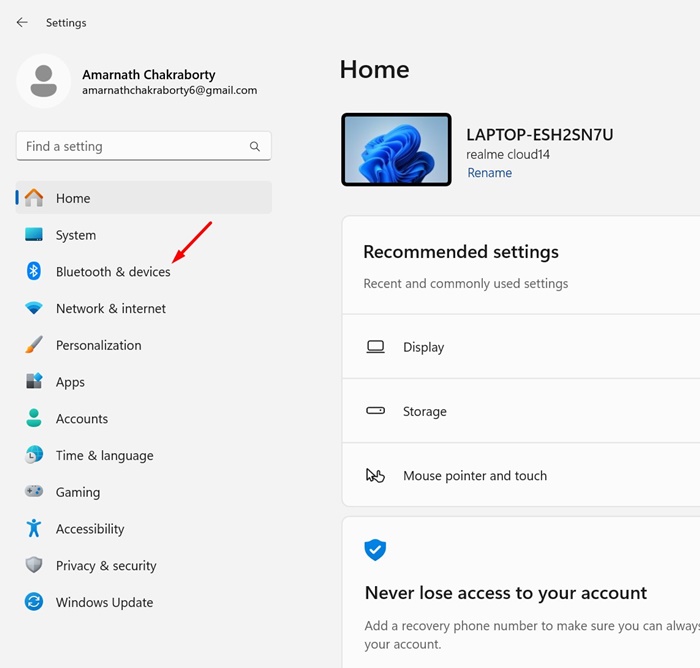
2. Switch to the Devices. On Windows 11, select Bluetooth & Devices.
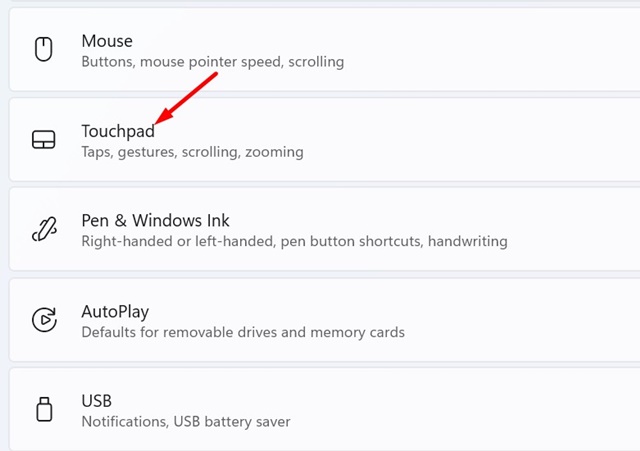
3. Scroll down and tap the Touchpad.
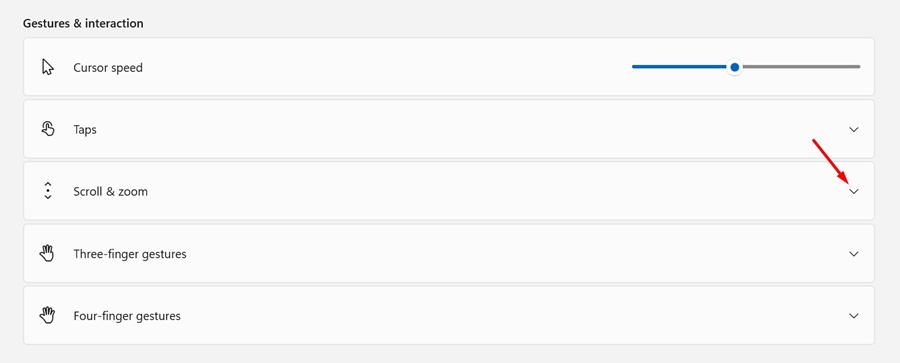
4. On the Gestures & Interaction section, expand the Scroll & Zoom.
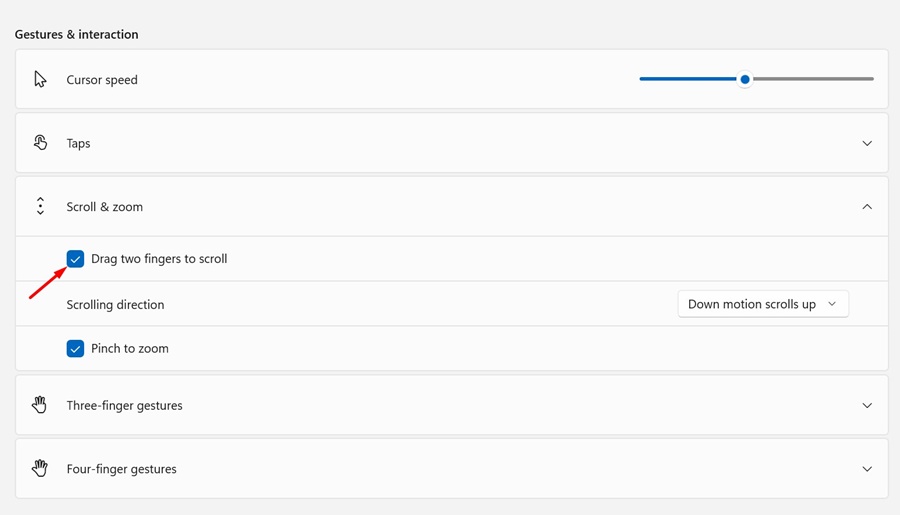
5. Make sure the Drag two fingers to scroll option is enabled. If it’s not, check the box next to the option.
How to Customize the Two-Finger Scroll on Windows?
Microsoft’s Windows operating system even provides a few customization options for the Two-Finger Scroll. Here’s how you can customize it.
1. Click on the Windows Start button and select Settings.
2. Select Bluetooth & Devices.
3. Scroll down and tap the Touchpad.
4. Expand the Scroll & zoom.
5. Click on the drop-down underneath the Scrolling direction.
5. You will find two different options:
Downwards Motion Scrolls up: This option will give you a feel of a smartphone touch screen. On your smartphone, when you swipe down, the page goes upward. This functions exactly the same.
Download motion scrolls down: This is exactly the opposite of the above. With this option selected, the pages will move down when you move your fingers down.
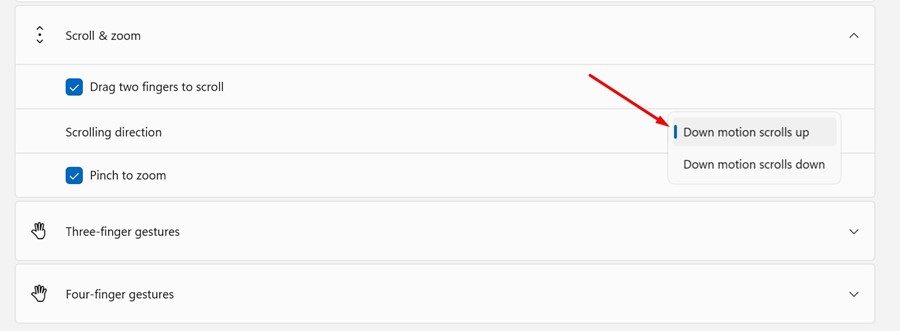
Depending on your needs and what suits you best, you can select the Scrolling direction.
That’s all about how to enable two finger scroll on Windows. Let us know if you need more help enabling two-finger scrolling on your Windows