Your iPhone silently tracks your location. Because of this, you can see where you were last week or the past month. Here’s how you can find your location history on iPhone.
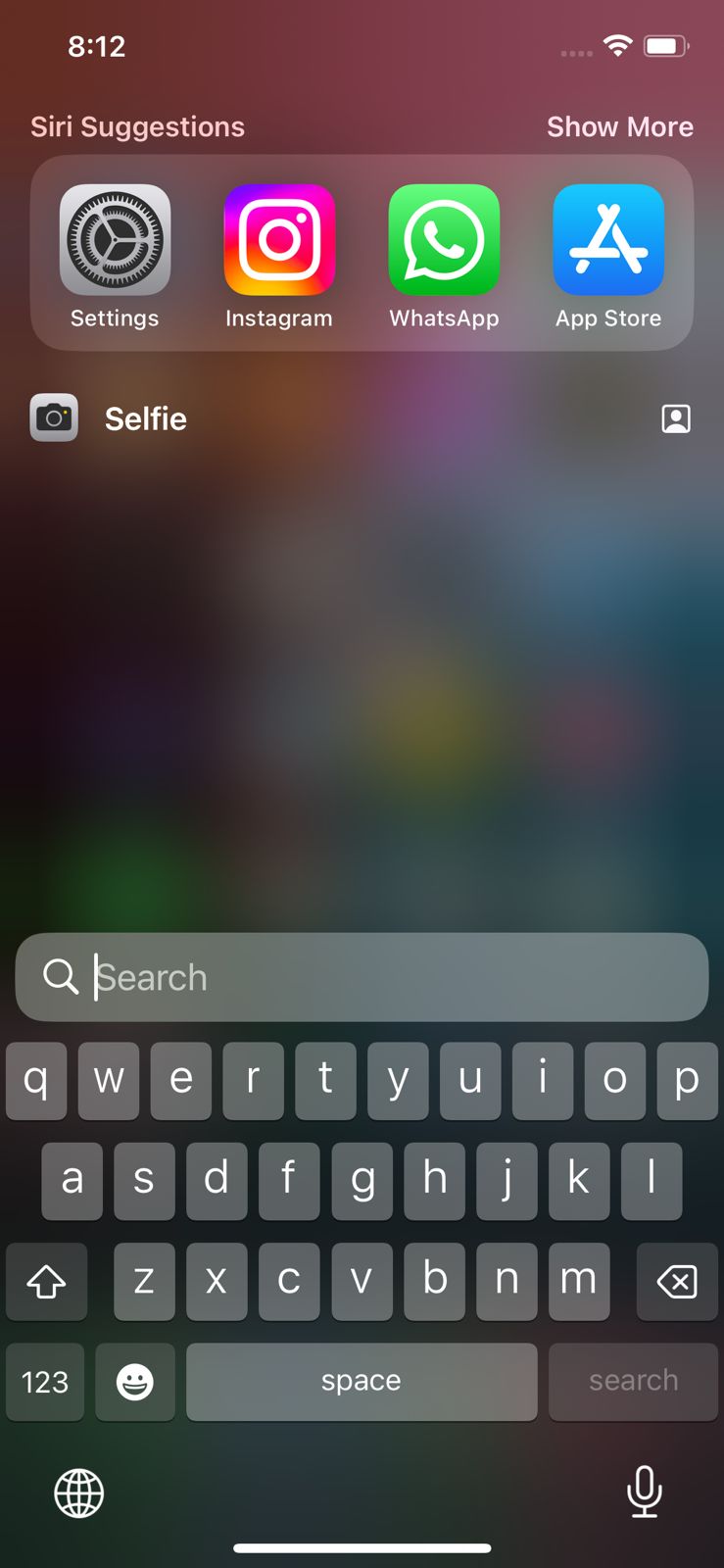
1. Launch iPhone Settings.
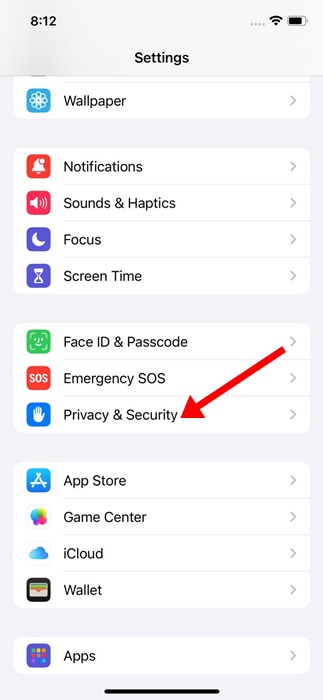
2. Switch to Privacy & Security.
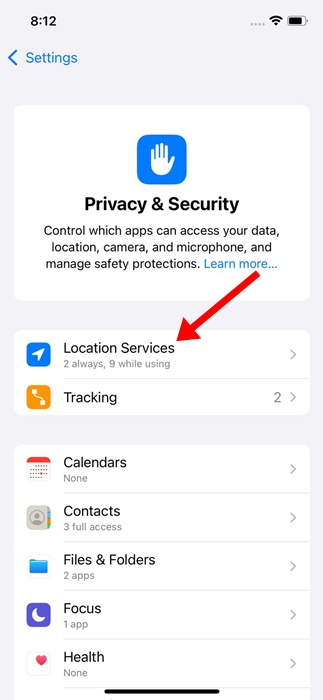
3. Tap Location Services.
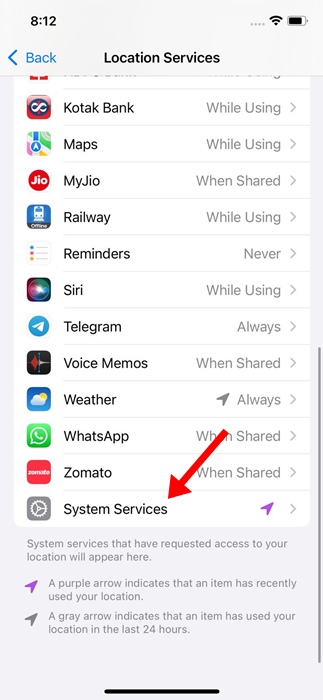
4. Scroll down a bit and tap on System Services.
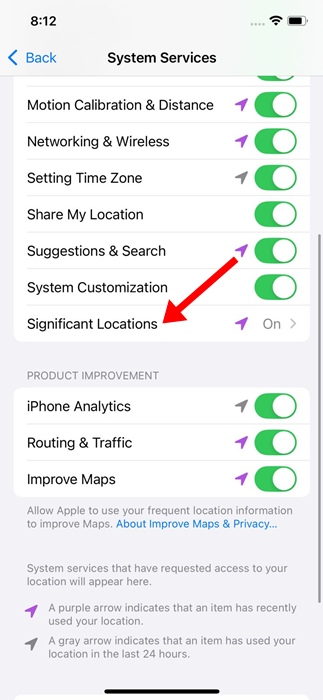
5. Tap Significant Locations and enter your iPhone PIN or Passcode.
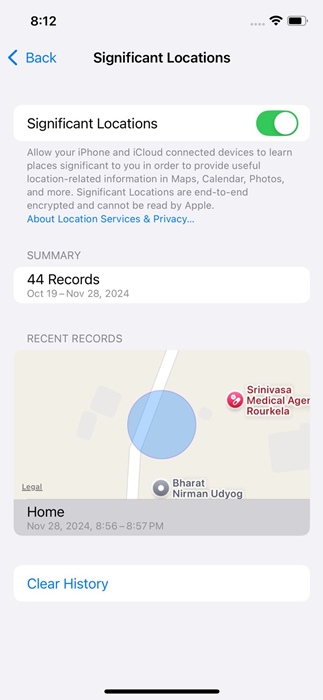
6. You will see both the Recent Locations and the Summary. This screen will present information about your previous locations.
How to Disable Location History on iPhone?
To disable location history, you will have to disable the Significant Location feature.
1. Move to the Significant Locations and enter your iPhone PIN or Passcode.
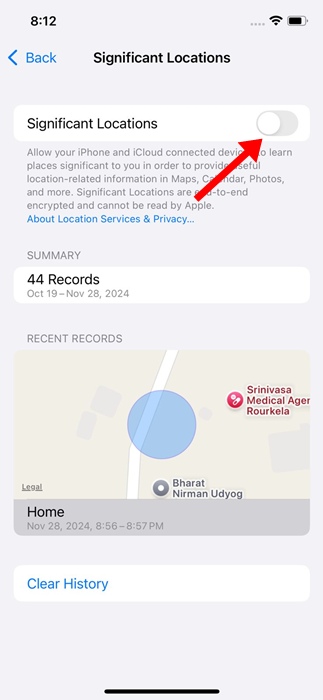
2. Turn off the Significant Location toggle at the top.
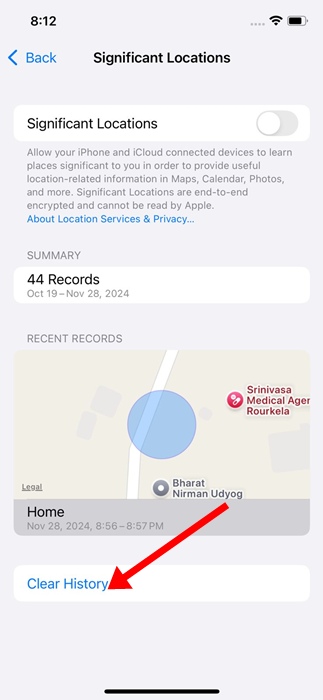
3. Tap Clear History at the bottom of the screen.
How to Find Your Google Location History on iPhone
If you use the Google Maps app for navigation on your iPhone, follow these steps.
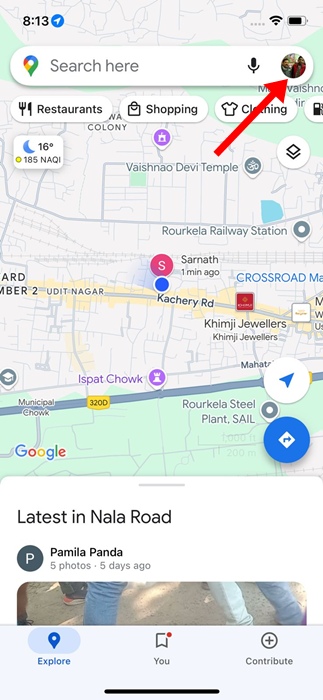
1. Launch the Google Maps app and tap on your profile picture in the top right corner.
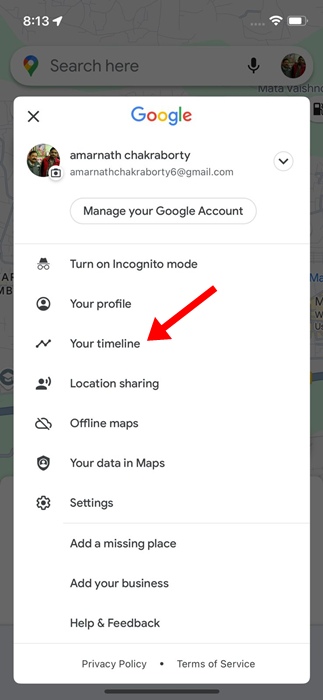
2. Tap Your Timeline.
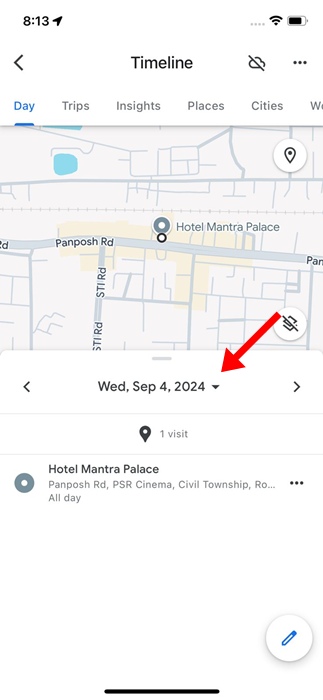
3. You will now be able to see your Location History. Click the drop-down next to Today to select a date.
Finding Location History on an iPhone is super easy; you need to know how to access it. The steps we have shared will help you properly manage the location history on an iPhone or iPad.