Recently, the Chrome browser for Windows got a new feature that tries to help you understand videos. It works on videos on YouTube, Facebook, or any other website, helping you understand the content faster and better.
Google Chrome now lets you ask about videos or audio you’ve played. You can ask questions about what you heard in video and audio, and Gemini in Chrome can answer them.
This feature is especially useful if you don’t want to go through a long video or don’t have enough time to watch the entire video. You can utilize Gemini in Chrome to summarize the video.
Ask About Videos or Audio You’ve Played
To make use of this feature, you will have to update your Chrome browser to the latest version. The feature is available in the recent update. Here’s what you need to do.
1. Launch the Chrome browser and open Settings.
2. Next, move to AI innovations > Gemini in Chrome.
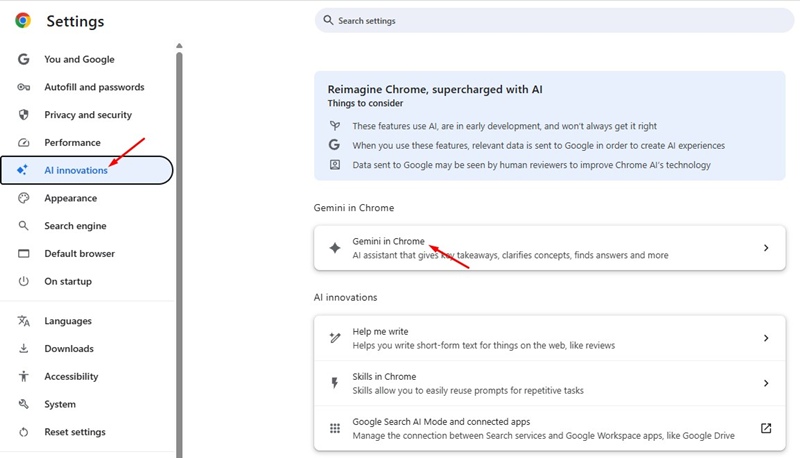
3. Enable the toggle for Show Gemini at the top of the browser.
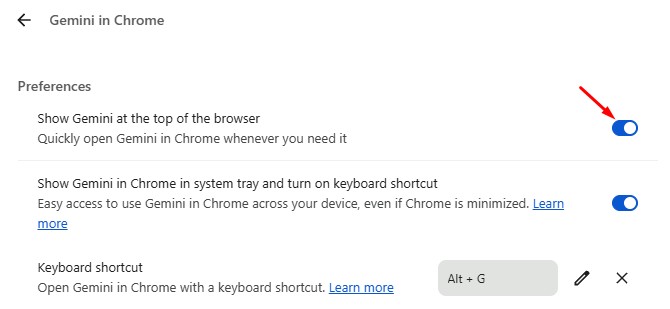
4. Enable the toggle for Media understanding.
5. Once you have made these settings, open the video you want to summarize to better understand its content.
6. Next, click the Ask Gemini button at the top of the browser.
7. Now you can ask for details or summaries to better understand the content of the video or audio.
This will enable the feature. If you don’t want to use this feature, you need to go to Chrome’s Settings> AI in Chrome > Gemini in Chrome. Then, turn off the ‘Media Understanding’ setting.
The media understanding feature could be of great use, as it can summarize long videos or audio for you and better understand its content.
If you don’t find the ‘Media Understanding’ feature, make sure to update your Chrome browser. Or else, wait a few days or weeks.
This guide explains how to enable the Media Understanding feature on Google Chrome. If you need more help enabling this new feature, let us know in the comments.