Microsoft Edge can turn off the extensions you’ve installed without letting you know. This is because some extensions change the browser settings and other types of site data. To prevent extensions from changing the browser preferences you’ve set up, Microsoft Edge disables the extensions. If you’re experiencing the same problem, here’s what you can do to fix it.
1. Manually Turn On the Extensions
While Microsoft Edge turns off the extensions you’ve installed, you can manually turn them on when you plan to use them.
1. Launch the Edge browser on your computer.
2. Tap the three dots at the top right corner.
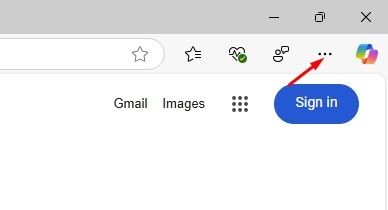
3. Select Extension > Manage Extensions.
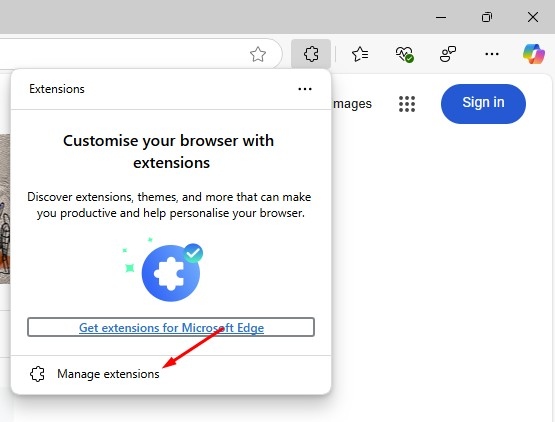
4. Turn on the extensions you plan to use.
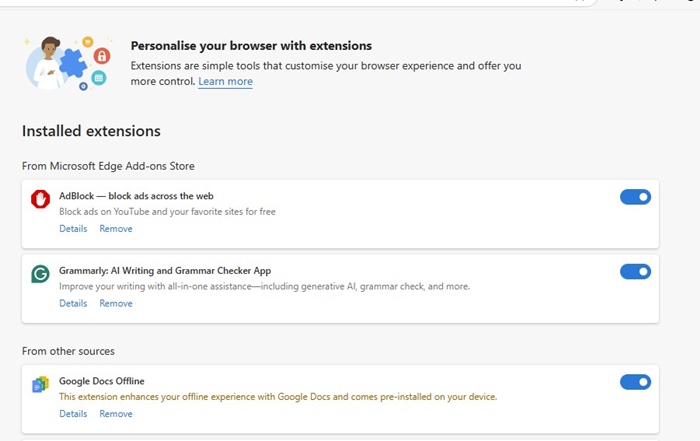
2. Check the Extensions that you’ve installed
Microsoft Edge can also disable malicious extensions due to its security features. So, it’s important to double-check the list of extensions that you’ve installed on the Edge browser.
Simply open the web browser and navigate to Extensions > Manage Extensions. On the Extensions screen, check for unwanted extensions.
If you find any suspicious extensions, remove them from your web browser.
3. Disable Sync on other versions of Edge
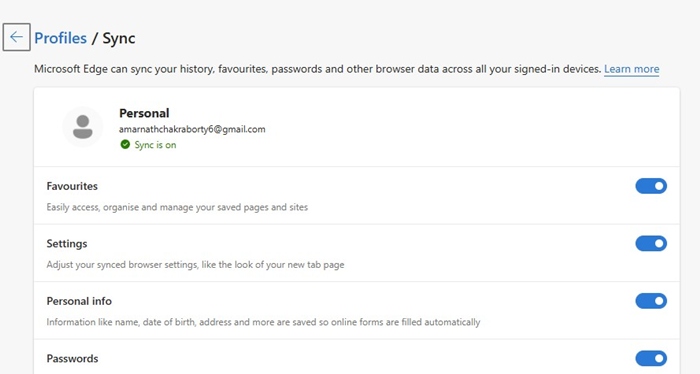
If you have other versions of the Edge browser installed on your PC, like Edge Beta or Edge Canary, and sync is enabled, any extensions you disable in those versions will also be disabled in your main Microsoft Edge browser.
This is because when sync is on, Microsoft Edge remembers your choice and makes the same settings available across all of its variants.
4. Update Microsoft Edge to the Latest Version
An outdated version of the Microsoft Edge browser can have bugs & glitches that can conflict with certain extensions.
One of the best ways to get rid of bugs and glitches is to update Microsoft Edge to the latest version.
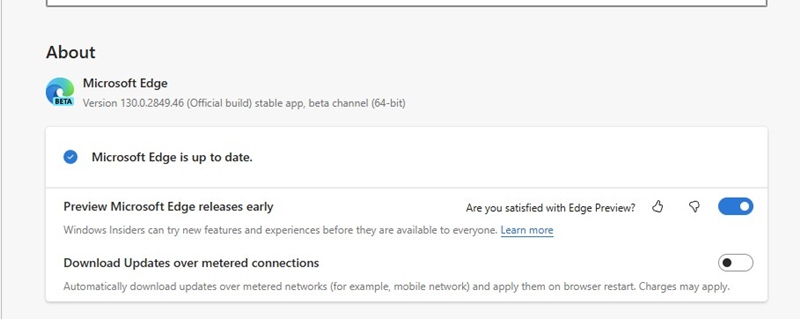
To update Microsoft Edge, click on three dots > Help and Feedback > About Microsoft Edge. On the next screen, Microsoft Edge will automatically install the pending updates.
5. Reset Microsoft Edge Settings
Resetting Microsoft Edge settings will reset your start-up page, new tab page, search engine, and pinned tabs. It will also turn off all extensions and clear temporary data.
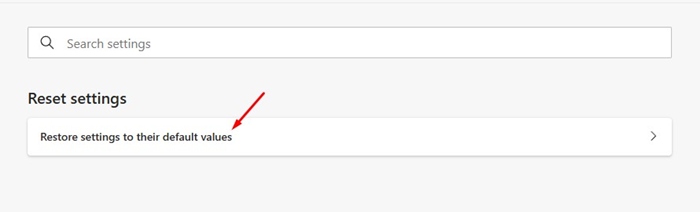
To reset Microsoft Edge, click on the three dots at the top right and select Settings. On the Edge Settings, navigate to the Reset Settings > Restore settings to their default values.
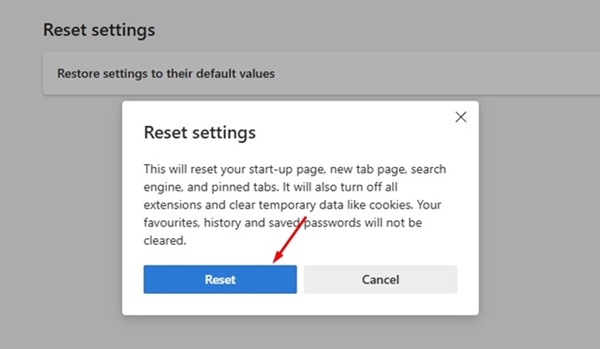
On the Reset Settings confirmation prompt, click Reset.
These are the best ways to fix Microsoft Edge keeps disabling extensions by itself. If you need more help on this topic, let us know in the comments.