The native password management app for iPhone allows you to manage your saved passwords as well as share your WiFi password with a QR Code.
Sharing WiFi Password with QR Code on iPhone
If people often ask you to share your WiFi password, you may want to generate a QR code containing the network SSID and Password. This is the safe and quick way to share WiFi passwords via QR code.
1. Launch the new Apple Passwords app.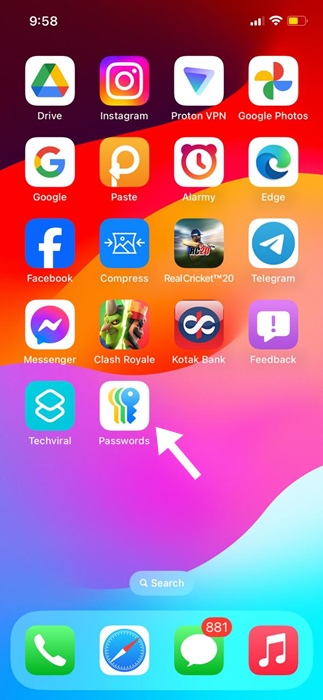
2. When the Password app opens, tap WiFi.
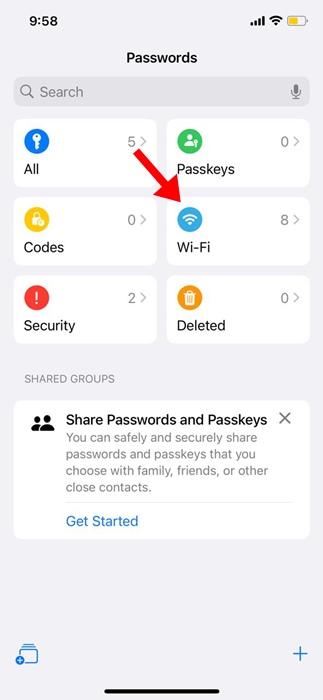
3. Find the WiFi network whose password you want to share and tap on it.
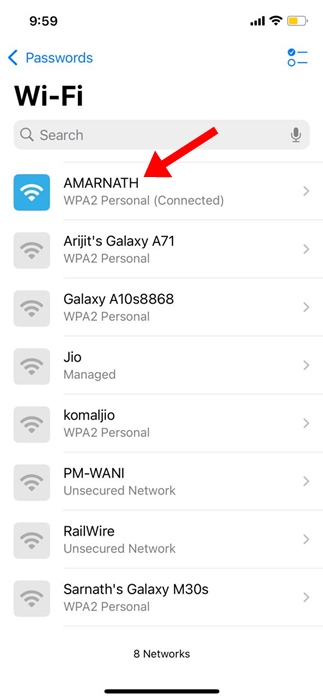
4. Tap on Show Network QR Code.
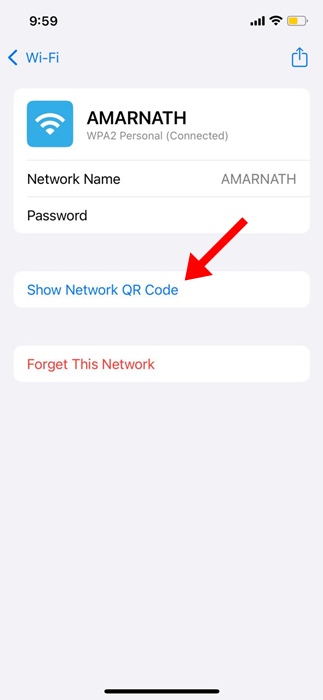
5. A QR code will be displayed on the screen. Now, share this QR code with someone who wants to connect to your network. They can also scan the QR code directly using their phone’s camera.
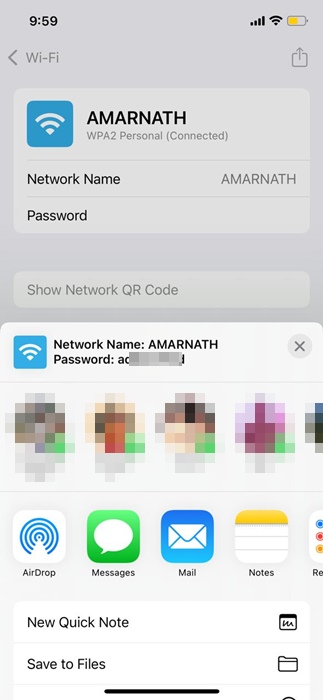
6. If you want to view the WiFi password, tap the Share icon.
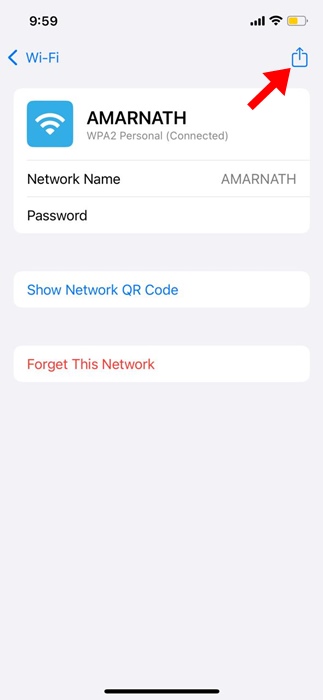
7. You will be able to see the Network name and Password.
Other Ways to Generate a WiFi QR Code on iPhone
There are other ways to create a WiFi QR code on an iPhone, but the Apple Passwords app is the safest option.
You can use third-party QR Code generator apps or websites to generate QR codes automatically connecting your guests to your WiFi network when scanned.
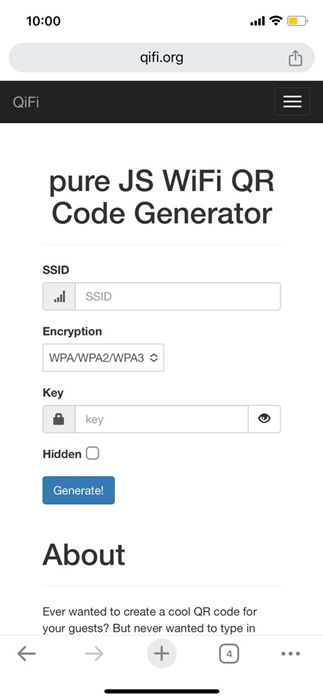
One great website for generating QR codes is QiFi.org. Here, you need to enter the network name as the SSID, choose the encryption type, enter the WiFi password in the Key field, and click Generate.
Once generated, you can share the QR code with your friends or family members; they need to scan it to connect to your network.
This guide explains how to share your WiFi password with a QR code on your iPhone. If you need more help on this topic, let us know in the comments.