What if you don’t want to cover or turn off your webcam but still want to ensure webcam privacy? You can easily do so by stopping apps from using your webcam. Here’s how you can stop apps from using your Webcam on Windows 11.
How to Stop Apps from Using Your Webcam on Windows
1. Launch the Settings app.
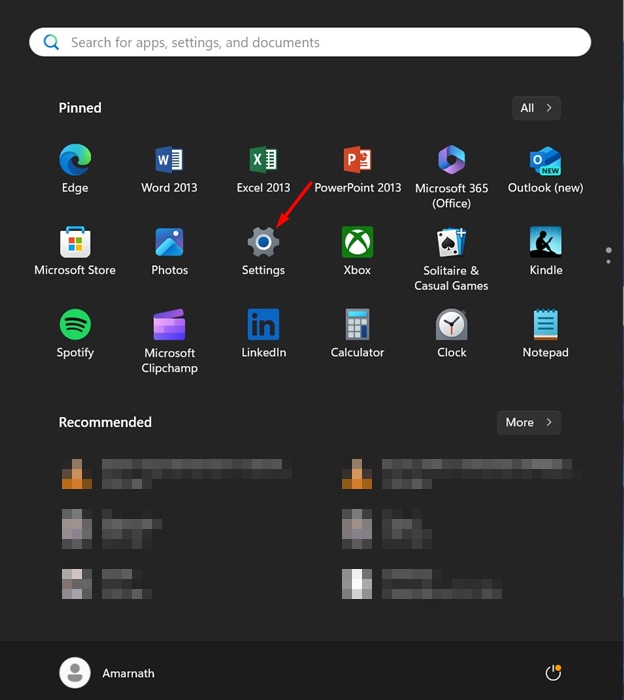
2. Switch to Privacy & Security.
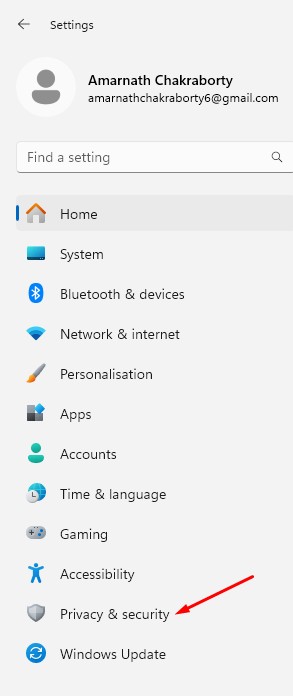
3. Click on Camera.
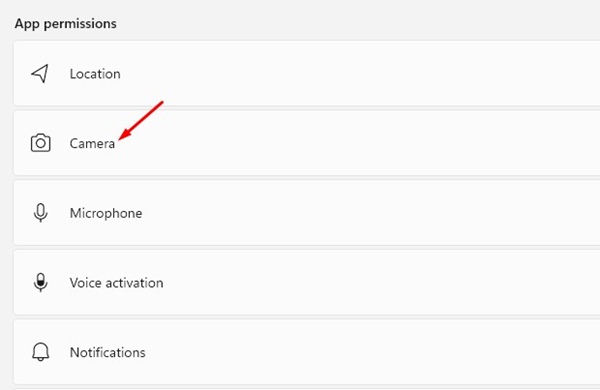
4. Scroll down to the Let apps access your camera section.
5. You will see all apps with access to your webcam.
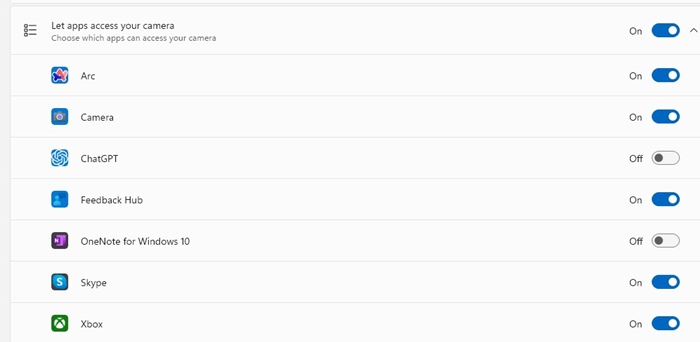
6. Turn off the toggle next to the apps you don’t want to use your webcam. with
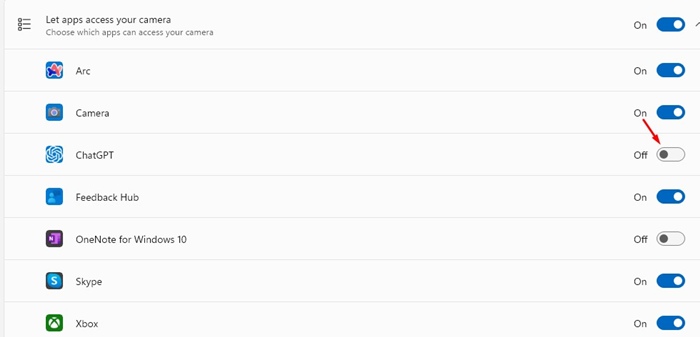
7. To grant webcam access again, turn on the toggle next to the apps.
How to stop all apps from accessing your Webcam?
If you don’t want to revoke the permissions individually, you can completely turn off the app’s access to the camera.
1. Launch Settings.
2. Switch to Privacy & Security.
3. Turn off the toggle next to ‘Let apps access your camera’

This will prevent all apps from accessing your webcam on Windows 11.
If you don’t use a dedicated antimalware or antispyware app, it’s best to periodically check which apps have access to your webcam. Let us know if you need more help with this topic in the comments.