Let’s say you recorded an audio on your phone, transferred it to a PC, and then played it, only to find that the audio has lots of background noise. In such a situation, you can use VLC Media Player’s audio equalization features to reduce background noise. There is no preset for removing background noise on VLC, but you can experiment with some audio settings to achieve this.
VLC background noise removal: How to do it?
Since VLC isn’t a full-fledged background noise removal tool, removing background noise from a video or audio file could be complicated. Here’s how to remove background noise using VLC.
1. Launch the VLC Media Player.
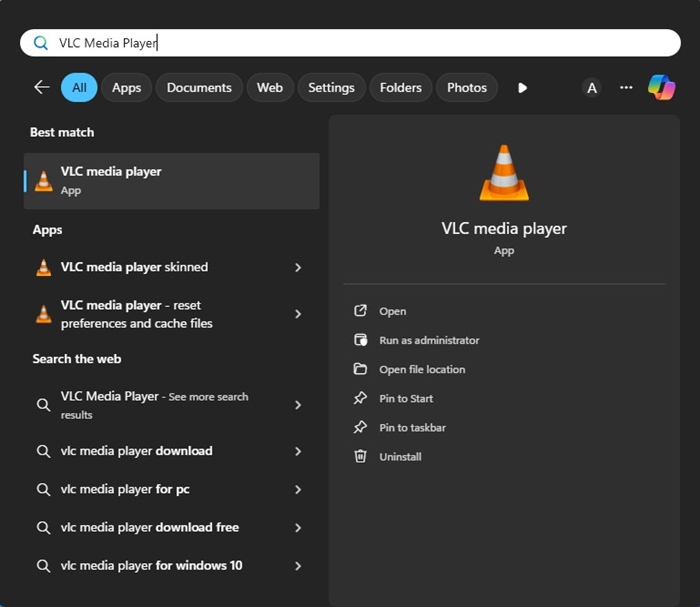
2. Play the video or the audio file whose background noise you want to minimize.
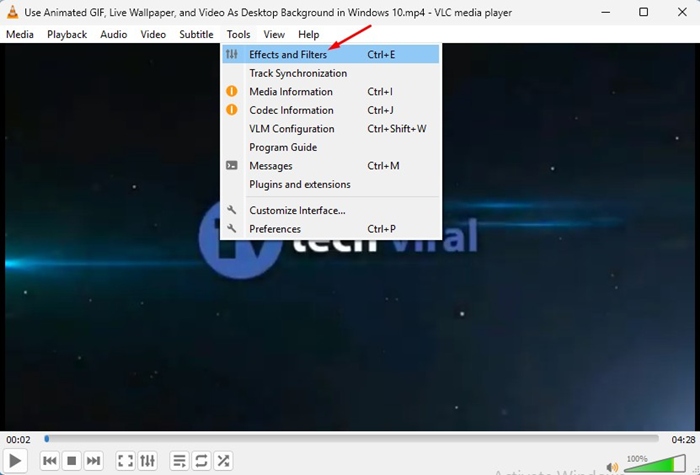
3. Click on the Tools at the top bar.

4. Select Effects and Filters.
5. Switch to Audio Effects.
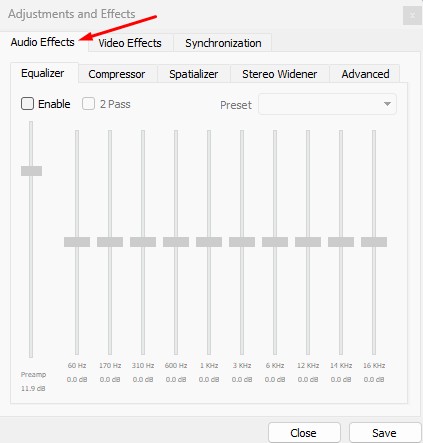
6. You will find five different options here: Equalizer, Compressor, Spatializer, Stereo Widener, and Advanced.
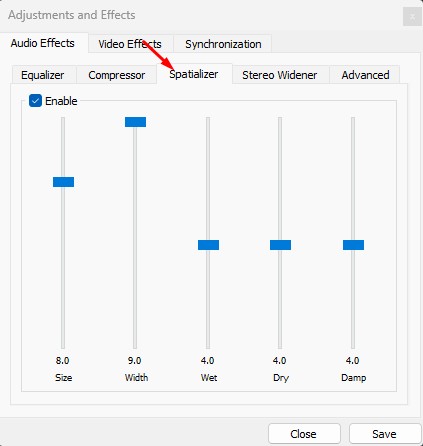
7. You need to enable the Equalizer and Spatializer.
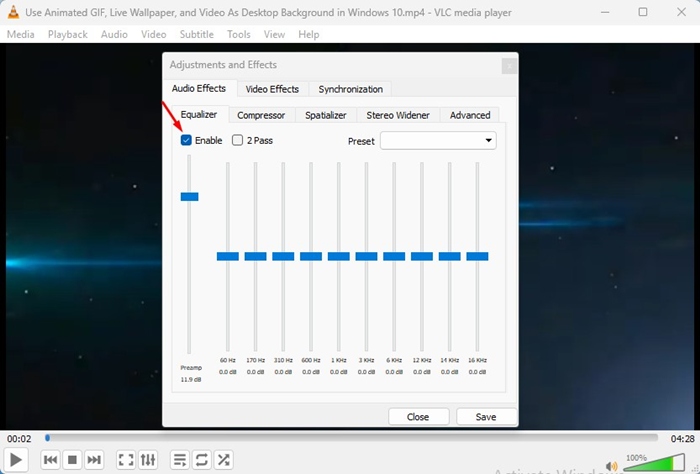
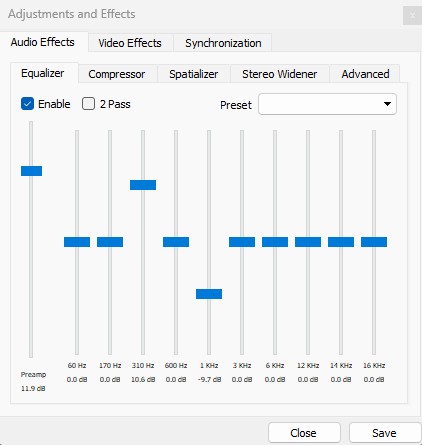
8. Once done, begin playing your audio track, and adjust the equalizer options as per your wish. You need to keep trying the different presets and adjusting the frequencies until you find the settings that work with your video.
9. You can also change the Spatializer. Spatializer changes audio as if it were produced inside a room.
10. In the advanced version, adjust the audio pitch.
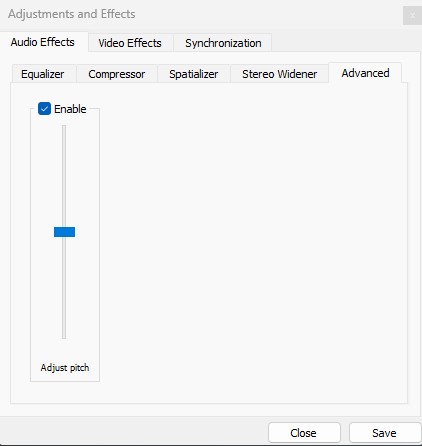
VLC Media Player doesn’t have a noise removal tool, but you can make changes to the Adjustments and Effects to minimize the background noise to some extent.
This article is about the VLC Background Noise Removal. Let us know if you need more help on this topic in the comments.