
Windows 11 users have been facing a weird problem while booting up their PC. According to users, an empty white box appears briefly after the boot-up. The white box stays there for a few seconds and then disappears.
In most cases, the white box is caused by a startup app, scheduled task, or background process that fails to load correctly. It’s rarely a sign of hardware failure. If you’re facing the same issue, here’s what you should do.
1. Check and disable the Startup Apps
A specific app may be set to run automatically at startup, but it fails to launch properly.
When the app fails to launch, it shows only a blank white screen. So, you need to go through the Startup apps and disable the unnecessary ones.
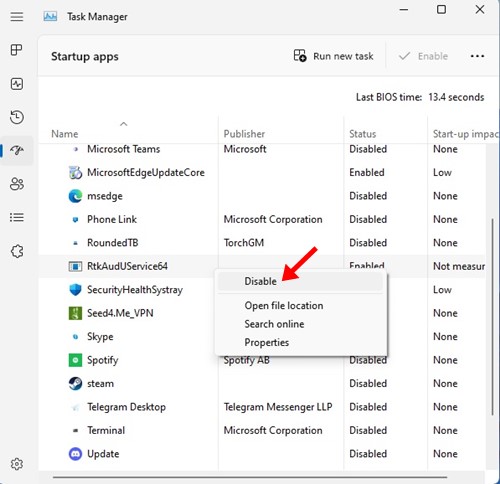
Open Task Manager and switch to Startup Apps. Now check which apps are enabled and disable the ones you don’t need at startup.
2. Scan your PC with Malwarebytes
Malwarebytes is a robust security tool that is capable of removing hidden viruses, malware, and adware from your device.
The blank empty white box that appears could be caused by adware. To remove such a possibility, you need to scan your device with Malwarebytes.
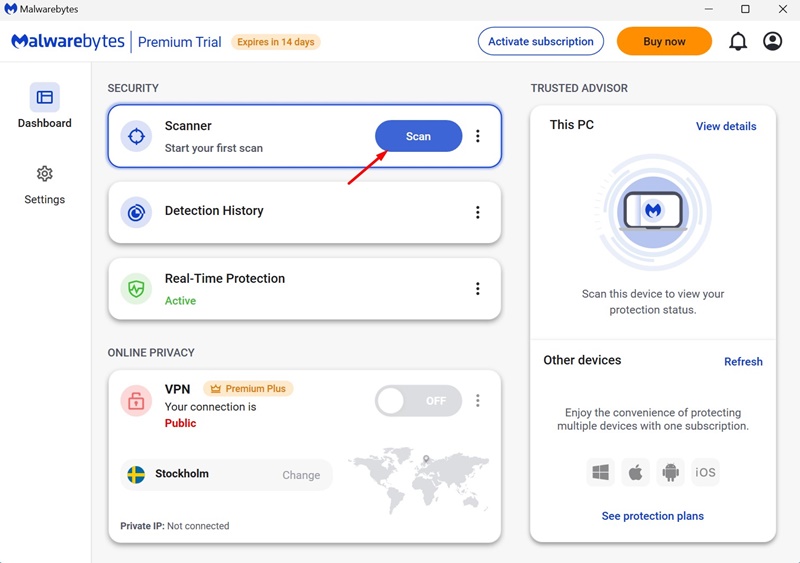
Download & install Malwarebytes on your system and run a full scan. It will find and remove all hidden and unknown threats from your computer.
3. Run the SFC Command
The System File Checker Utility finds and repairs corrupted system files. You should run this tool via Command Prompt.
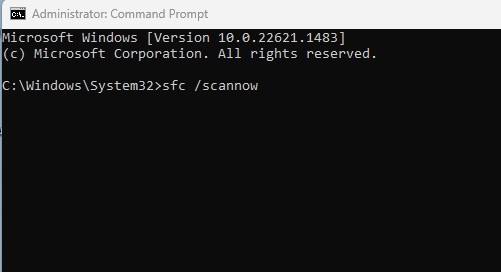
- Open Command Prompt with admin rights.
- Type sfc /scannow and press Enter.
- The system file checker utility will run. It will find and repair all corrupted system files.
Make sure to restart your computer after running the scan.
4. Disable Google Related Task in Task Scheduler
Certain tasks may be set to run at startup, and they are configured in the Task Scheduler. So, you need to find and disable such tasks in the Task Scheduler.
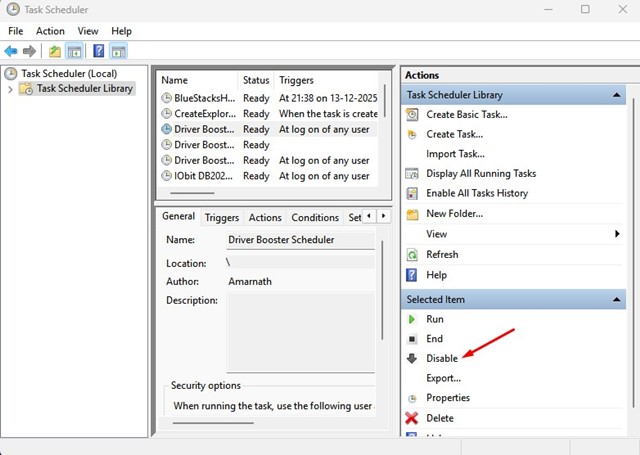
- Open the Task Scheduler app from the Windows Search.
- Switch to the Task Scheduler Library.
- Now check for Google related tasks. If you find any, right-click on it and select Disable.
5. Install the Pending Windows Updates
The blank empty white box at startup may also be a result of a bug or glitch in the operating system version you’re using.
The best way to get rid of such glitches is to install all pending Windows 11 Updates. To update Windows 11, head to Settings > Windows Update.
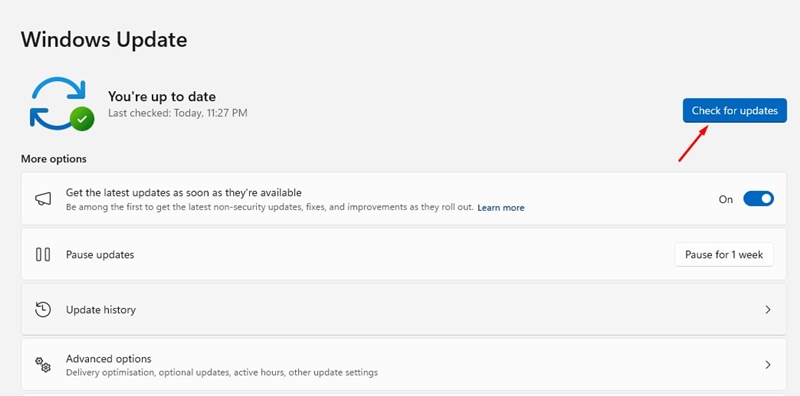
On the right side, click on Check for updates. This will find, download & install all available updates.
These are the best ways to fix the blank empty white box that appears at startup. If you need more help in fixing this problem, let us know in the comments. Also, if this article helped you, share it with your friends.