Most modern routers allow users to check for connected devices. However, if you don’t know how to use the router admin panel, you need to rely on third-party apps. Here are different ways to find devices connected to your WiFi.
1. Using Fing – Network Tools
Fing is a complete network tool available for Android. With FING, you can analyze any WiFi network. Here’s how you can use it.
1. Download and install the app Fing – Network Tools. After installing the app, launch it on your Android device.
2. Scan all the devices currently connected to the same wifi network.
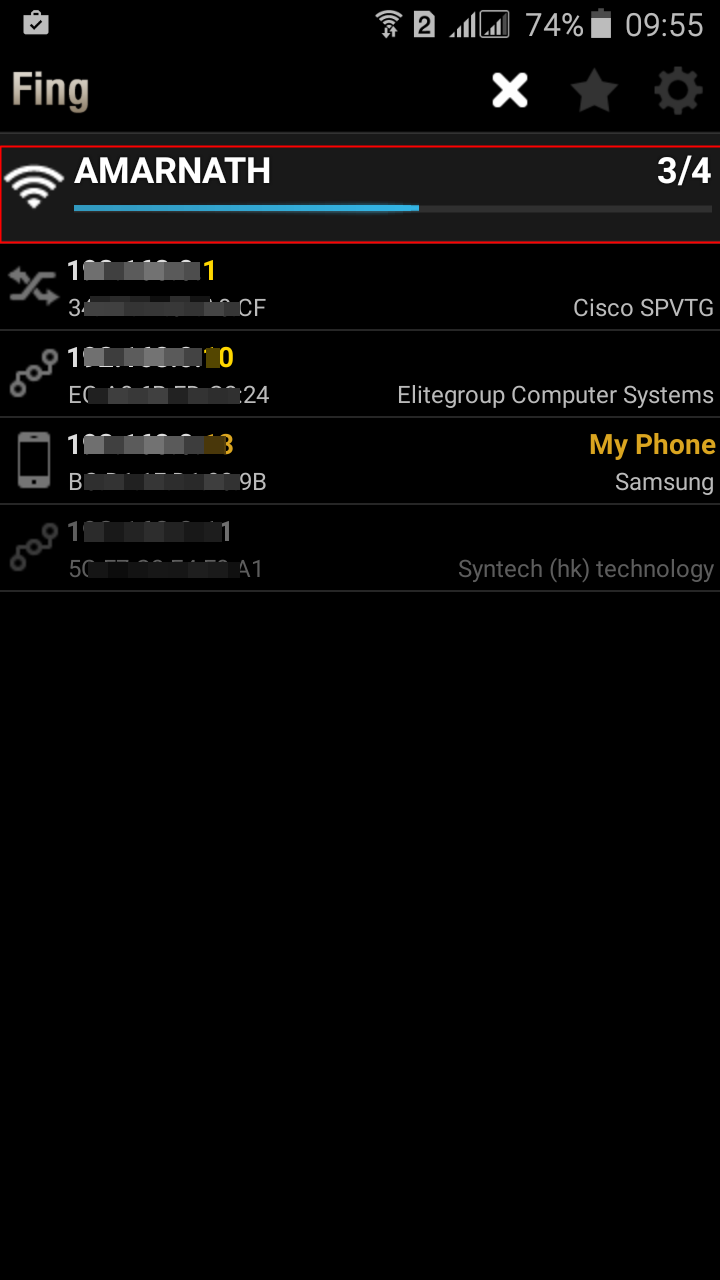
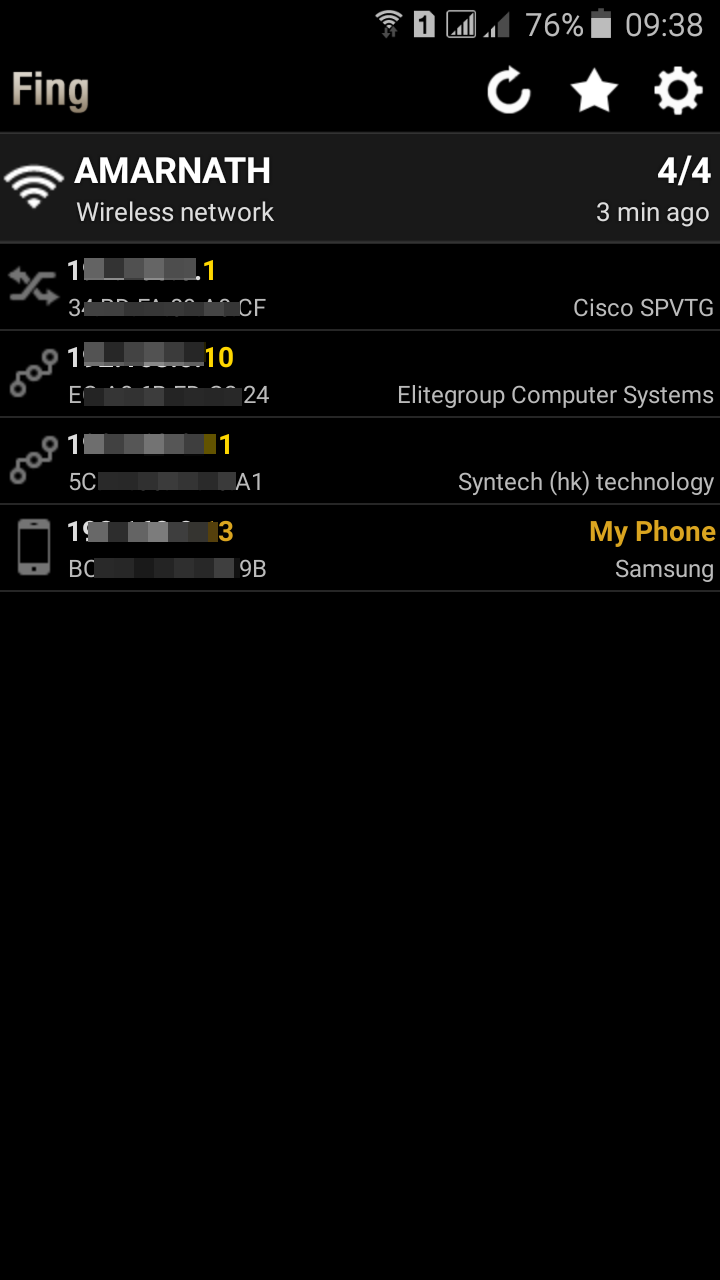
3. A list of devices will be displayed that are currently using the same wifi network.
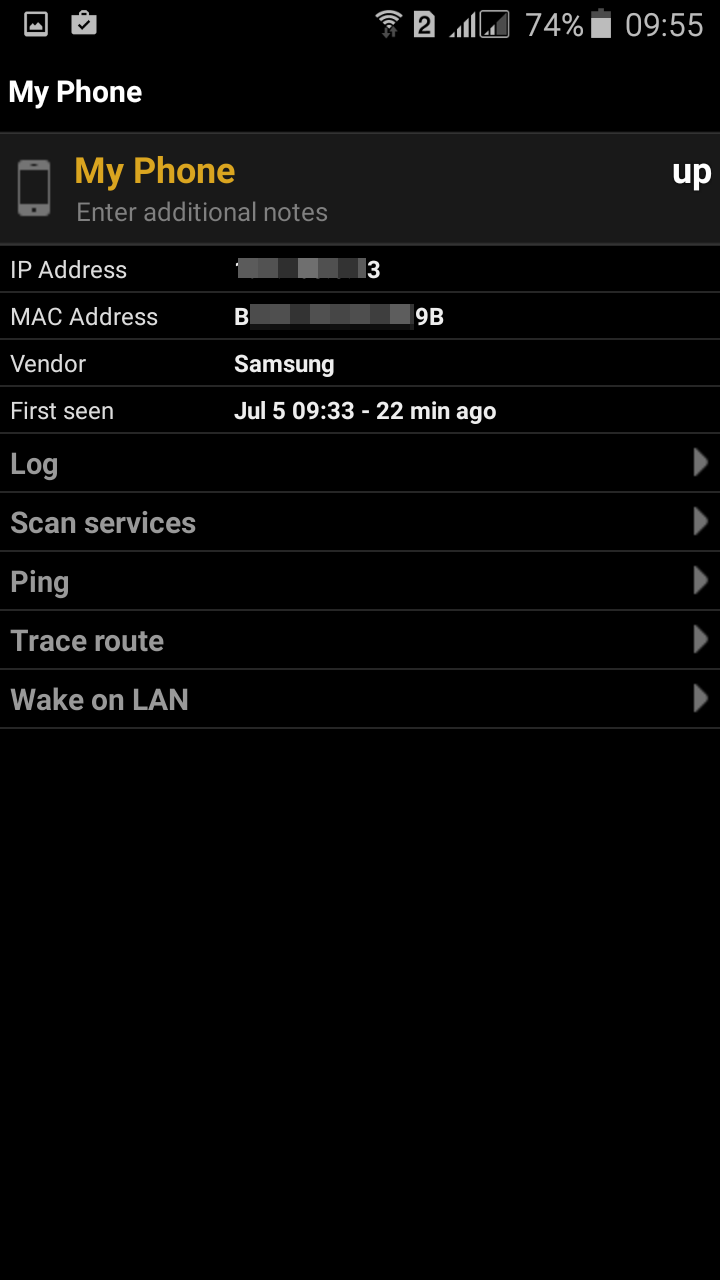
4. You can know details about the connected WiFi devices by tapping on them
2. Using NetScan
The great thing about NetScan is that it can discover connected devices by scanning the port.
1. Visit the Google Play Store and download NetScan. You can use this link to download & install the app directly.
2. Open the app and grant all permissions.
3. Tap on the Port Scan
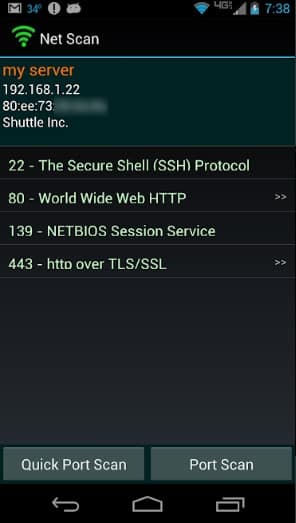
4. NetScan will scan for the connected devices and list them out.
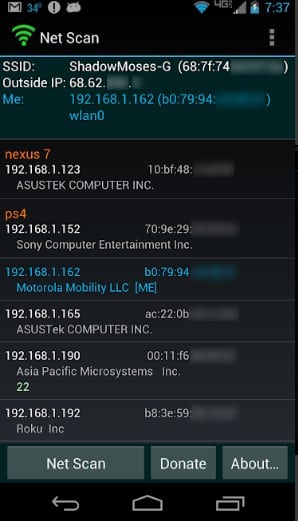
5. If you want to grab details of the connected device, then simply tap on it to get a brief overview.
3. Scan Connected Devices on iPhone
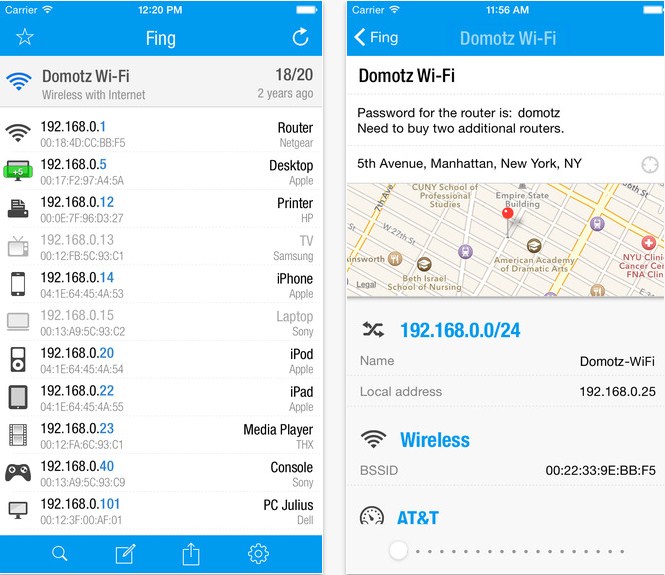
1. Download and install the app Fing – Network Tools.
2. Scan all devices currently connected to the same wifi network.
3. A list of devices will be displayed that are currently using the same wifi network.
You can check the MAC address of a device and block it on your router.
4. Some other apps that you can use
Other apps exist for the same purpose as the above apps. Below, we have shared two best apps for scanning devices connected to the Wi-Fi network.
1. Who is on my WiFi
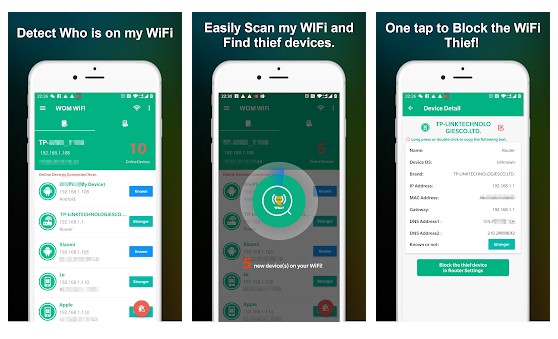
Who is on my WiFi is one of the best WiFi scanner apps available on the Play Store. The app was known for its attractive user interface. The app effectively scans and finds devices connected to the WiFi network.
2. WiFi Warden
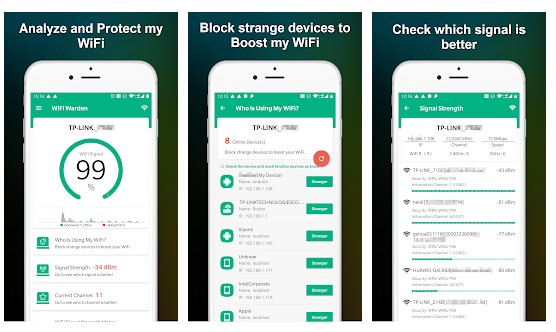
The Android app tells you about the strength of the WiFi signal around you. Not only that, but it also tells about the devices that were connected to the WiFi network.
These are some of the best WiFi scanner apps on the Play Store. They can help you find devices connected to the Wi-Fi network.