Android users will know that certain apps open web content right within the app. This thing is done with the help of the Android System WebView feature. When the feature is disabled, you will get an error message ‘Android system webview is disabled’ while trying to open web material in an app.
So, if the ‘Android system webview is disabled’ error has been troubling you for a while, it’s time to know how to enable the feature on your phone.
Enable Android System WebView on any Android
Enabling the Android system webview is easy; here’s what you need to do.
1. Launch the Settings app.
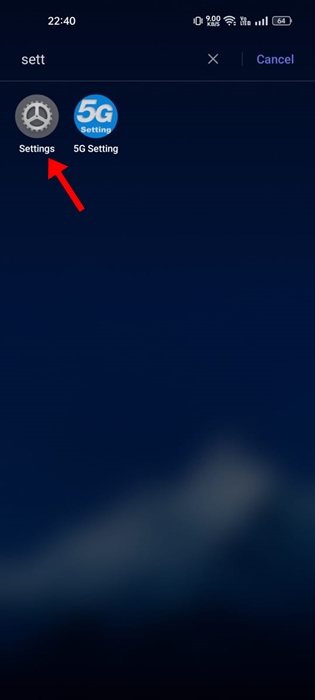
2. When the Settings app opens, switch to Apps.
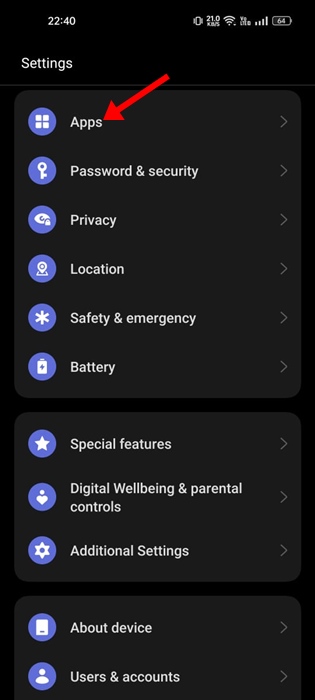
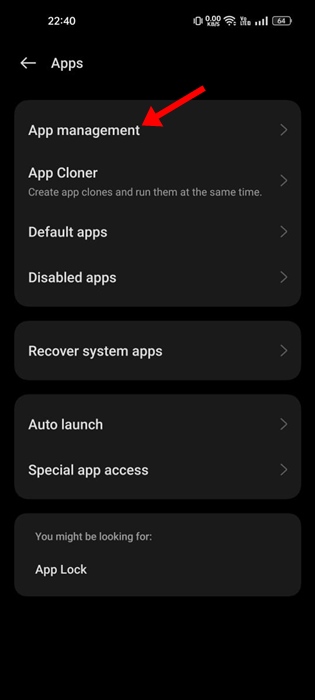
3. Tap on View all apps/App Management or See all apps.
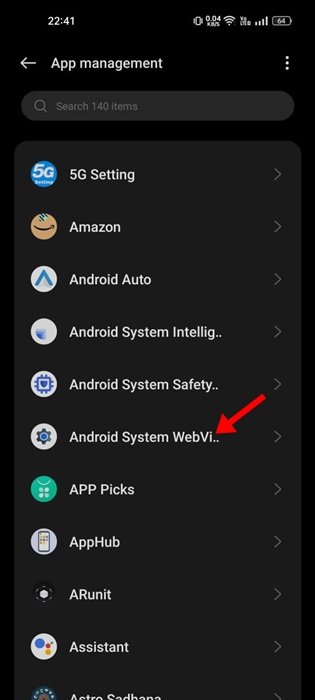
4. On the list of all installed apps, find and tap Android System WebView.
5. On the App Info screen for Android System WebView, tap Enable.
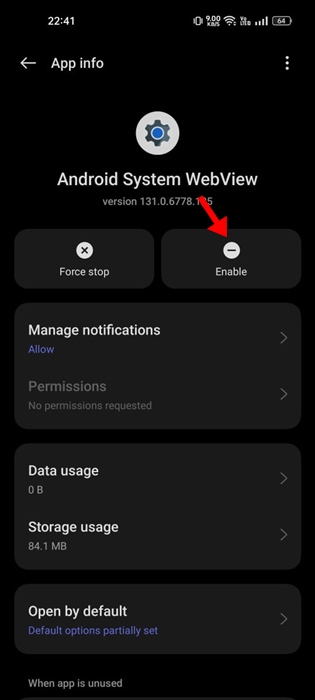
After making the changes, make sure to restart your Android. This will enable the feature, and you will no longer get the error message.
Enable Android System WebView on a Samsung Phone
The steps to enable Android System WebView on a Samsung phone differ slightly. So, if you have a Samsung phone, follow these steps instead.
1. Launch the Settings app on your Samsung Phone.
2. When the Settings app opens, tap Apps.
3. Find and tap Android System WebView.
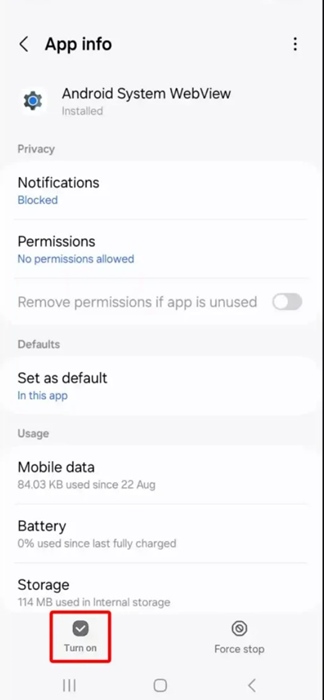
4. On the App info screen for Android System WebView, tap Turn on at the bottom left corner.
This will enable the Android System WebView on your Samsung phone. Before using this feature, make sure to restart your phone.
This guide explains how to enable Android System WebView on Android phones to fix the ‘Android system webview is disabled’ error. Let us know if you need more help on this topic in the comments.