
One of an iPhone’s most useful features is adjusting the screen brightness automatically based on the environment or battery levels. Anyway, if you aren’t a fan of this feature, here’s how you can turn it off.
1. Disable the Auto Brightness Feature
Auto brightness is the feature responsible for the iPhone display dimming issue. You should turn off that feature first.
1. Launch Settings.
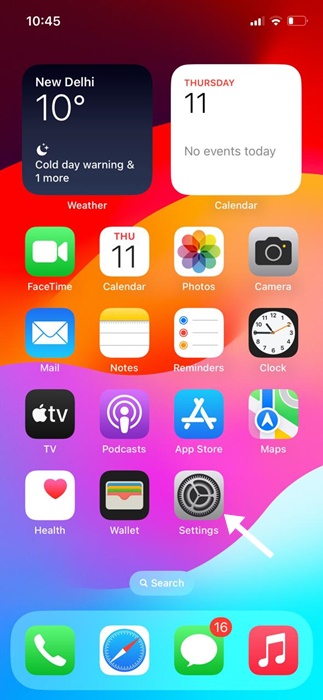
2. Scroll down and tap Accessibility.
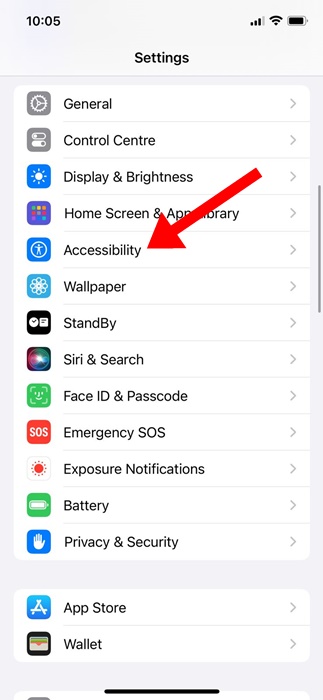
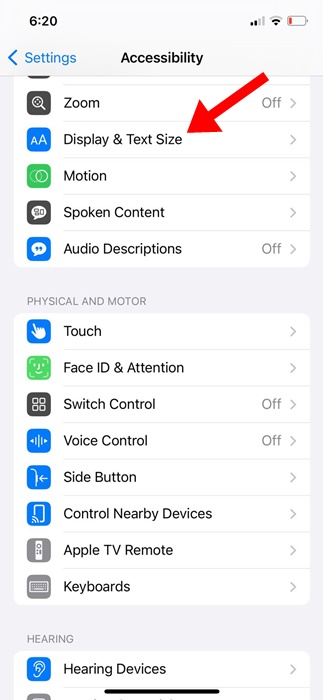
3. Tap Display & Text Size.
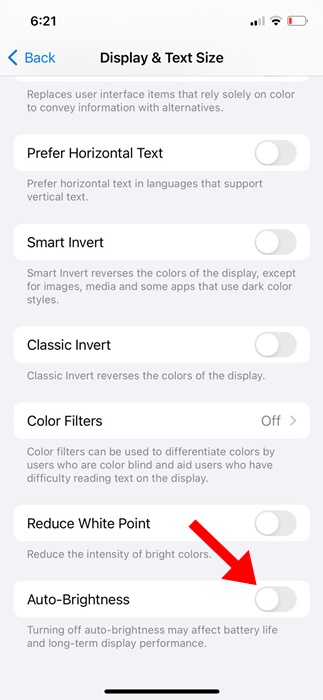
4. Turn off the toggle for Auto Brightness.
2. Manually Adjust the Screen Brightness
After disabling the auto brightness feature, you will need to adjust the screen brightness. The brightness level you set here will remain unchanged until you enable Auto-Brightness or adjust it again.
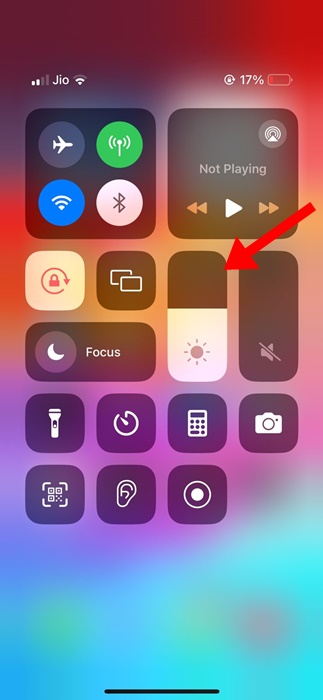
To manually adjust the screen brightness on your iPhone, open the Control Center. To open the Control Center, swipe down from the top right corner. In the Control Center, find the brightness slider and adjust it as needed.
3. Turn Off Attention-Aware Features
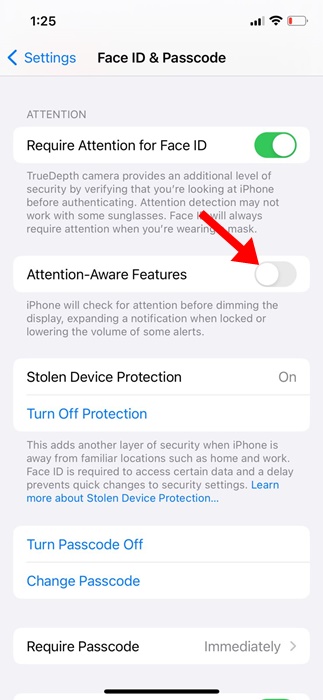
Attention Aware Features are another reason for the iPhone to dim the display automatically. You should turn off this feature as well.
1. Launch Settings.
2. Tap Accessibility.
3. Tap Face ID & Attention.
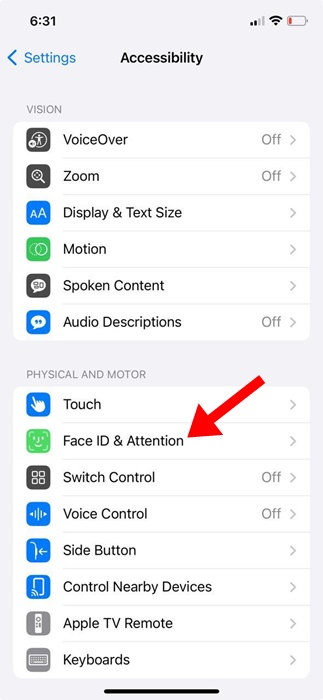
4. Turn off the toggle for Attention Aware Features.
.
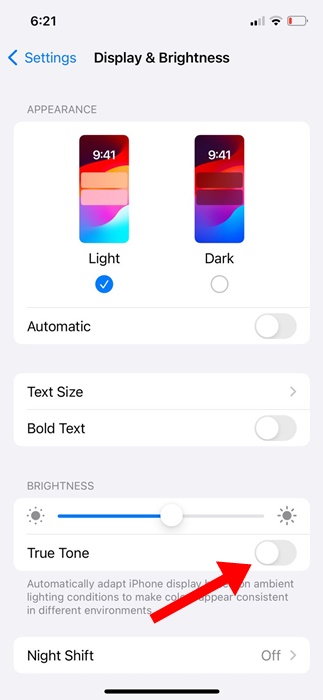
4. Disable the True Tone Feature
True Tone is a feature that automatically adjusts the display color and intensity based on the environment’s lighting conditions. You should disable True Tone as well.
1. Launch Settings.
2. Tap Display & Brightness.
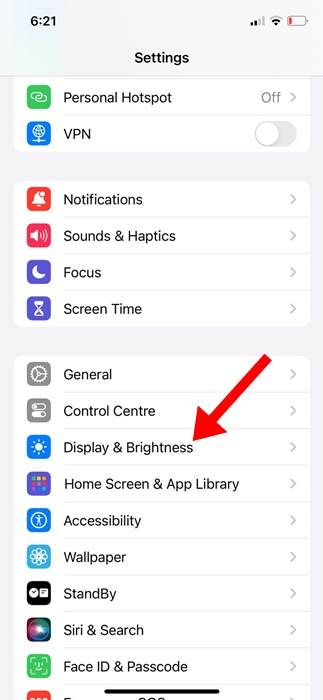
3. Turn off the toggle for True Tone.
5. Turn Off the Night Shift
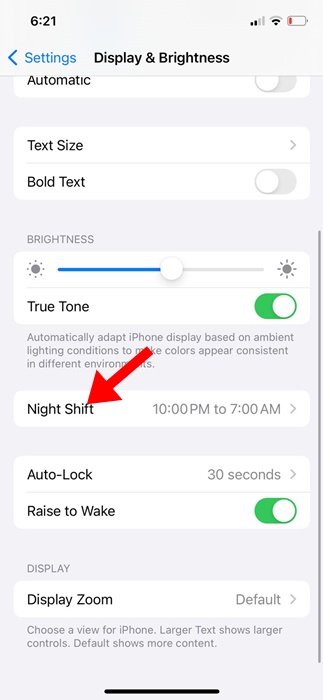
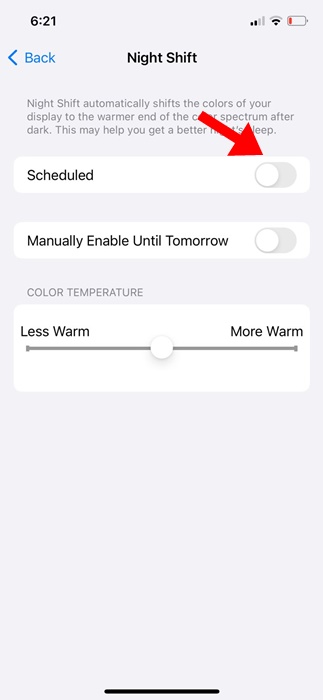
Although the Night Shift doesn’t dim the screen, it automatically shifts your display’s colors to the warmer end of the color spectrum after dark. Here’s how you can turn off the Night Shift.
1. Launch Settings.
2. Tap Display & Brightness.
3. Tap Night Shift.
4. Turn off the toggle beside Scheduled.
6. Disable the Auto Lock feature
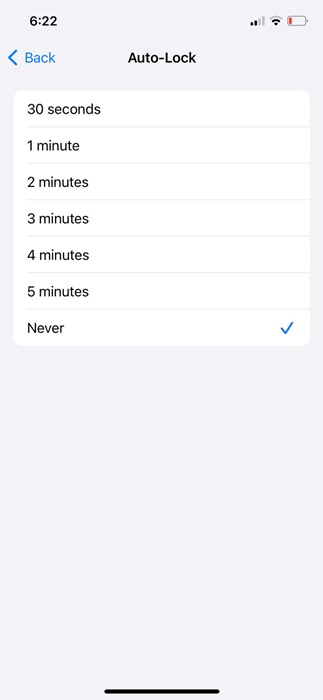
Auto lock is another feature that dims your iPhone screen. While we don’t recommend turning off the auto-lock feature, we will still share the steps to make you aware of it.
1. Launch Settings.
2. Tap Display & Brightness.
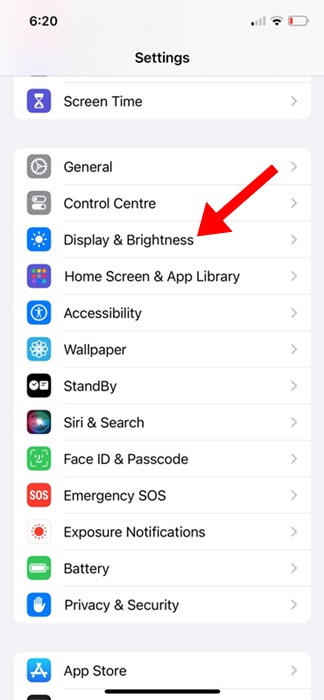
3. Tap on Auto-Lock.
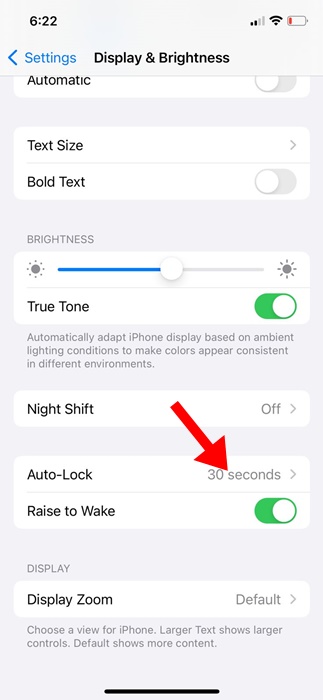
4. Select the Auto-Lock to Never.
These are some of the best working methods to fix the iPhone Display Keeps dimming issue. If you need more help on this topic, let us know in the comments.