If you want to get the most out of your iPhone, you should use Live Activities. Below, we have explained what Live activities are and how you can enable and use them.
What are Live Activities on iPhone?
Live Activities on iPhones are highly comparable to widgets. They are the same as Lock screen widgets that provide frequent information updates.
The information updates appear in glanceable locations such as the Lock screen, on the iPhone in Standby, and the Dynamic Island.
You can enable Live Activities and get information and features from compatible apps at a glance, right on your lock screen.
How do you enable and use Live Activities on an iPhone?
If you’d like to see information and features from compatible apps at a glance on your iPhone lock screen, follow these steps to activate the feature.
1. Launch the Settings app.
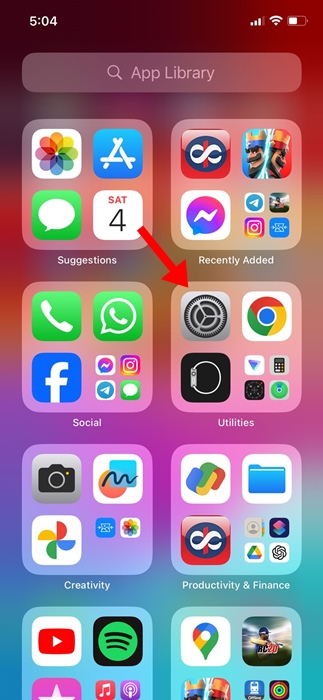
2. Tap on Face ID & Passcode.
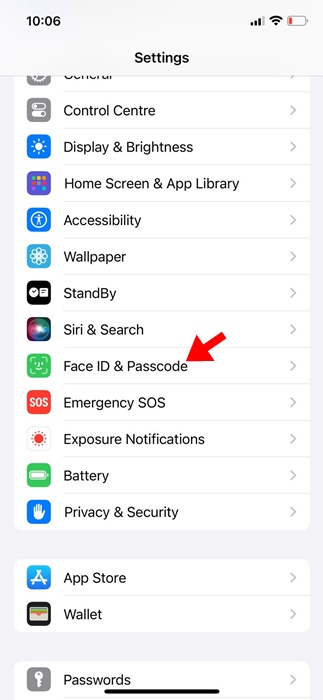
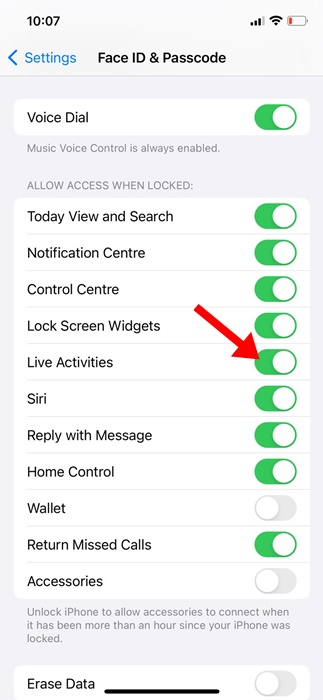
3. Unlock your iPhone and scroll down to the Allow Access when locked section.
4. Enable the toggle for ‘Live Activities’
5. To test whether the feature is activated properly, open the Clock app on your iPhone and start a timer.
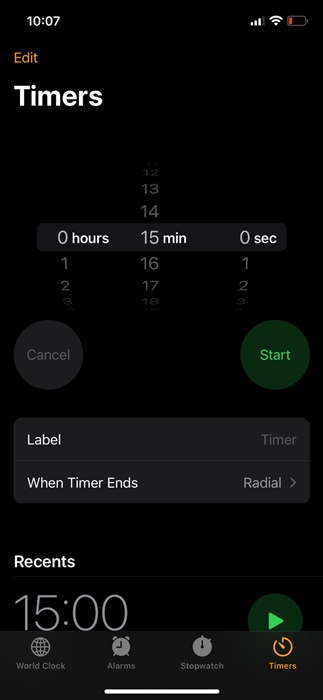
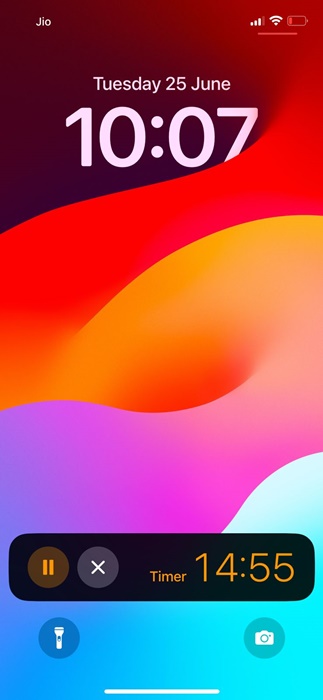
6. Once started, lock your iPhone screen. You will see the timer on your lock screen.
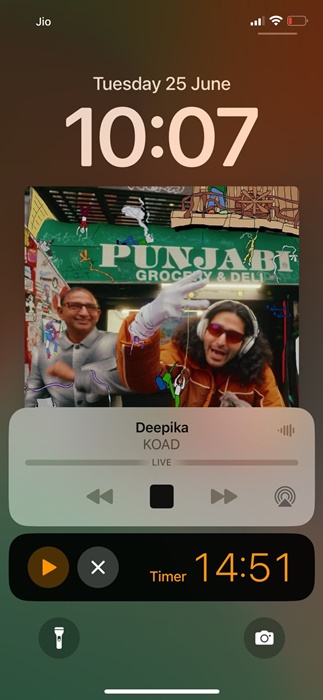
7. You can do the same for the Music app as well. The feature allows you to control the music right from the lock screen.
If you have an iPhone 14 Pro or any other upper model, Live Activities can use Dynamic Island to provide updates while you use other apps. The information will appear in the Dynamic Island in a collapsed form at all times.
This guide explains Live Activities on iPhone and how to enable and use them. If you need more help with this topic, let us know in the comments.