Windows 11 includes a Recommended section in the Start menu that displays recently installed apps and recently opened files. For many users, this feature is useful because it provides quick access to content they’ve used recently.
However, some users may have privacy concerns. If you share your computer with family members, friends, or coworkers, you might not want others to see your recently accessed files and apps appearing in the Start menu.
How to Remove Recommended Section from Windows 11 Start Menu
Fortunately, Windows 11 allows you to disable the Recommended section. Here’s how to remove the Recommended section from the Windows 11 Start menu.
1. Open the Windows 11 Start Menu.
2. Right click on an empty slot, then select Start Settings.
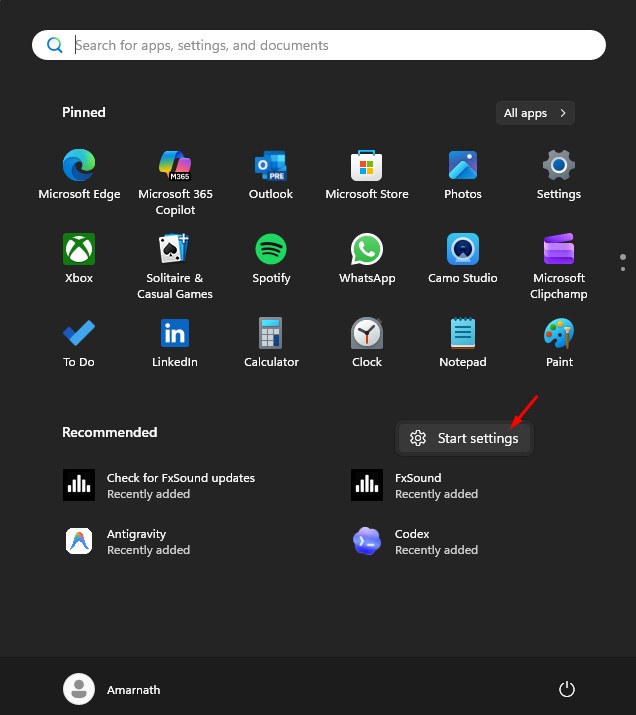
3. You can also navigate to the Settings > Personalisation > Start.

4. Disable these two options:
- Show recommended files in Start, recent files in File Explorer, and items in Jump Lists.
- Show recommendations for tips, shortcuts, new apps, and more.
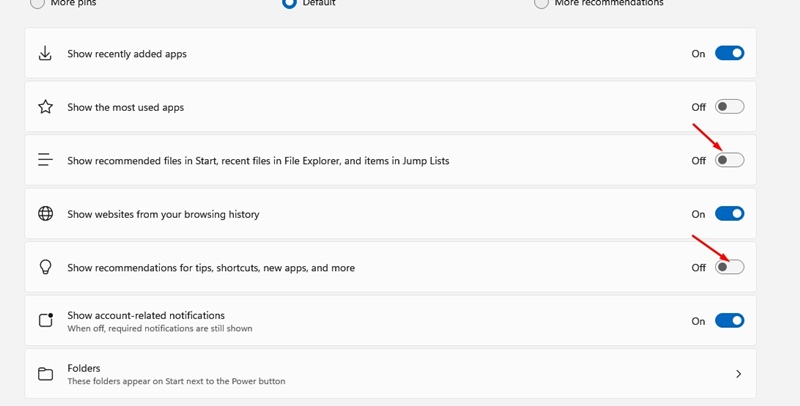
5. Once you disable these two features, restart your PC.
6. After the restart, you won’t see the Recommended section on Windows 11’s Start Menu.
This guide explains how to remove the recommended section from Windows 11’s Start Menu. If you need more help in removing the Recommended section, let us know in the comments. Also, if you find this guide helpful, share it with your friends.