If you’re a Windows user, you may be very well aware of the System File Checker Utility. SFC Scannow command or the System File Checker utility basically finds and repairs corrupted system files. It’s the go-to choice for pro users to fix various issues with the Windows operating system.
But what if the SFC SCANNOW command doesn’t complete or returns with an error? If it returns with an error, it simply means the corrupted files weren’t repaired. If it’s stuck in the process, you need to try these troubleshooting steps.
1. Restart your computer
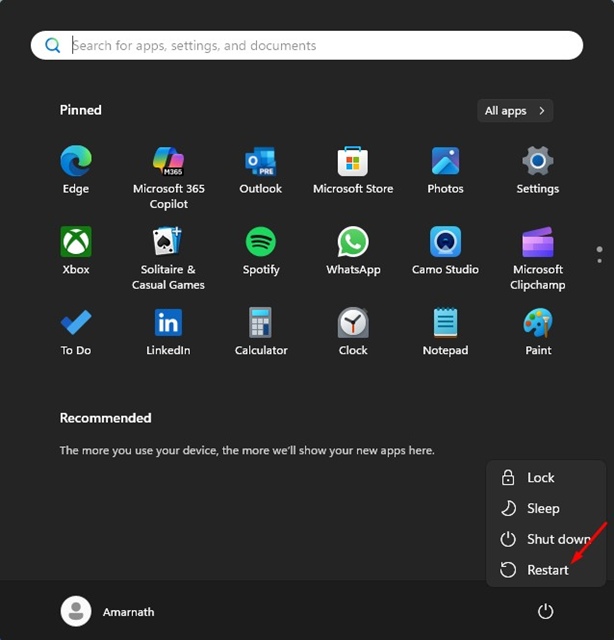
Before you try anything else, you should first restart your computer. Maybe a bug or a glitch is preventing the System File Checker utility from functioning properly.
If that was the reason, you should restart your PC to get rid of all bugs and glitches.
2. Run the DISM command First
DISM, or Deployment Image Servicing and Management, and SFC go together to fix the system file corruption. You should try running the DISM command first and then continue with the SFC SCANNOW.
1. Launch the Command Prompt with admin rights.
2. Next, paste the given command and press Enter:
DISM /Online /Cleanup-Image /CheckHealth
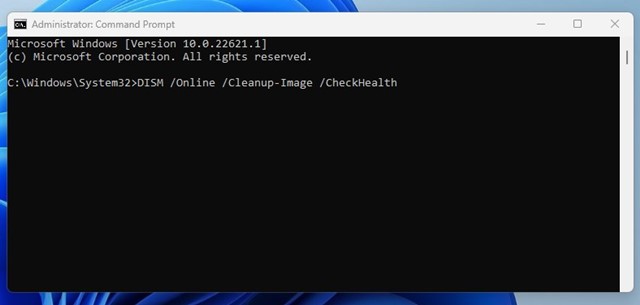
3. Then run this command on the command prompt:
DISM /Online /Cleanup-Image /ScanHealth
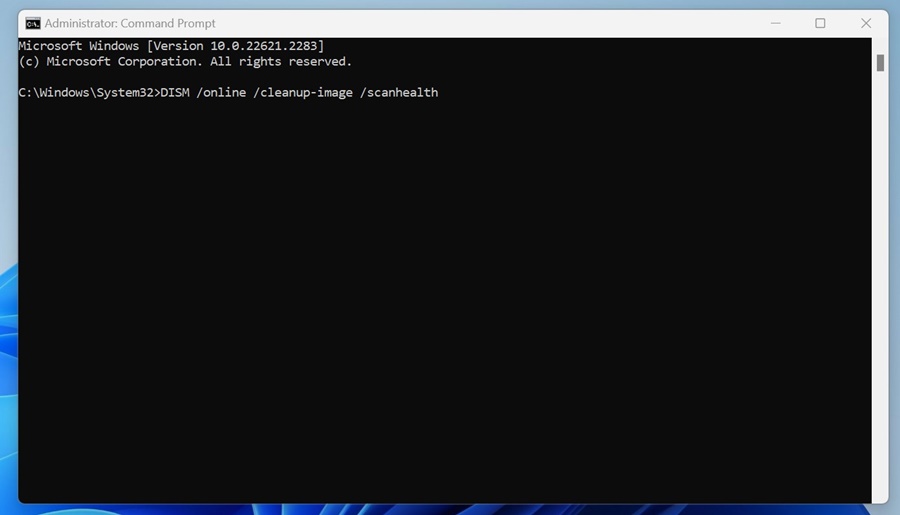
4. Finally, run this command:
DISM /Online /Cleanup-Image /RestoreHealth
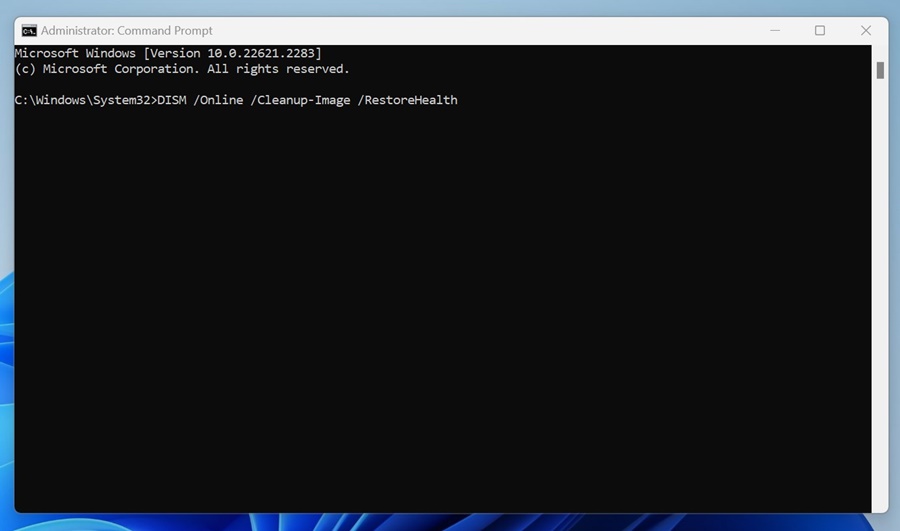
After this, restart your PC. If the problem isn’t yet fixed, try running the SFC scan in the command prompt.
3. Run the Check Disk Utility
The Check Disk Utility is a built-in Windows tool that deals with hard drive problems. The tool fixes the problems and recovers readable data from the bad sectors. You should run this utility as well.
1. Open Command Prompt with admin rights.
2. Next, execute this command:
chkdsk C: /f
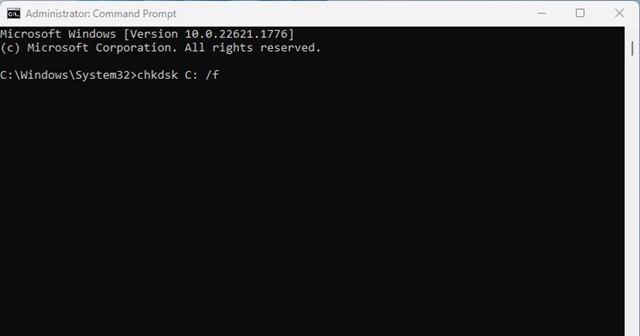
Note: “C” is your OS drive.
3. Next, type ‘Y’ and press Enter.
After the scan completes, restart your PC.
4. Try SFC in Safe Mode
If a third party is preventing the SFC scan from functioning, you can remove such interference by running the SFC scan in Safe Mode. Here’s how to boot into Safe Mode and run the SFC scan.
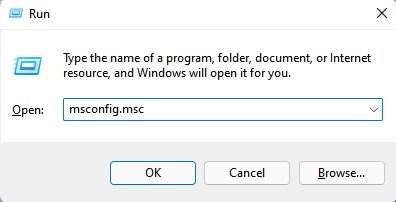
1. Press Windows Key + R to open the RUN dialog box. Type msconfig and press Enter.
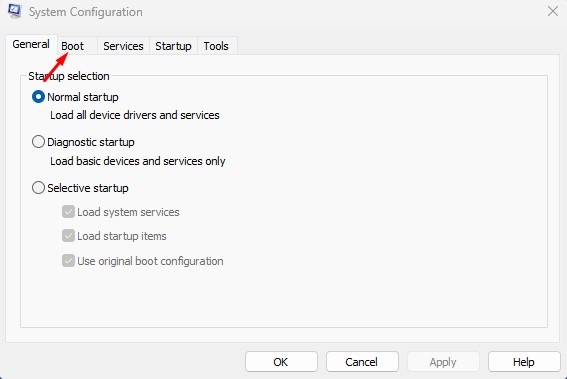
2. On the System Configuration, navigate to the Boot tab.
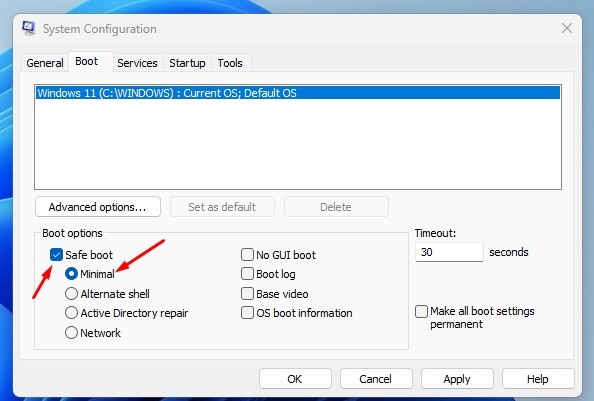
3. On the boot options, check Safe Boot and select Minimal as the subtype. Once done, click Apply.
4. On the prompt that appears, select Restart.
5. Your PC will boot into Safe Mode. Open the Command Prompt (Administrator) and run the SFC scan.
These are a few things you should do when SFC SCANNOW does not complete. If you need more help on this topic, let us know in the comments. Also, if you find this guide helpful, share it with others.