The default Windows Search covers specific folders like Documents, Pictures, Music, and the desktop. But what if you want Windows 11 to search for files present in any other drive or folder? If you want to do this, you need to switch Windows 11’s Enhanced Search Mode.
Turn On Enhanced Search in Windows 11
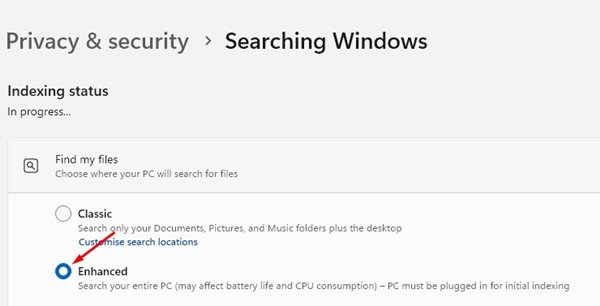
Enabling the Enhanced Search mode in Windows 11 is easy, but you should know a few things. Enhanced search searches your entire PC, but it affects the battery life and raises the CPU consumption. Your PC should be plugged in for initial indexing.
1. Open the Settings app.
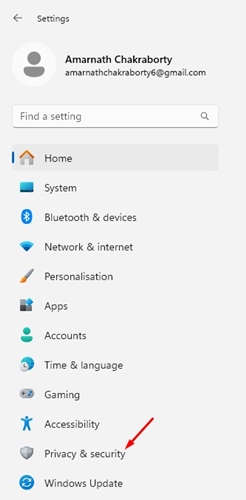
2. Click Privacy & Security.
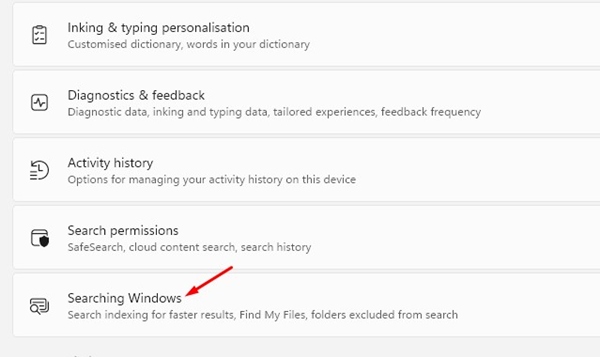
3. Click Searching Windows.
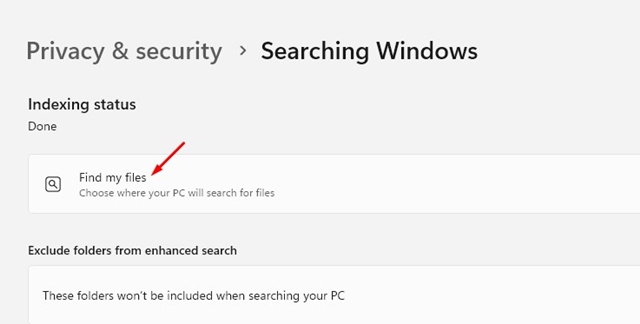
4. Expand the Find my Files.
5. Select Enhanced instead of Classic.
Rebuild the Search Index
If you’re experiencing problems after enabling the Enhanced Search, you should rebuild the search index.
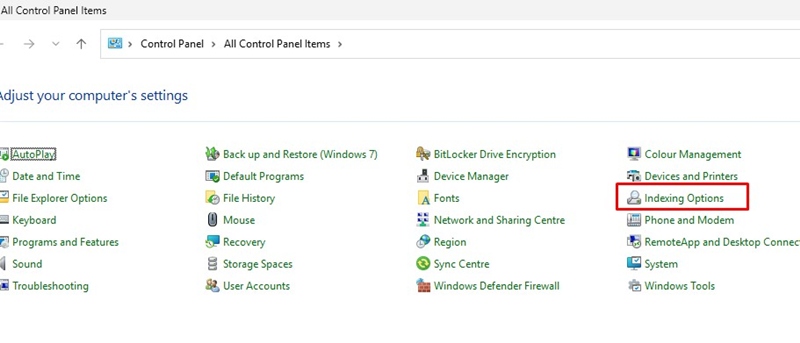
1. Open the Control Panel and click Indexing Options.
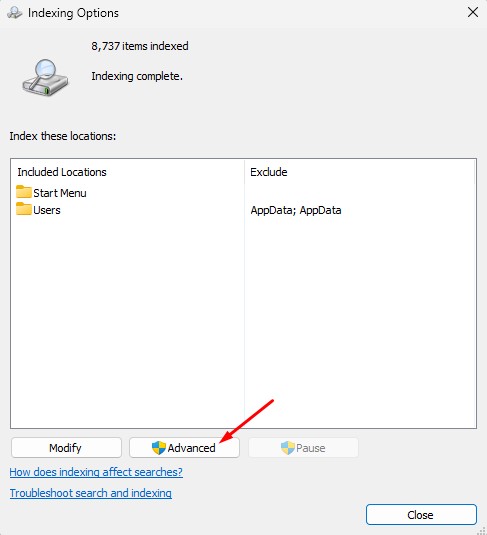
2. Switch to the Advanced.
3. Click Rebuild.
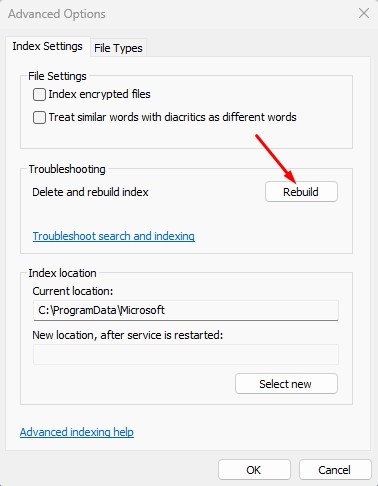
4. Confirm your choice when prompted.
Make sure to restart your device if it’s not responding.
This article explains how to turn on Enhanced search in Windows 11. If you need more help with this topic, let us know in the comments.