It’s easy to shut down a Windows 11 PC, but what if your PC restarts instead of shutting down? This problem has been troubling many users recently.
Whenever a user selects the Shutdown, their PC restarts. If you have been facing the same issue, here’s what you should do.
1. Change the Power Management Settings
Adjusting the Power Management Settings for Network Adapters is likely to fix this issue.
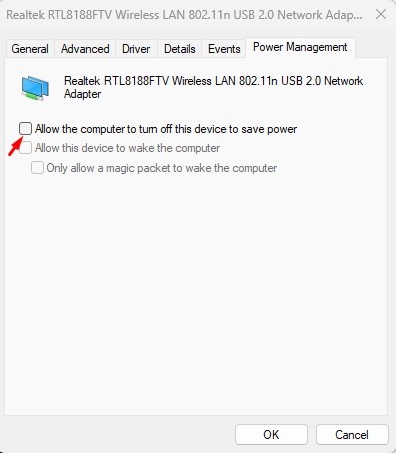
- Right-click the Start button and select Device Manager.
- Right-click the primary network adapter and select Properties.
- Switch to Power Management.
- Uncheck the ‘Allow the computer to turn off this device to save power’ and click OK.
2. Disable the Fast Startup feature
Disabling the Fast Startup feature has helped many users fix the Windows 11 restarting instead of shutting down problem. You can try doing it as well.
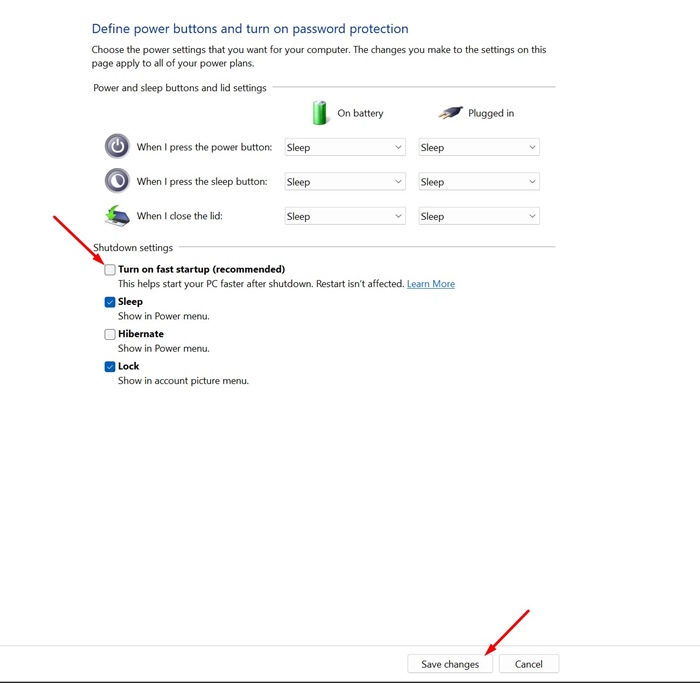
- Open the Control Panel on your Windows 11 PC and select System and Security.
- Click the Choose what the power buttons do link on the left.
- In the Shutdown settings section, uncheck ‘Turn on fast startup (recommended).
- Click Save Changes.
3. Perform a Full Shutdown
You can initiate a full shutdown from the Command Prompt. This will help you temporarily resolve the problem.
1. Type CMD in the Windows Search. Right-click the Command Prompt and select Run as administrator.
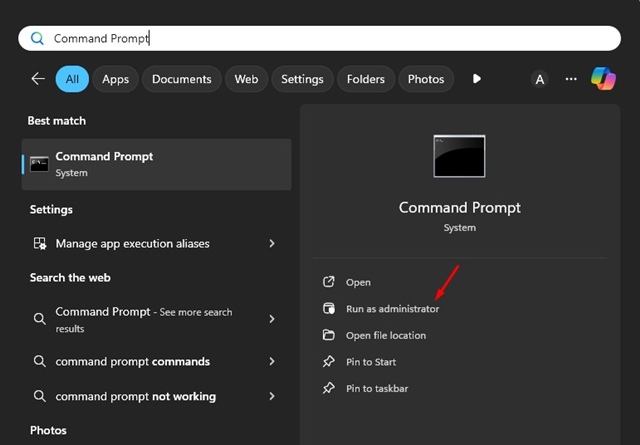
2. Execute this command:
shutdown /s /f /t 0
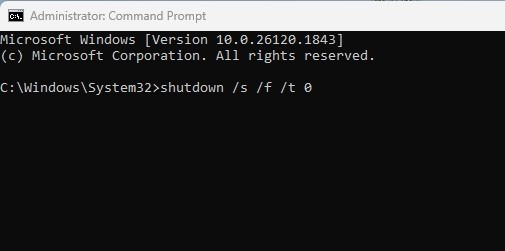
The above command will force shut down your PC.
4. Update the System Drivers and Windows 11
Bugs in the operating system can trigger problems like Windows 11 restarting instead of shutting down. You can get rid of this problem by updating Windows 11.
Updating Windows 11 will also install the required device drivers.
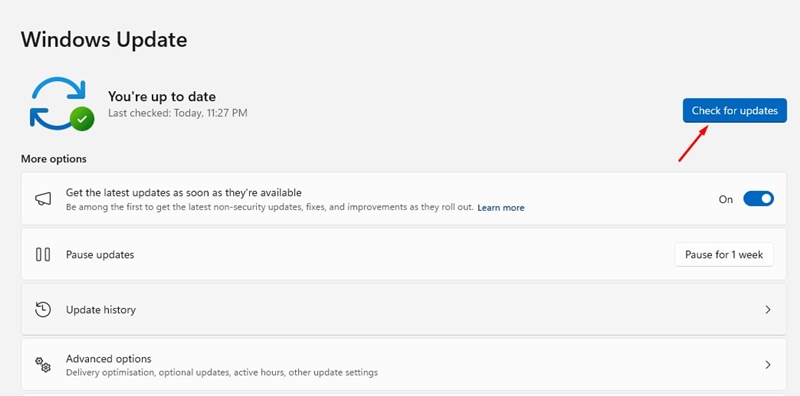
Press the Windows Key + I to open Windows Settings. Next, navigate to the Windows Update on the left sidebar and click ‘Check for Updates’. Make sure to install all available updates.
These are the best ways to fix the Windows 11 restarting instead of shutting down issue. If you need more help with this topic, let us know in the comments.