If you keep resetting Windows 11 for some reason, it’s best to have a proper backup plan. The built-in file backup utilities of Windows 11 are enough to fulfill all your data backup needs. This article will share different ways to back up Windows 11.
1. Create a Full Backup Using Backup & Restore Utility
Windows 11’s Backup & Restore utility can back up all important files & folders on your PC as it uses the ‘shadow copy’ feature to create a full system image. With the full system image, you get an identical copy of all apps, files & and settings that had been backed up.
With this backup method, you can quickly back up your EFI System Partition, C Drive folders, Windows Recovery Environment, etc. You can even back up other drives of your PC as well.
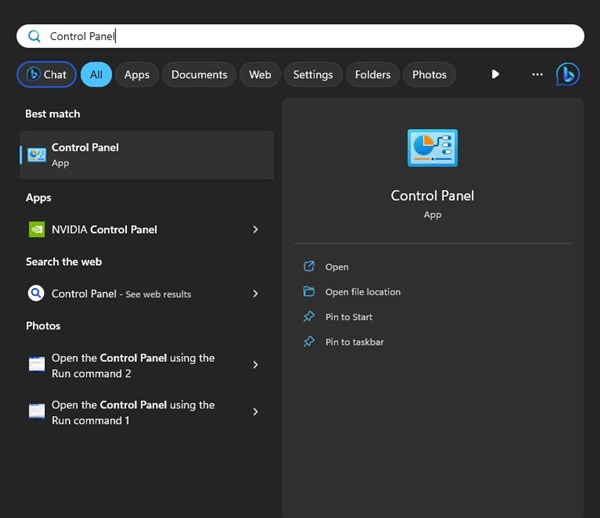
1. Open Control Panel on Windows 11 Search.
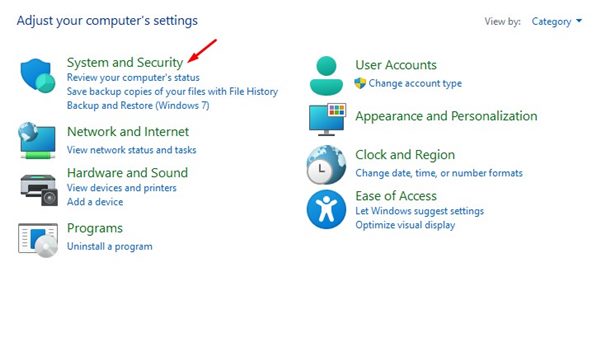
2. Select System and Security.
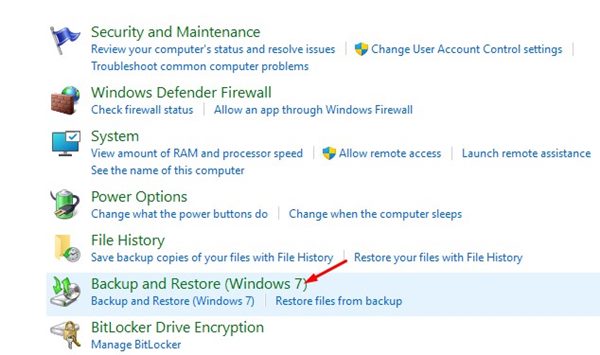
3. Click on Backup and Restore (Windows 7).
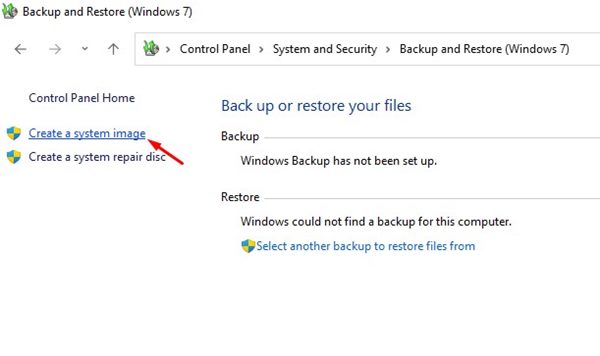
4. Click the Create a System image link.
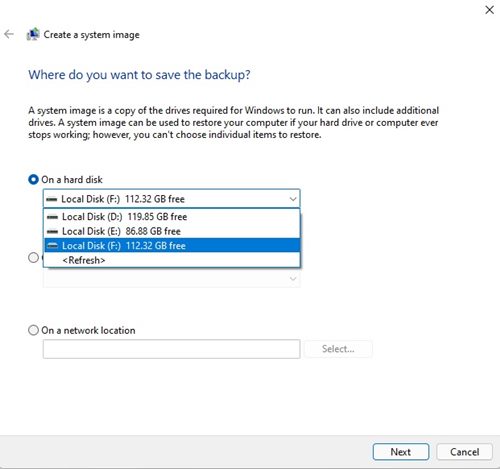
5. On Where do you want to save the backup? screen, select On a hard disk, and click Next.
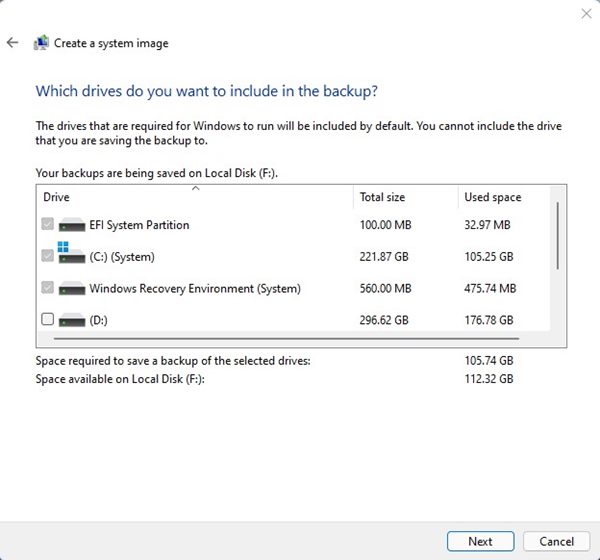
6. On which drives do you want to include in the backup? Screen, select the drives you want to back up, and click on Next.
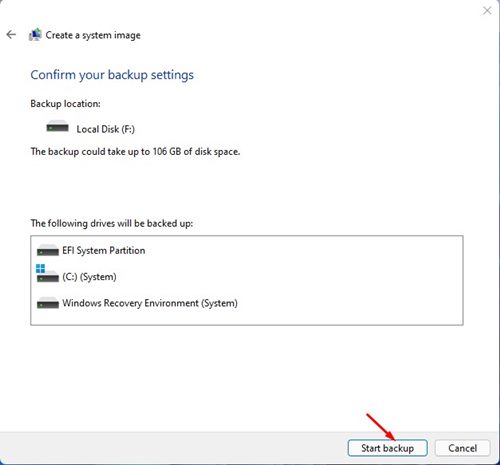
7. Confirm your backup settings and click Start Backup.
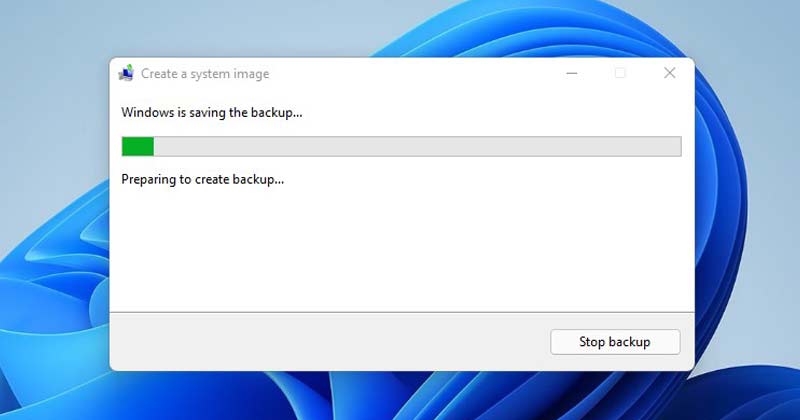
8. You must wait patiently until Windows 11 creates a backup file.
How to Restore the Backup?
After creating the backup file, you can use it whenever needed. Follow these steps to restore your PC with the backup you’ve created.
1. Insert the Windows 11 Bootable USB Drive and boot from it.
2. Select all options and click Next.
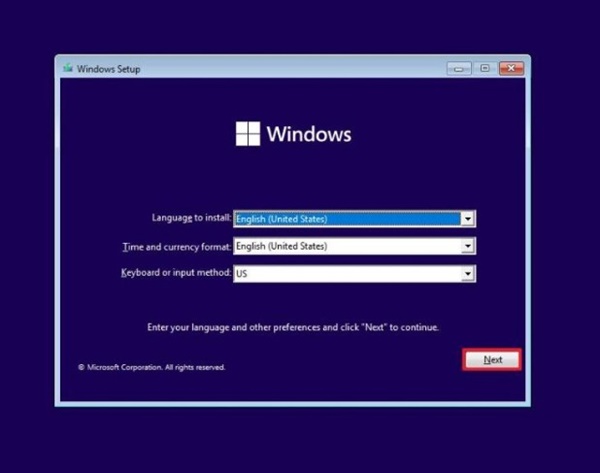
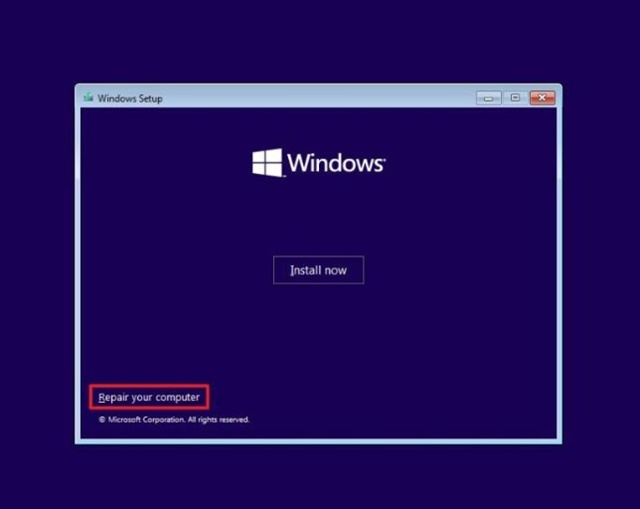
3. Select Repair your computer.
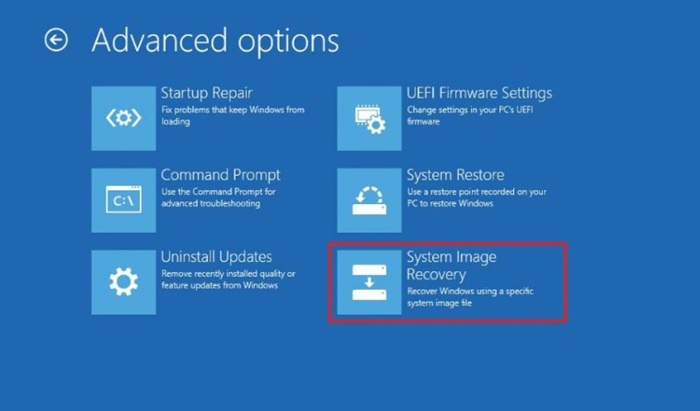
4. Select Troubleshoot > Advanced Options > System Image Recovery.
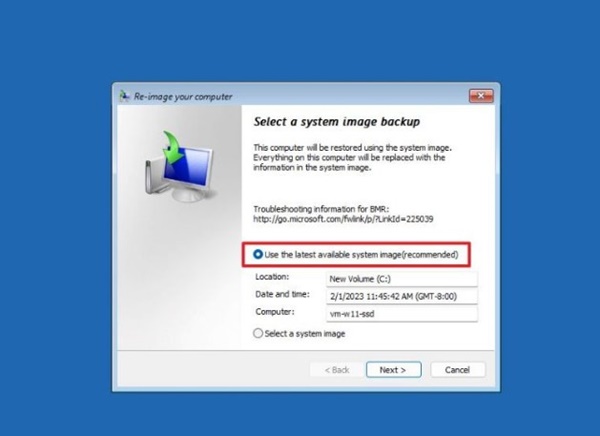
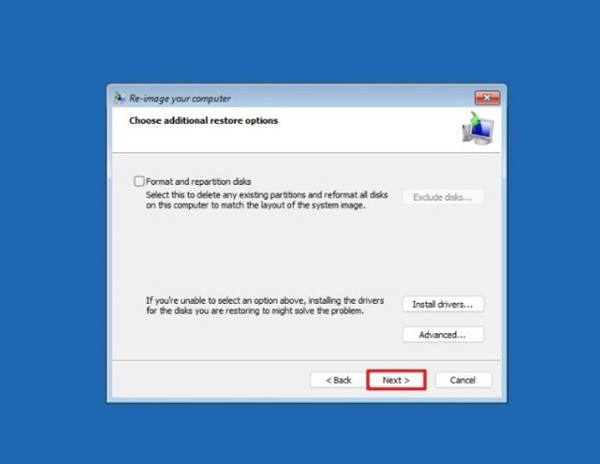
5. Select a system image backup window, select Use the latest available system image, and click Next.
6. Confirm your selection and finally click the Finish button to restore your Windows 11.
2. Backup Windows 11 with File History
The File History feature of Windows 11 allows you to back up your essential folders, such as documents, music, pictures, videos, desktop folder. It’s not a full-fledged backup tool, but great for backing up important folders.
1. Open Control Panel from the Windows Search.
2. Select System and Security.
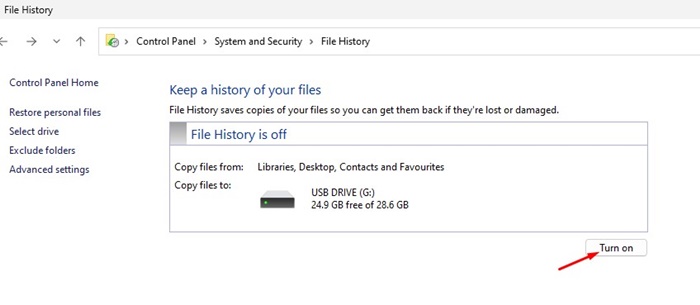
3. Select File History.
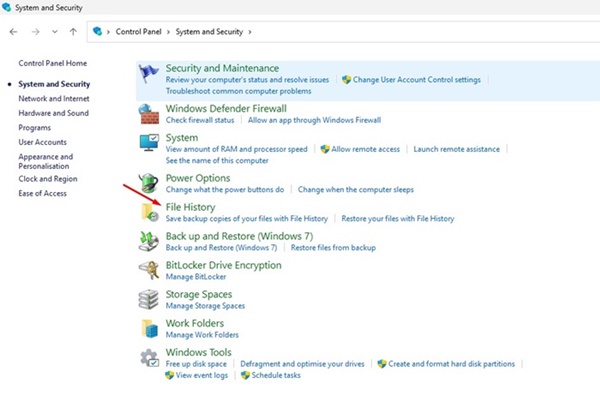
4. Click on the Advanced settings.
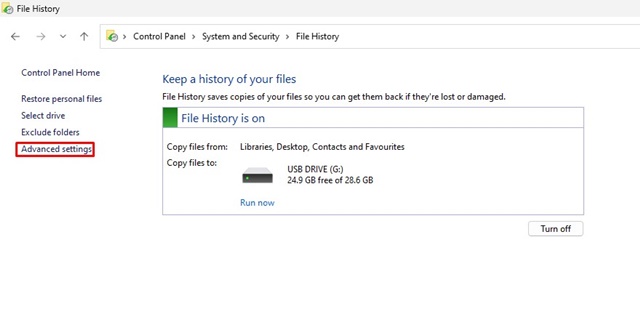
5. Set a schedule to run the File History.
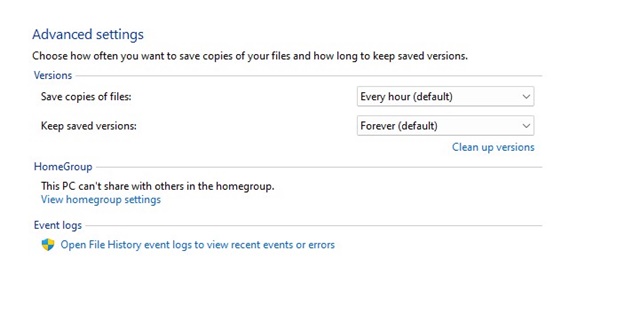
6. Click on the Keep Saved Version drop-down and select the time frame as per your preference.
7. Click on Turn on.
How to Restore Files with File History?
After backing up the files & folders, follow these steps to restore your files with the file history.
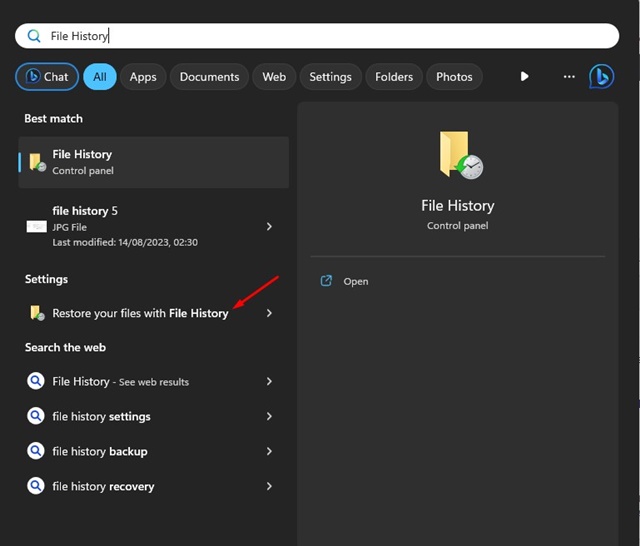
Open Windows 11 search, type in File History. Select the Restore your files with File History option. You will see a snapshot of the folders that you can retrieve. Select the items and click on the green back arrow to restore them.
3. Backup Windows 11 with System Restore Point
You can use System Restore to make a restore point when you install a new driver, app, or Windows update. Once created, you can use a restore point to revert the system state to resolve the problem. This won’t affect your files, but it will remove all settings, apps, drivers, and updates installed after the restore point was made.
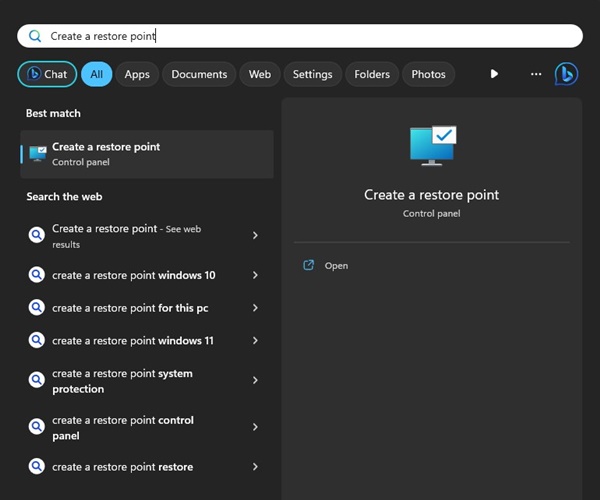
1. Click on Windows 11 search and type in Restore Point. Open the Create a Restore Point app from the list.
2. Switch to the System Protection tab.
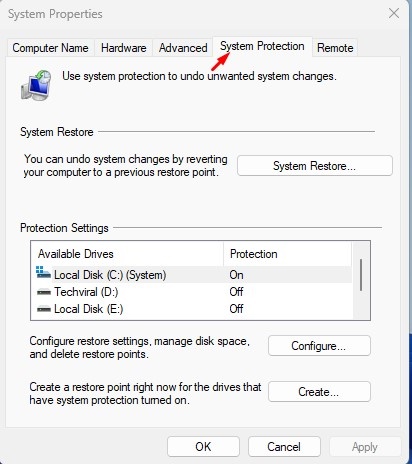
3. Select the drives you want to create a system restore point.
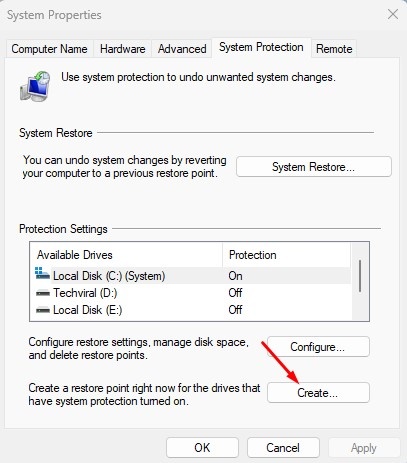
4. Click the Create button at the bottom right.
5. Type a description for the restore point and click Create.
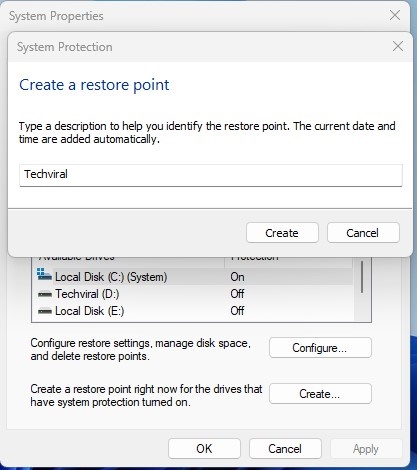
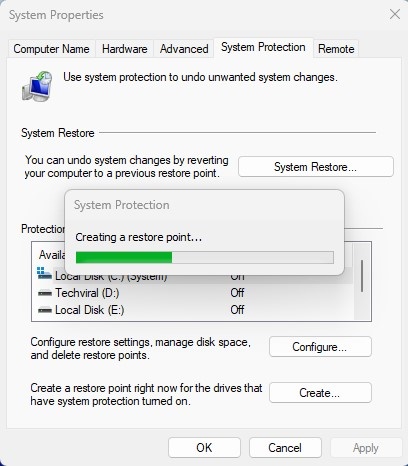
6. Wait until the System Protection creates a restore point for you.
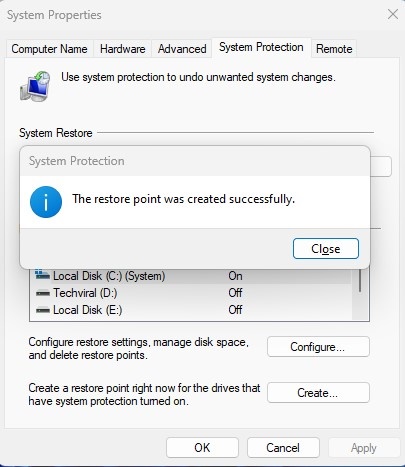
7. Once created, you will see a success message like this. Click on Close.
How to Use the Restore Point?
After creating a restore point, you can use it to undo system changes by reverting your computer to the previous restore point.
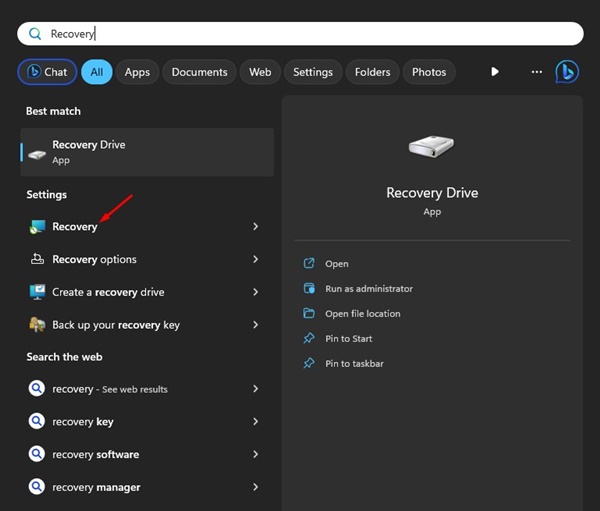
1. Click on Windows 11 Search and type Recovery. Open the Recovery app from the list.
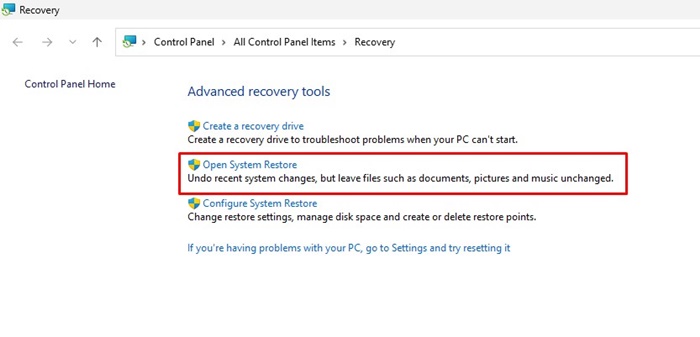
2. On the Advanced Recovery tools screen, select Open System Restore.
3. Select the Recommended restore. If you want to pick a different restore point, select Choose a different restore point and make your selection.
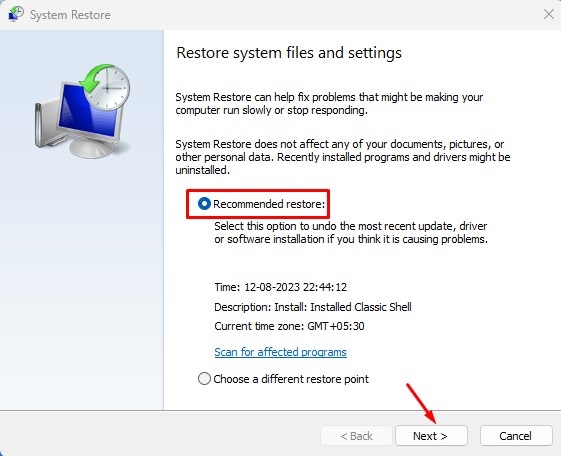
4. After selecting the restore point, click on the Next button.
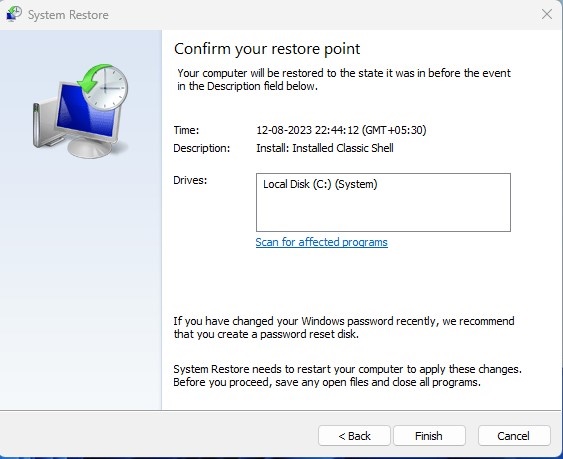
5. Confirm your restore point and click on the Finish button.
4. How to Backup Windows 11 to an External Drive
The Backup & Restore tool of Windows 11 can back up important files to an external drive. The steps are very similar; you just need to select your external drive on the backup drive selection screen.
Here’s a detailed guide on how to back up Windows 11 to external drive. Go through the article to know the steps.
5. Other Ways to Back Up Windows 11
Several PC Migration software for Windows provide you with backup & restore, disk cloning features. You can use them even when you don’t have a plan to migrate.
The drawback of PC Migration softwares is that they are often very expensive, and the backup features are not the key highlights. Still, they allow you to back up your important files to an external drive or any cloud storage.
Cloud file storage services are great for storing important files/folders and reducing storage usage on a PC. Doing so also helps you free up the hassle of manual backup.
Windows 11’s built-in OneDrive can also be configured to back up important folders to the cloud. These are some of the best & working methods to back up Windows 11.