The Windows Security app can go missing for several reasons. If you are dealing with the Windows Security Icon missing from the System Tray issue, here’s what you can do to bring it back.
1. Enable Windows Security Icon via App Startup Settings
Chances are that you accidentally disabled the Windows Security app from the Startup settings, so it does not appear on the taskbar or system tray.
1. Click on the Windows Start button and select Settings.

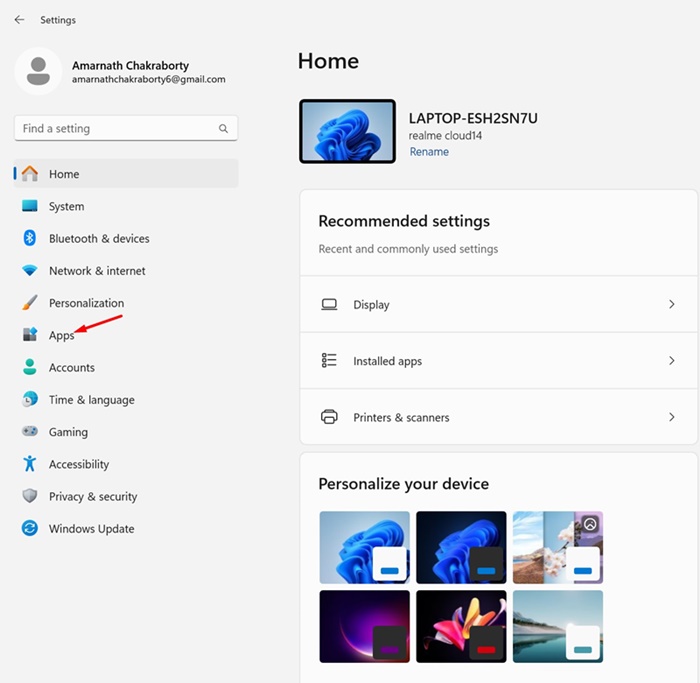
2. Switch to Apps.
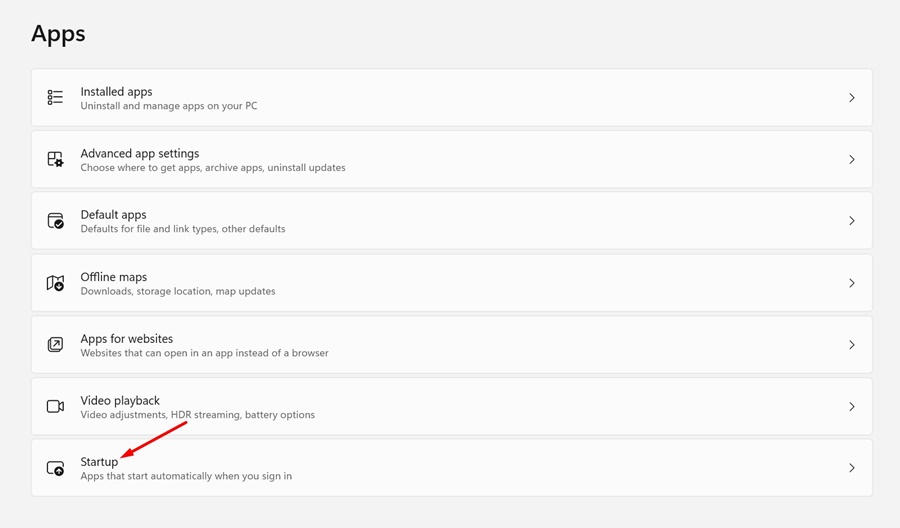
3. Click Startup.
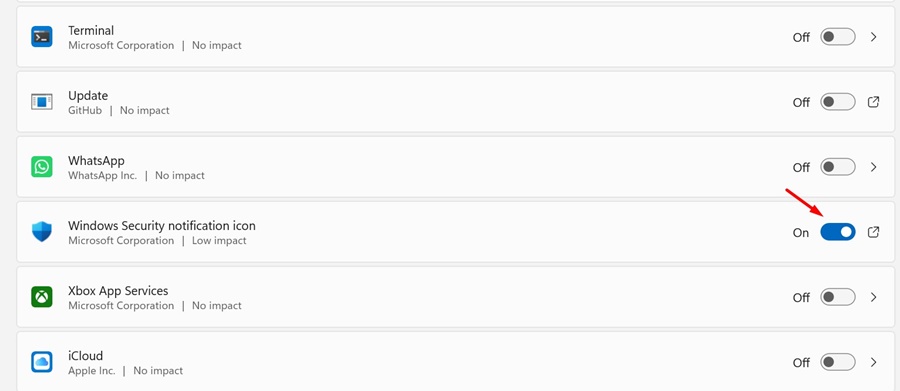
4. Find and enable the Windows Security Notification.
2. Show Windows Security Icon on System Tray via Taskbar Settings
This method will enable the Windows Security notification icon on the System tray via Taskbar settings.
1. Click on the Windows Start button and select Settings.
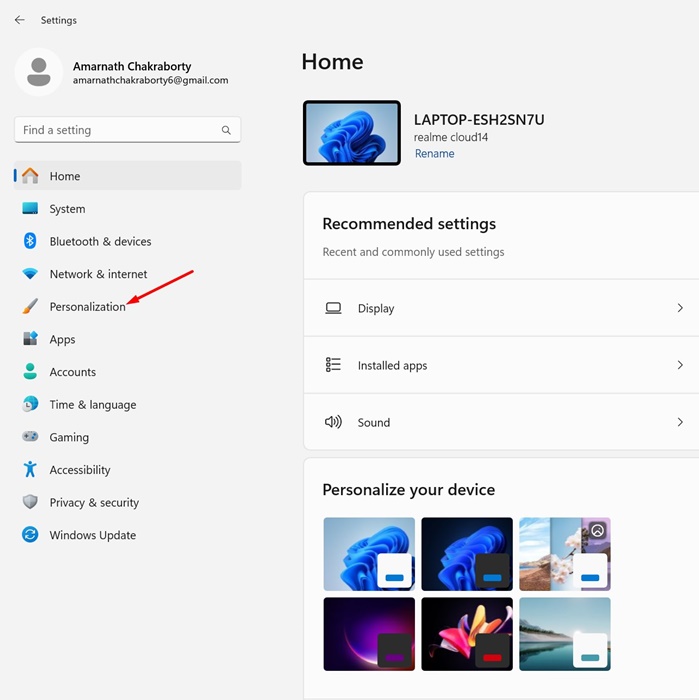
2. Switch to Personalization.
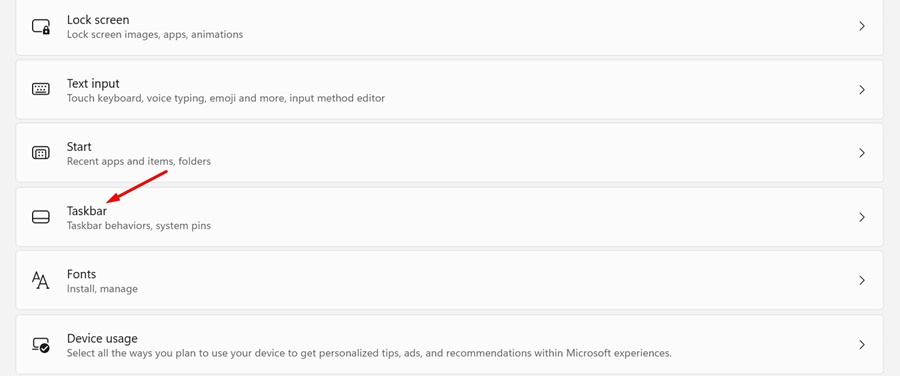
3. Click on Taskbar.
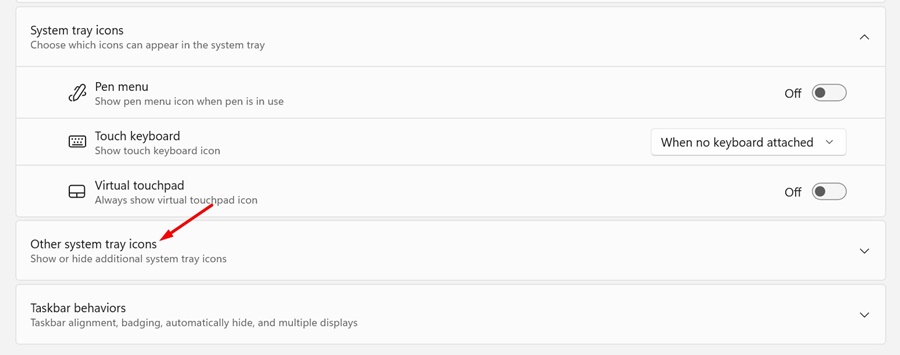
4. Scroll down a bit and expand the Other system tray icons.
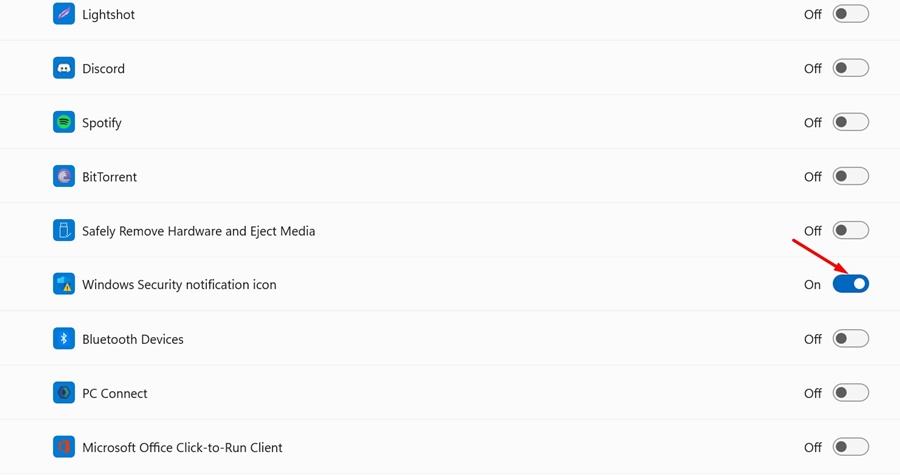
5. Find and enable the toggle for the Windows Security notification icon.
3. Show Windows Security Icon via Local Group Policy Editor
Since I am using the Windows 11 Home edition, it doesn’t have the Local Group Policy editor. But, if you are using Windows 11 Pro or any other edition, you can follow these steps to show the Windows Security app icon.
1. Press the Windows Key + R button on your keyboard to open the Run dialog box.
2. When the RUN dialog box opens, type gpedit.msc and press Enter.
3. On the Local Group Policy Editor, navigate this path: Computer Configuration > Administrative Templates > Windows Components > Windows Security > Systray.
4. On the right, double-click on Hide Windows Security Systray, select Disabled, and click OK.
This is how you can show the Windows Security System tray icon by modifying the Local Group Policy Editor.
4. Add SecurityHealthSystray to the Startup folder
Another good thing you can do to fix the Windows Security icon missing from the System tray is to add the SecurityHealthSystray to the Startup folder.
1. Open the File Explorer and navigate to the C:\Windows\System32.
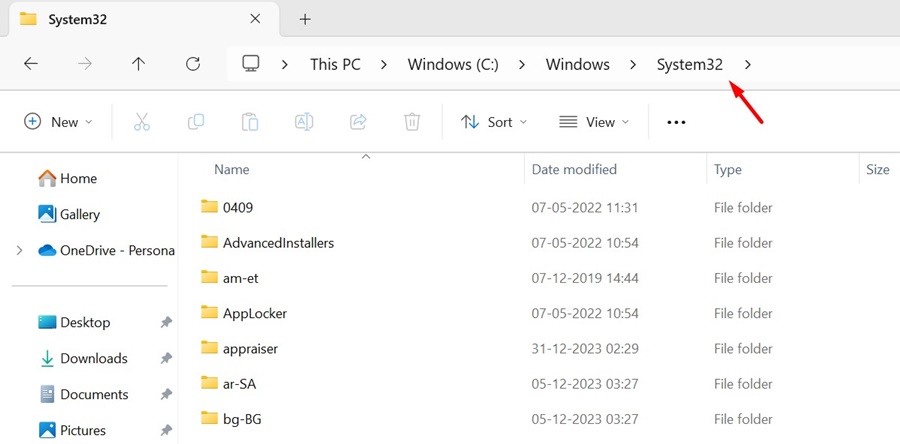
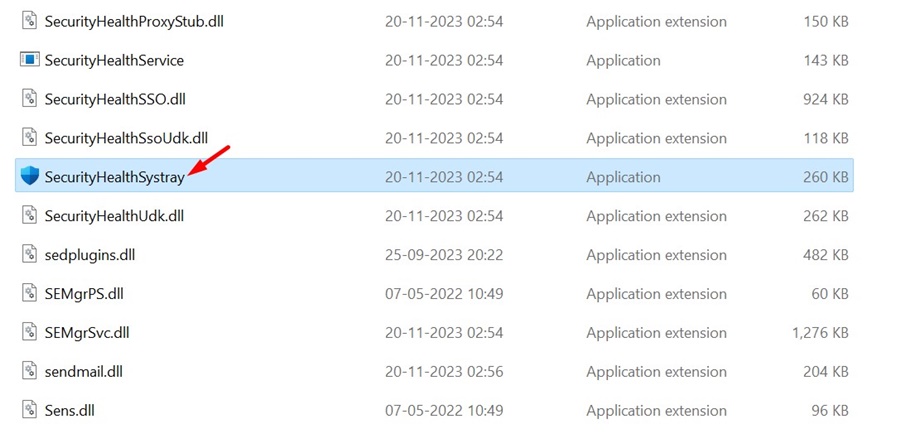
2. Find the SecurityHealthSystray.exe file. You can utilize the File Explorer search to find this file.
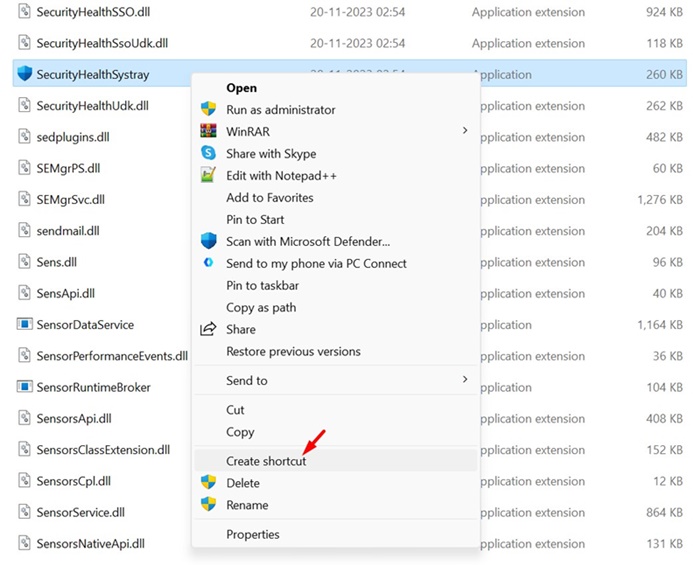
3. Right-click on the file and select Create Shortcut.
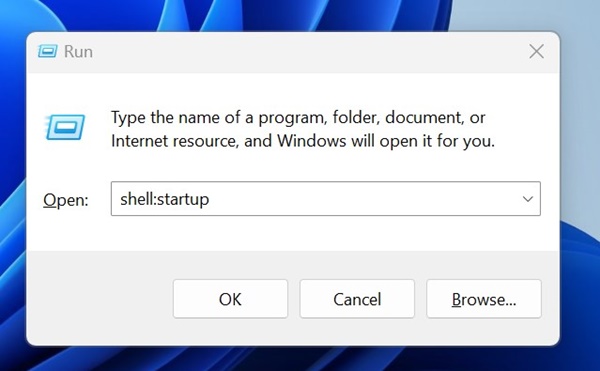
4. Press the Windows Key + R button together. On the RUN dialog box, type shell:startup and press Enter.
5. Copy the desktop shortcut for SecurityHealthSystray you’ve created and paste it into the Shortcut folder.
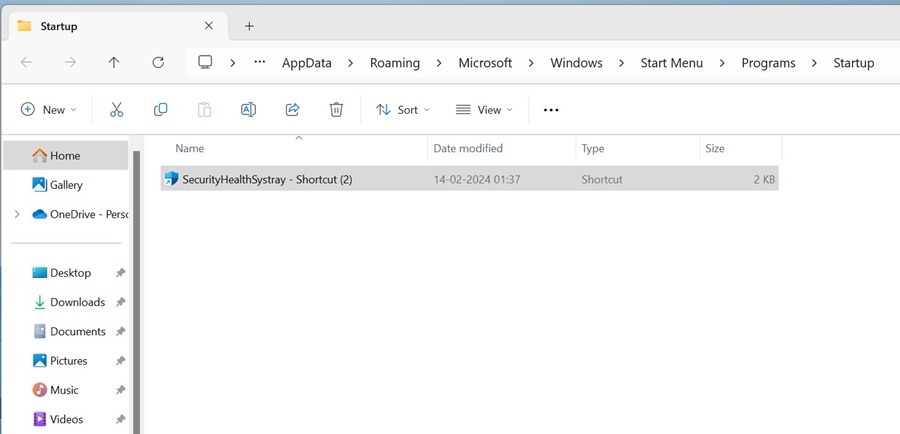
After making the changes, restart your Windows PC. This should add the Windows Security icon to your system tray.
5. Turn Off Other Security Programs
Windows Security is set to disable automatically whenever it detects an additional security program. So, checking whether your PC has any other security programs installed is essential.
You can check the Control Panel for third-party antivirus or security programs. If any third-party security program is installed, you can disable or uninstall it.
6. Update your Windows
If nothing has worked for you until now, it’s best to update your Windows PC. Updating Windows to the latest version will ensure proper stability and introduce new features.

To update Windows 11, head to Settings > Windows Updates > Check for Updates. Windows 11 will automatically check for available updates and install them automatically.
These are some of the best ways to fix the Windows Security icon missing from the system tray or taskbar. If you need more help, let us know in the comments below.