
This error generally appears when Windows fails to read or access the drive, which could be a PenDrive, SD Card, Mobile storage device, SSD, or HDD. Usually, people see this error while opening a file from a USB drive or SSD. The error message clearly states that the file or directory they are trying to access is corrupted or unreadable.
Certain other things can also trigger such errors on a Windows computer:
- A hard drive is corrupted.
- Virus or Malware infection.
- The external hard drive is physically damaged.
- The external hard drive was removed improperly.
- The USB Port might be damaged or not working correctly.
If you’ve encountered this error, here’s how you can fix it.
1. Restart your computer
Sometimes, the ‘File or Directory Is Corrupted and Unreadable’ error is just a result of a temporary glitch. Before trying anything else, you should restart your Windows computer.
Restarting your Windows computer can eliminate such bugs and glitches.
2. Disable Your Antivirus

Antivirus programs can sometimes trigger false-positive warnings; your antivirus program likely detects the external drive as a threat and prevents you from accessing the files.
If you believe your external drive has no problematic files, you can temporarily disable your antivirus or antimalware program. After turning off the antivirus tool, reaccess the file. If you don’t see the error, your antivirus program was the culprit.
3. Run the ChkDsk command
This method will use the disk check utility to fix the file or directory is corrupted and unreadable error message.
1. Open File Explorer on your PC.
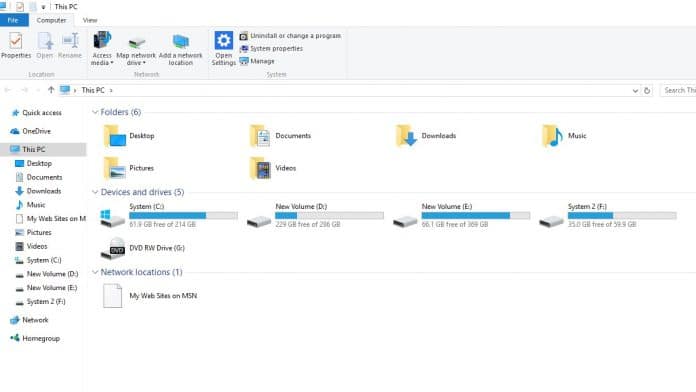
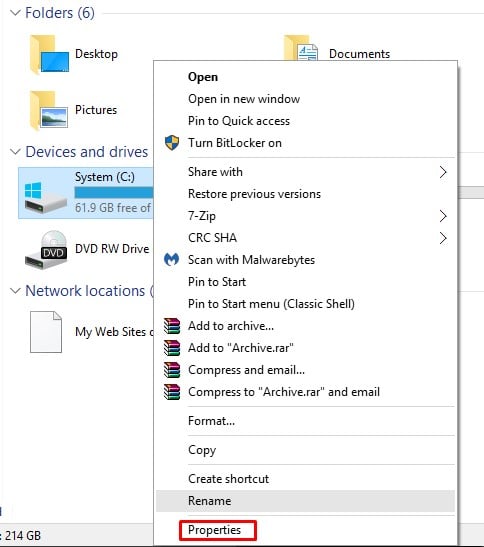
2. Right-click on the external hard drive and select Properties.
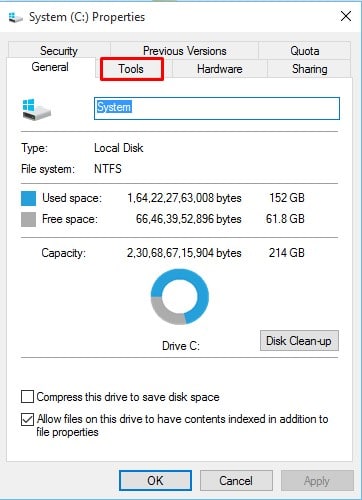
3. Click on Tools.
4. Click on Check under Error-checking.
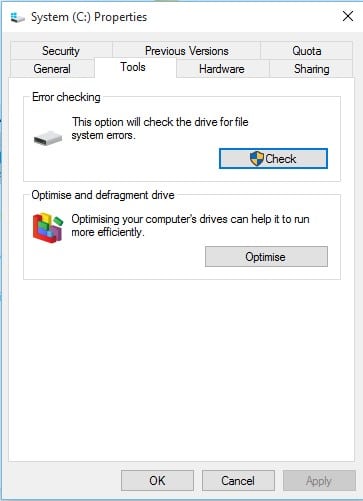
5. Click on the Scan Drive.
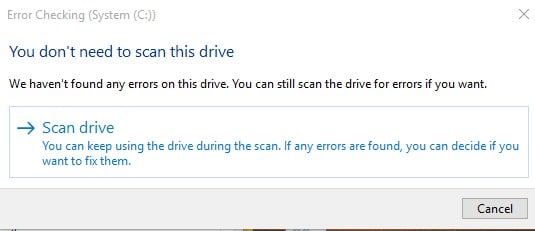
6. Wait for a few seconds until the scan completes.
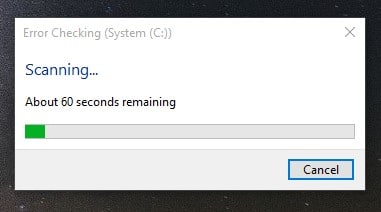
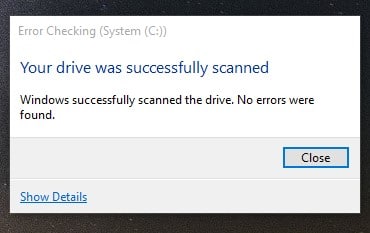
7. Once you have completed the process, you will see a success message. Click the ‘Close’ button to close the utility.
4. Run chkdsk from the command prompt
This method runs the disk check utility from the command prompt.
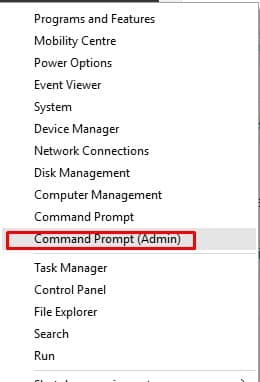
1. Right-click the Windows icon and select Command Prompt (Admin).
2. In the command prompt window, enter the command chkdsk /r d:
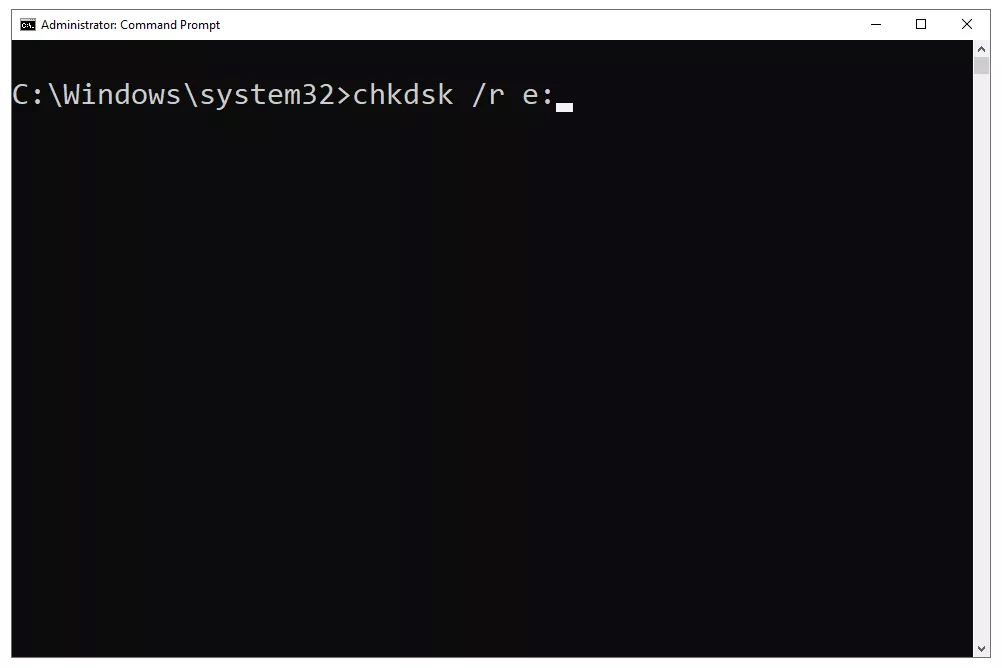
Note: Make sure to replace the last letter with a letter of the drive displaying the error.
3. Wait for a few seconds until the scan completes. Once done, restart your PC.
5. Use Malware Removal Programs
As already stated, the ‘The file or Directory is corrupted and Unreadable’ error also appears due to malware attacks. Therefore, you should scan the entire drive with a reliable security solution.
We recommend you use Malwarebytes to scan the drive. For those who don’t know, Malwarebytes is a leading malware scanner that follows the most updated list of malware and viruses.
This article is about fixing the ‘The file or directory is corrupted and unreadable’ error message. If you need more help on this topic, let us know in the comments.



Right click on the file, “Send To”, “Compressed (Zip folder)”. You are welcome.