
Whenever you sign in to any Google Services, you also get signed in to the browser. While this feature is great, many users may dislike it for several reasons. If you don’t want Chrome to sign you into a Google account automatically, here’s how you can disable the feature.
Disable the Allow Chrome Sign-in
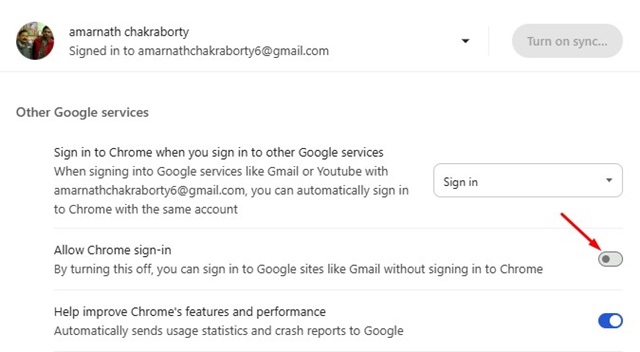
You should turn off the link between your Google Account and Chrome to prevent the browser from automatically signing you in.
- Launch the Google Chrome browser on your PC/Laptop.
- Click the three dots at the top-right corner and select Settings.
- Switch to You and Google.
- Click Google Services.
- Turn off the Allow Chrome sign-in toggle.
How to Prevent Chrome from Signing In Automatically to Web Services
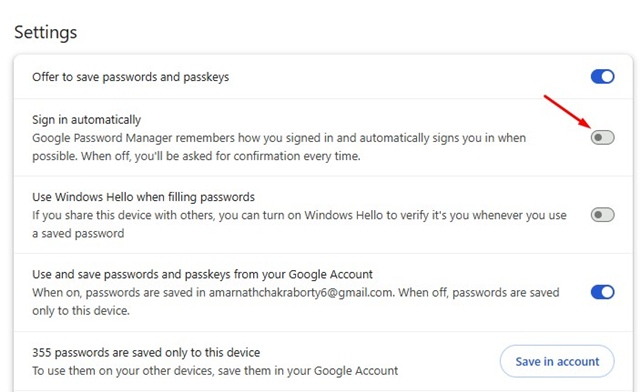
Google Chrome’s Password Manager remembers how you signed in and automatically signs you in when possible. You can turn off this feature to be asked for confirmation every time.
- Launch the Google Chrome web browser.
- Type this URL chrome://password-manager/passwords in the address bar and press Enter.
- Switch to Settings on the Google Password Manager screen.
- In Google Password Manager Settings, turn off the Sign in automatically toggle.
- Google Chrome will ask you before signing in to web services and sites.
This article explains how to block Chrome from automatically signing you into a Google Account. To improve privacy overall, you should prevent Chrome from doing so.