Samsung Messages App not working may be a sign of various underlying issues. You may have other SMS apps installed on your phone that conflict with the stock app. The Samsung Messages app cache may also be corrupted or outdated, or the installed One UI version may have a bug. If the Samsung Messages app isn’t working, here’s what you should do.
1. Force Stop the Samsung Messages App
You need to force stop the app on your Samsung phone.
1. Launch the Settings app on your phone and tap on Apps.

2. Find and tap Samsung Messages.

3. Tap Force Stop.

Once force-stopped, launch the Samsung Messages app on your phone. This should fix the problem.
2. Restart your phone
If force-stopping the Samsung Messages app didn’t help, you need to restart your Samsung phone. Restarting the phone will remove the bugs & glitches that may be preventing the Messages app from functioning properly.
Long-press the Power button on your Samsung phone and select Restart. After the restart, check whether you can use the Samsung Messages app.
3. Uninstall other SMS apps on your phone
Having two or more SMS apps can lead to conflicts, especially if Samsung Messages is not selected as the default SMS app.
Go through the App Manager and check for additional SMS apps installed on your device. If you find any, simply disable or uninstall them.
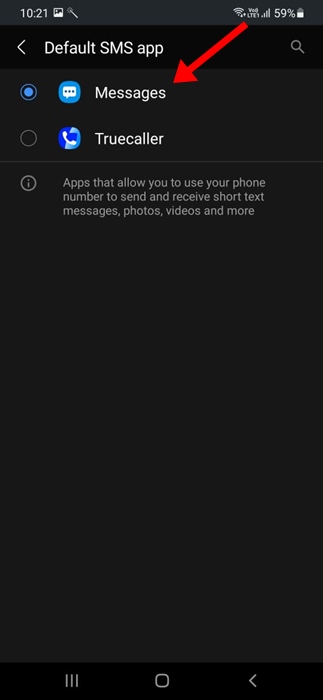
4. Set Samsung Messages as the default messaging app
You should also set the Samsung Messages app as the default messaging app on your phone.
1. Launch the Settings app on your Samsung phone.
2. Tap on Apps.
3. Select Choose default apps.

4. Tap the SMS app.

5. Select Samsung Messages.
5. Update Samsung Messages
You may be using an outdated version of the Samsung Messages app on your phone. Hence, if the app is not opening on your phone, you can try updating it from the Galaxy Store.
- Launch the Galaxy Store on your phone.
- Navigate to the Menu > Update.
- Or else, find Samsung Messages and update the app.
6. Clear the Samsung Messages Cache
Corrupted or outdated app caches can often lead to problems like apps not working or crashing. You can fix such problems by clearing the existing cache file saved by Samsung Messages.
1. Launch the Settings app.
2. Tap on Apps.
3. Find and tap on Samsung Messages.
4. Select Storage.

5. Select Clear Cache.

7. Use a Different SMS app
If nothing worked to fix the Samsung Messages problem you’re facing, the only option you have to exchange SMS is to use a different messaging app. You can use apps like Google Messages for exchanging SMS; it’s more feature-rich than Samsung Messages.
Otherwise, you can check out our list of the best SMS apps for Android and choose the one that suits your needs.
This guide explains how to fix the Samsung Messages App Not Working problem. If you need more help on this topic, let us know in the comments.