If you already have an activated Windows, you will have to know the product key to perform a clean installation of Windows. Knowing the Windows Product Key will also be helpful if you want to transfer your copy of Windows to a new machine. Here are various ways to view the Windows Product Key.
1. View the Product Key on a new PC running Windows
If you just purchased a new PC or laptop, the product key is already preinstalled. The key is on the Certificate of Authenticity (COA) attached to the PC. You need to look for a label or card inside the PC or laptop box.
2. View Windows Product Key Using the Command Prompt
Command Prompt is an excellent utility for viewing the Windows Product Key.
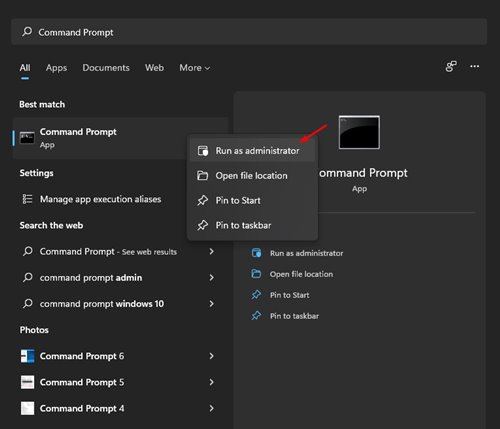
1. Type Command Prompt in the Windows Search. Right-click on Command Prompt and select Run as administrator.
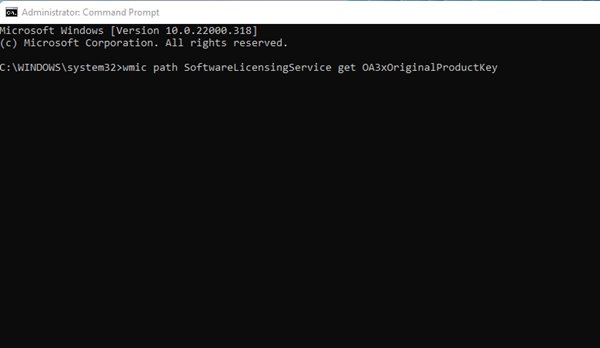
2. Execute the command and press Enter.
wmic path softwareLicensingService get OA3xOriginalProductKey
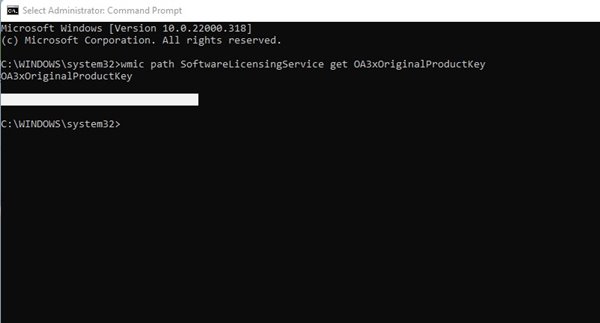
3. The Command Prompt will list the product key.
3. View Windows Product Key from the Registry Editor
You can use the Registry Editor to view the Windows Product key.
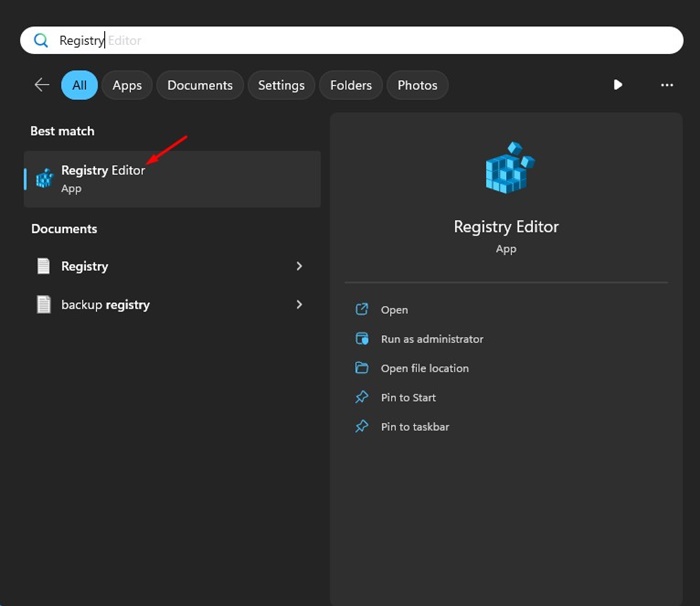
1. Open Registry Editor from the Windows Search.
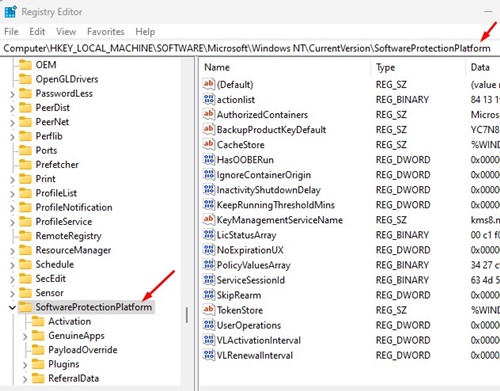
2. Navigate to the following path:
HKEY_LOCAL_MACHINE > SOFTWARE > Microsoft > Windows NT > CurrentVersion > SoftwareProtectionPlatform
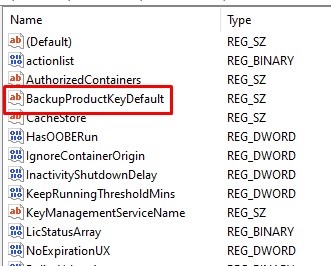
3. Find the BackupProductKeyDefault.
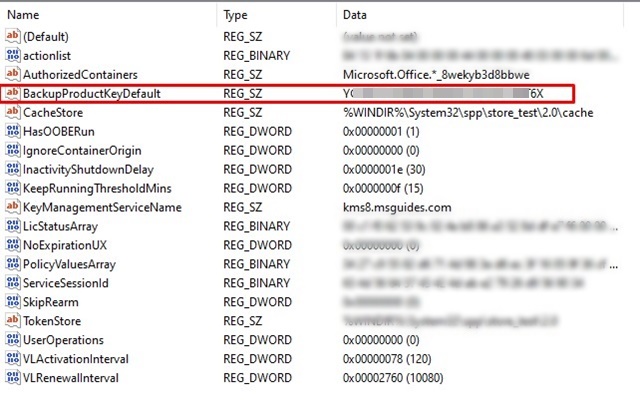
4. Look at the Data column to view the Windows activation key.
4. View Windows Product Key using KeyFinder
KeyFinder is third-party software that finds and shows the key used to activate your version of Windows.
1. Download & install the KeyFinder tool on your Windows PC.
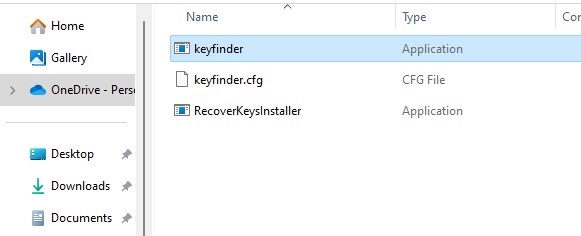
2. Once installed, type Keyfinder in the Windows Search. Open the Keyfinder app from the list of best match results.
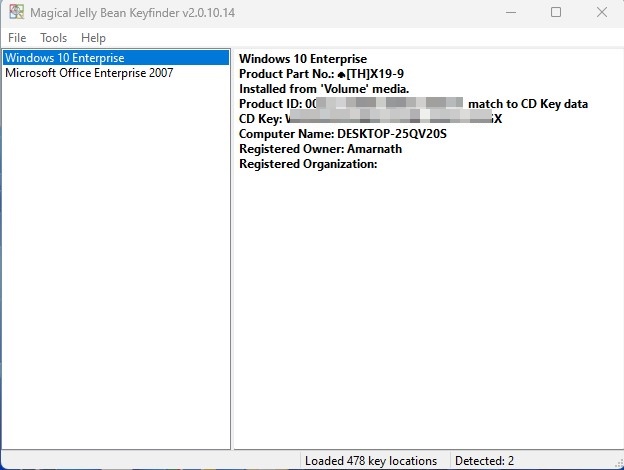
3. When the application opens, it will scan your operating system files. On the right pane, it will show you the product key.
5. View Windows Product Key using ShowKeyPlus
ShowKeyPlus is another third-party tool for Windows that can display the Windows Product Key.
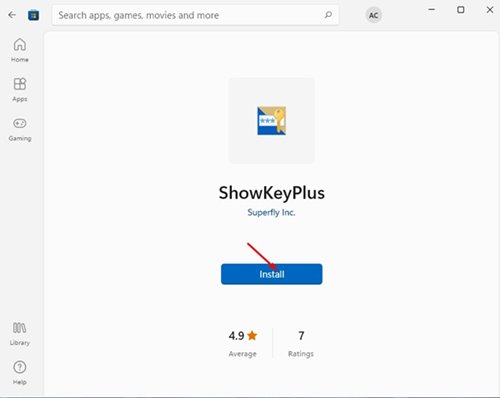
1. Open this link on your computer. Click on the Install button to install the application.
2. Open it, and it will straight away show you Windows Product information. This includes the operating system, product ID, build version, Installed Key, OEM Key, etc.
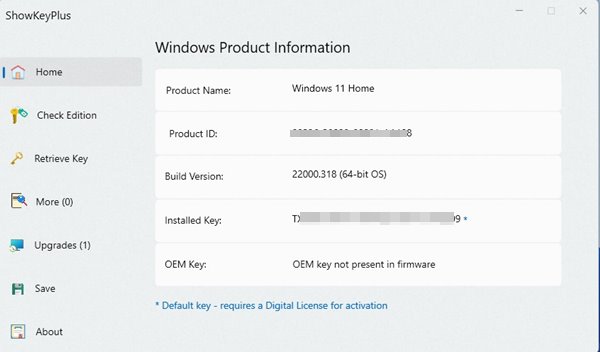
4. You need to note the Product ID & Installed Key row.
These are the best and easiest methods for viewing your Windows Product Key. Once you have the Key, you can perform a clean installation of Windows on your machine or transfer your copy of Windows to a new machine.