While it’s easy to ‘End Task’ unresponsive programs on Windows 11 via Task Manager, wouldn’t it be great if we had the End Task option right on the Windows 11 Taskbar? Windows 11 has a feature that adds the ‘End Task’ button directly on the Windows 11 Taskbar, preventing the need to access Task Manager to force-close the non-responsive apps. Here’s how to enable the feature.
How to Enable Taskbar End Task on Windows 11
1. Launch the Settings app.

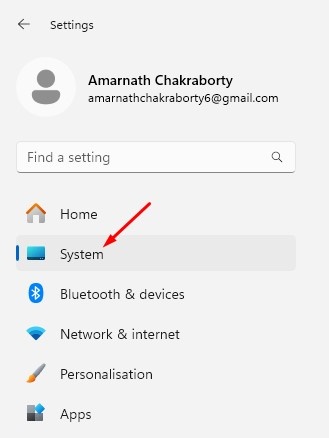
2. Switch to System.
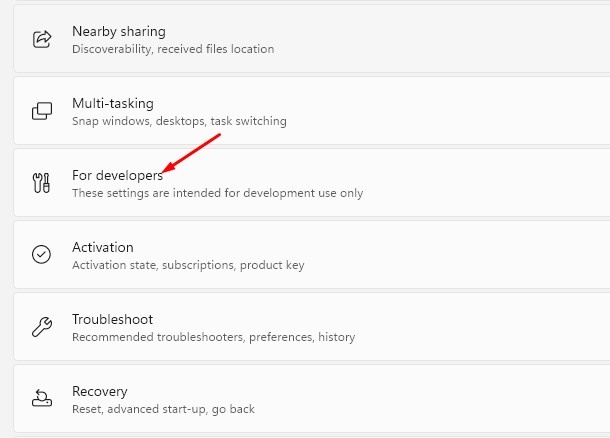
3. Scroll down a bit and click on For Developers.
4. Turn on the toggle for End Task.
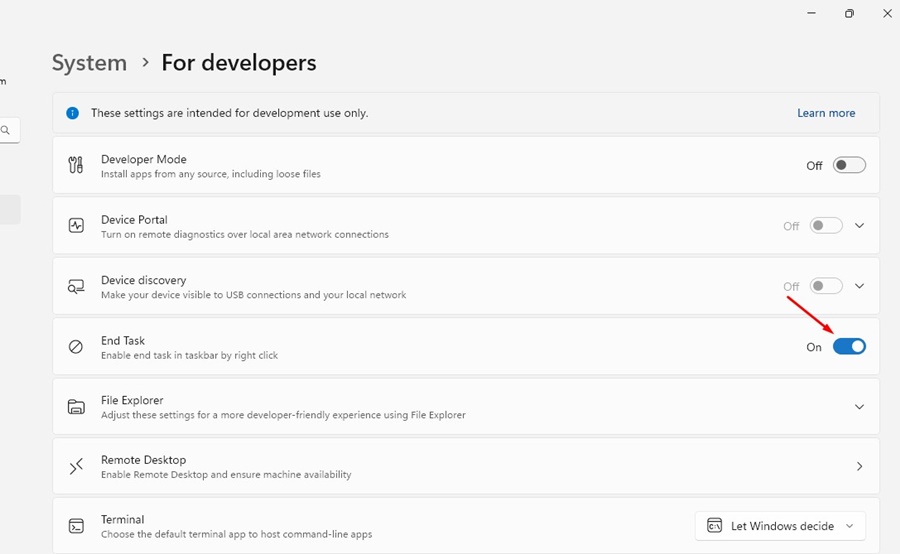
5. This will add the End Task option to your Taskbar menu. To test it, right-click on any running app icon on the Taskbar; you will find a new ‘End Task’ option.

Enable End Task Option on Windows 11 Taskbar Via Registry Editor
If you are comfortable with Registry editing, you can enable the End Task Option on your Windows 11 Taskbar by modifying the value of the TaskbarEndTask Key.
1. Open the Registry Editor from the Windows Search.
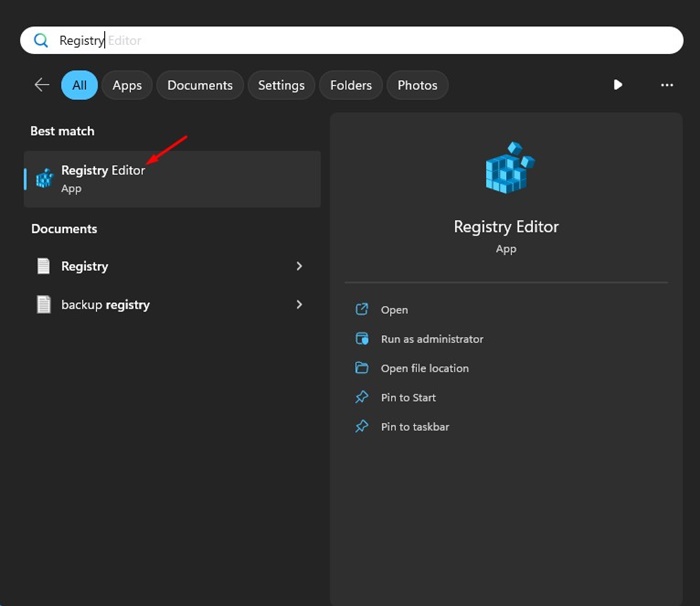
2. When the Registry Editor opens, navigate to this path:
HKCU\Software\Microsoft\Windows\CurrentVersion\Explorer\Advanced\TaskbarDeveloperSetting
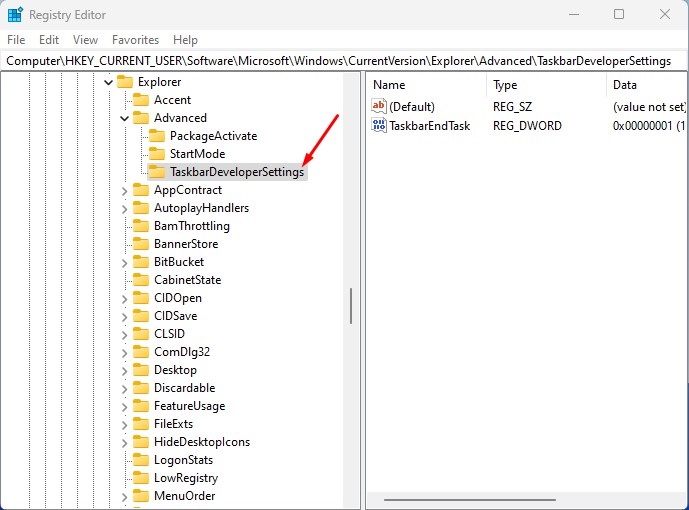
3. Double-click on the TaskbarEndTask DWORD Value.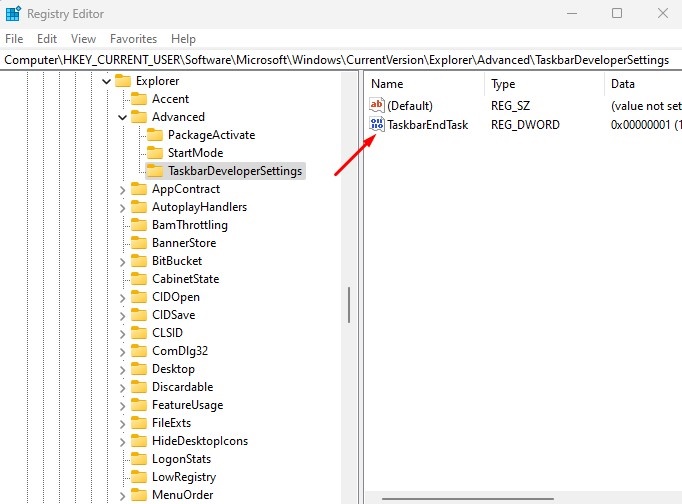
4. In the Value Data field, type 1 and click OK.
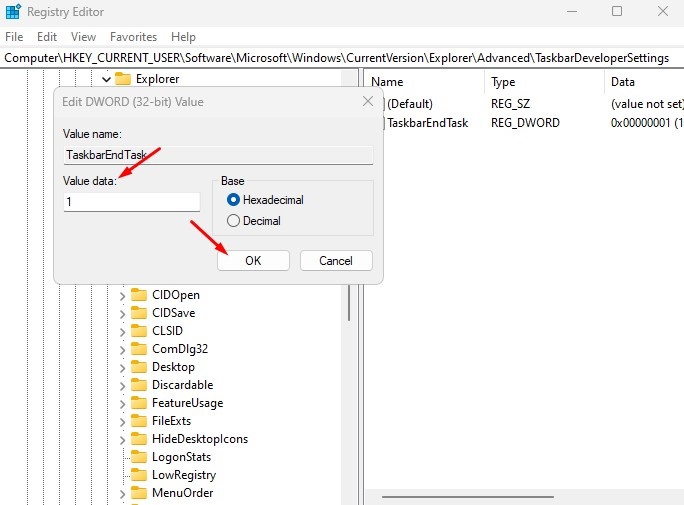
After making the changes, close the Registry Editor and restart your Windows 11 PC. After the restart, right-click on any running apps on the Taskbar; you will find a new ‘End Task’ option.
With the help of the ‘End Task’ button, you can force-close unresponsive apps on Windows 11 without accessing Task Manager. If you need more help enabling the End Task option on the Windows 11 Taskbar, let us know in the comments.