On Windows 11, you can optimize a few graphics settings to enhance video playback. Here are the best things you should do to optimize your PC for smoother video playback.
1. Change the Battery Settings
You need to turn off all battery optimization settings you’ve made. If your laptop is in power saver mode, you need to turn it off as well.
The power option mode of Windows 11 should also be set to Balanced for a better video playback experience.
2. Adjust the Video Playback Settings
The second thing you should do to enhance the video playback experience is to adjust the video playback settings.
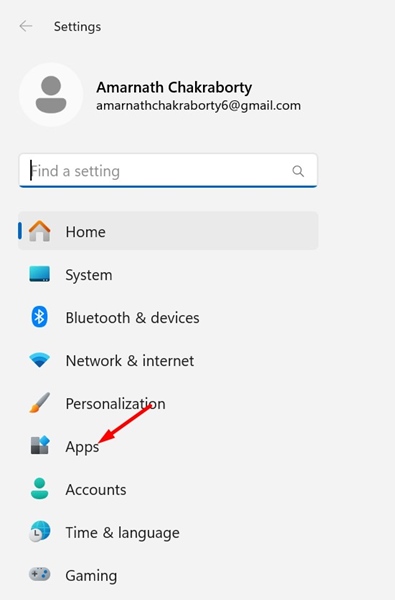
1. Launch the Settings app on Windows 11 and switch to Apps.
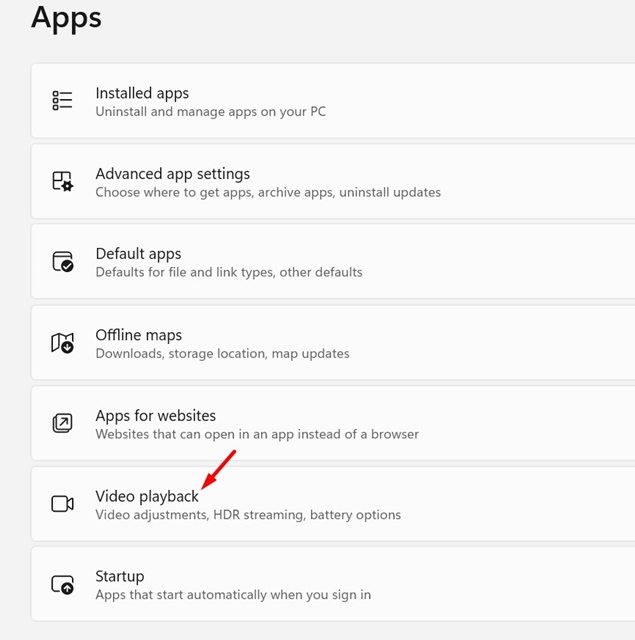
2. Click Video Playback.
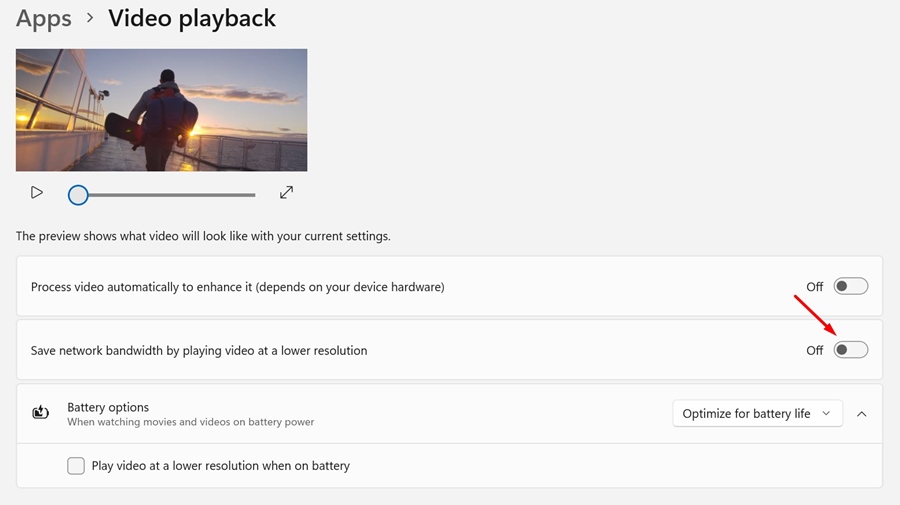
3. Disable the toggle next to ‘Save network bandwidth by playing video at a lower resolution’. But remember, turning off this option will lead to high bandwidth consumption.
3. Turn on Software Rendering
If you experience video lagging or stuttering on a web browser, you should turn on the Software Rendering feature.
1. Open the Control Panel and click Network and Sharing Center.
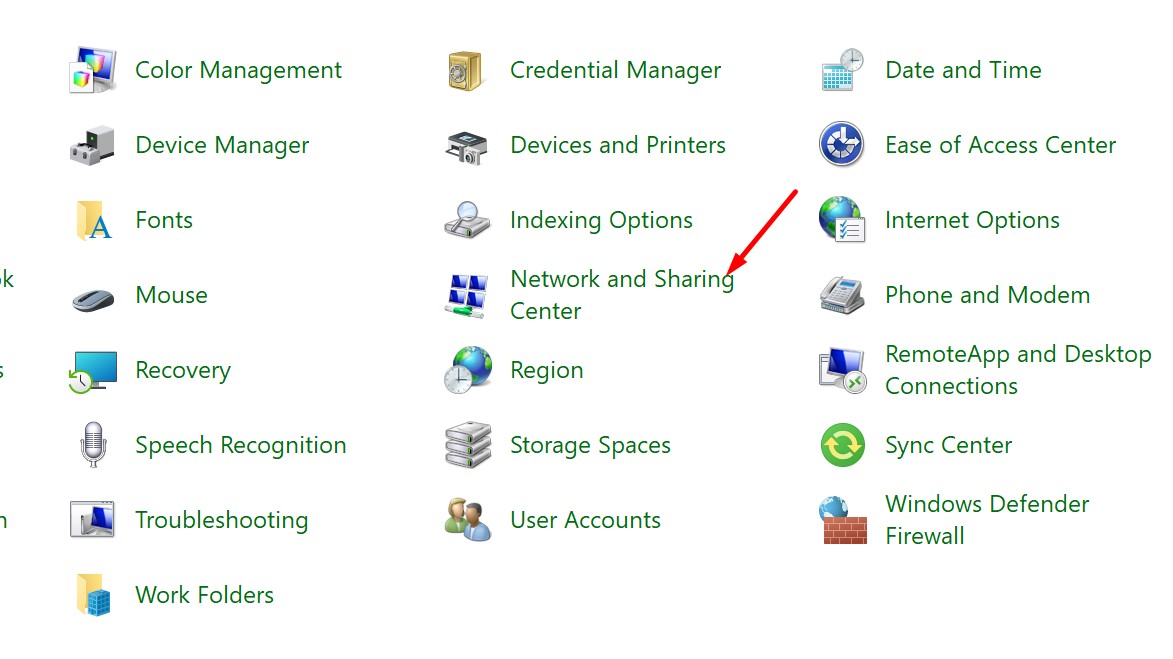
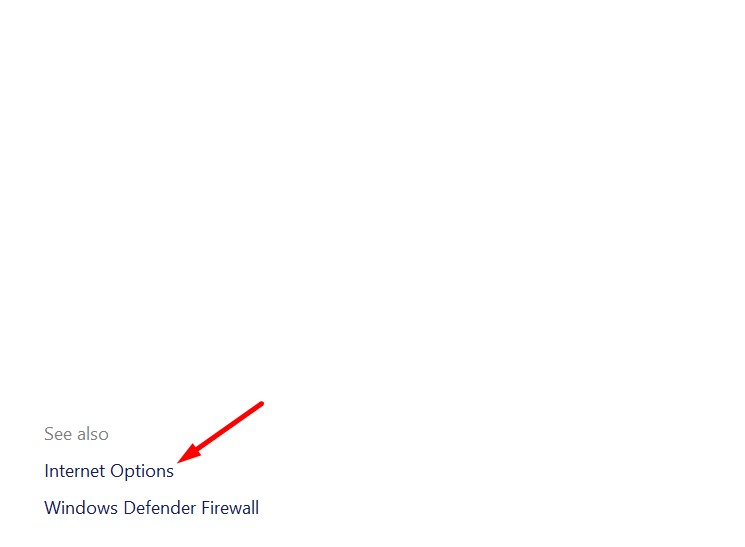
2. Click Internet Options.
3. Switch to the Advanced tab and turn on ‘Use software rendering instead of GPU rendering’.
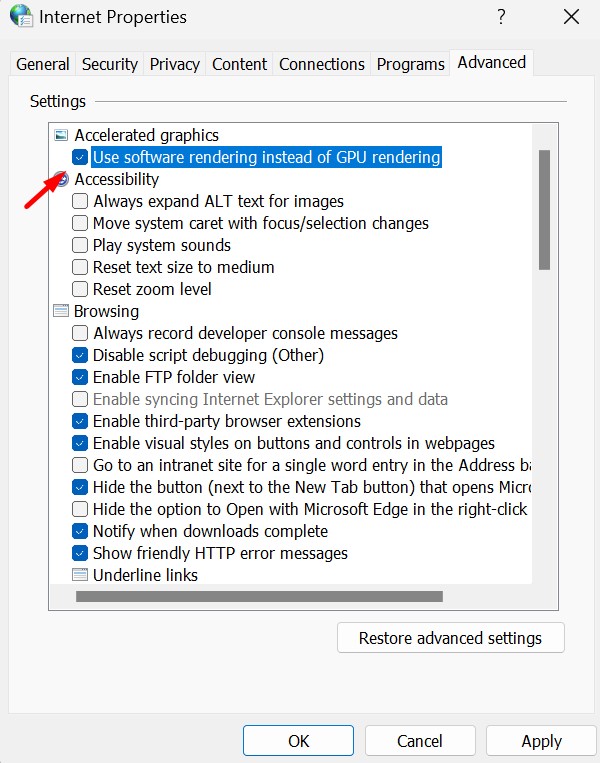
4. Click Ok to save the changes.
4. Change the Graphics Settings for Apps
On Windows 11, you can manually change the Graphics settings for apps. For example, if you use the Movies & TV app to watch videos, here’s how to change its graphics settings.
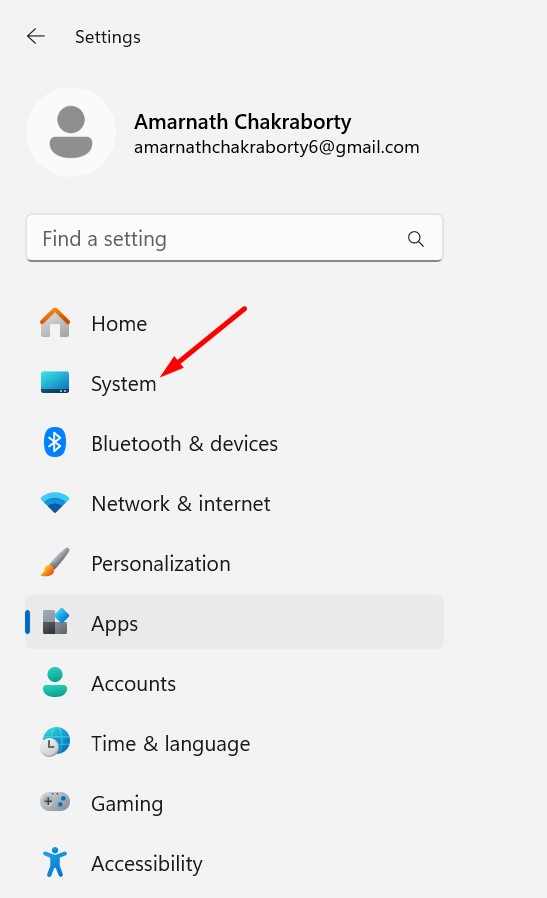
1. Launch the Settings app and switch to System.
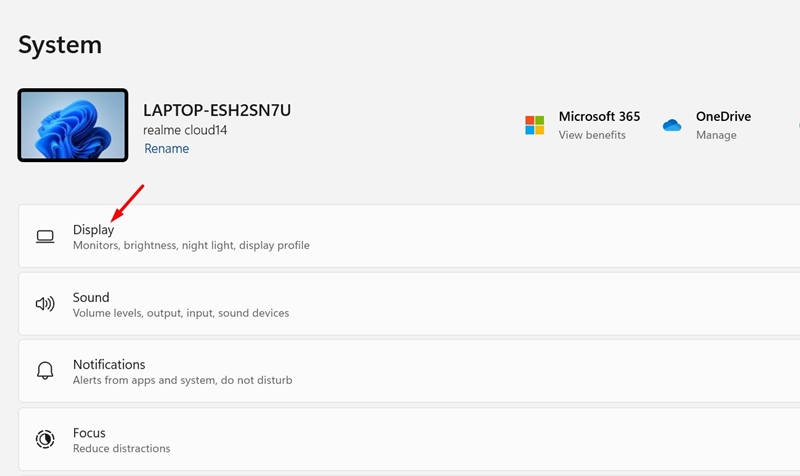
2. Click Display.
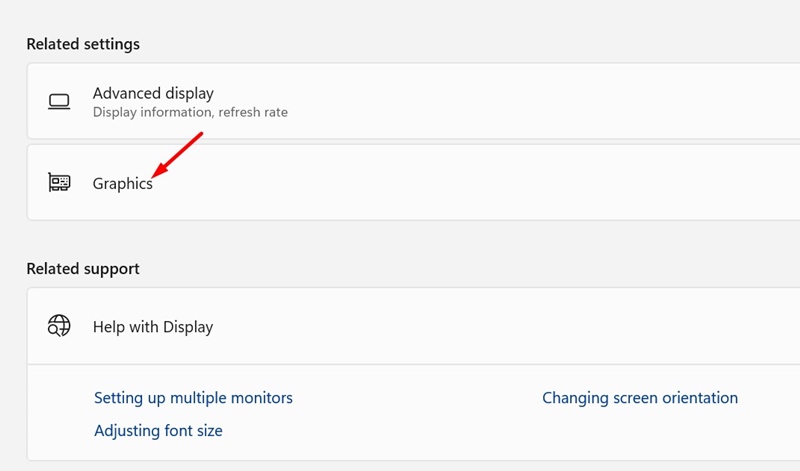
3. Scroll to the Related Settings section and click Graphics.
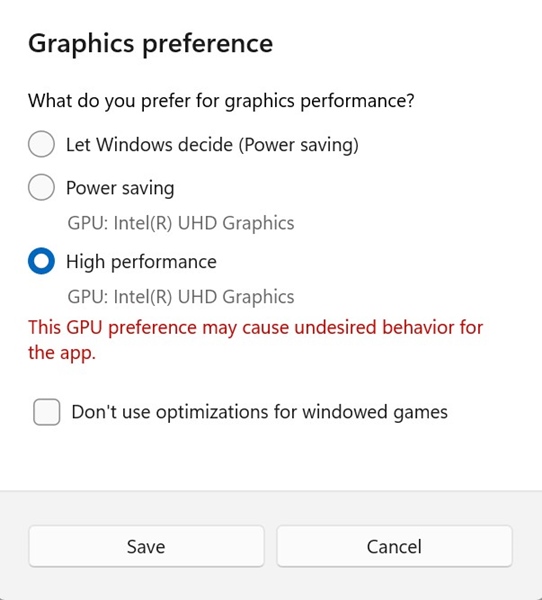
4. Pick the media player app you use. Click the GPU Preference drop-down and select High Performance.
Besides these settings, you should always update the graphics drivers to improve video playback. If you need more help on this topic, let us know in the comments.