Like the Safari browser for iPhone, Google Chrome also lets you transfer open tabs between your iPhone and PC. Here’s how you can use the feature on your PC and iPhone.
Transfer Chrome Tabs Between iPhone & PC
To transfer Chrome tabs between your PC and iPhone, you need to sign in to the same Google account on both devices. Here’s what you need to do.
1. Launch the Google Chrome browser on your PC.
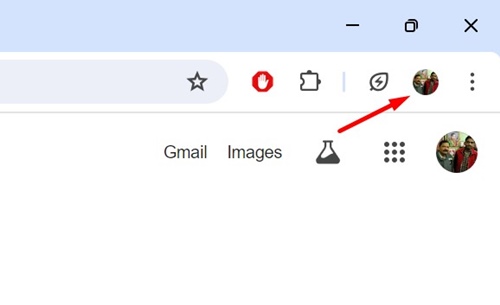
2. When the browser opens, click on the profile picture in the top right corner.
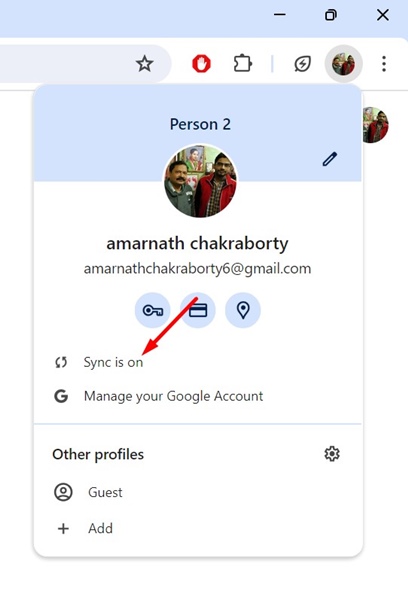
3. On the menu that appears, make sure it says Sync is ON.
4. Open the Google Chrome browser on your iPhone.
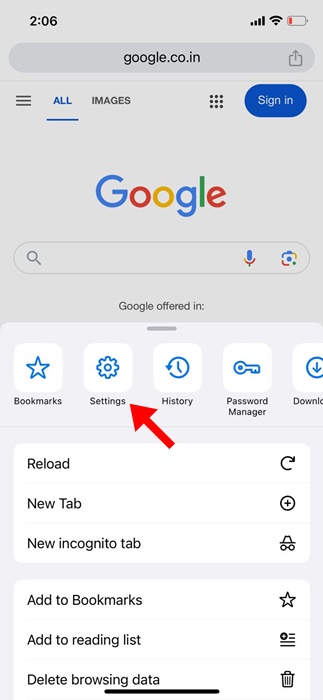
5. Click on the three dots at the bottom right corner and select Settings.
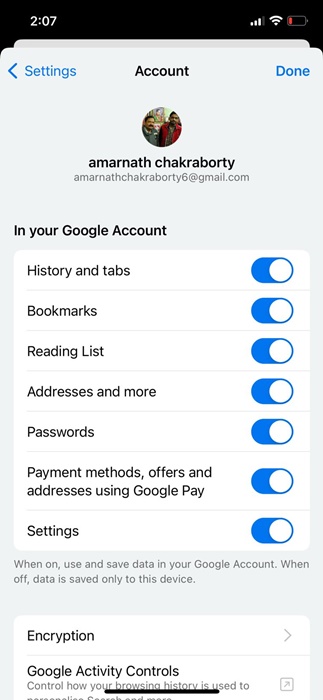
6. In Chrome settings, make sure the Sync is on.
7. Simply open the webpage on your PC that you want to send to your iPhone.
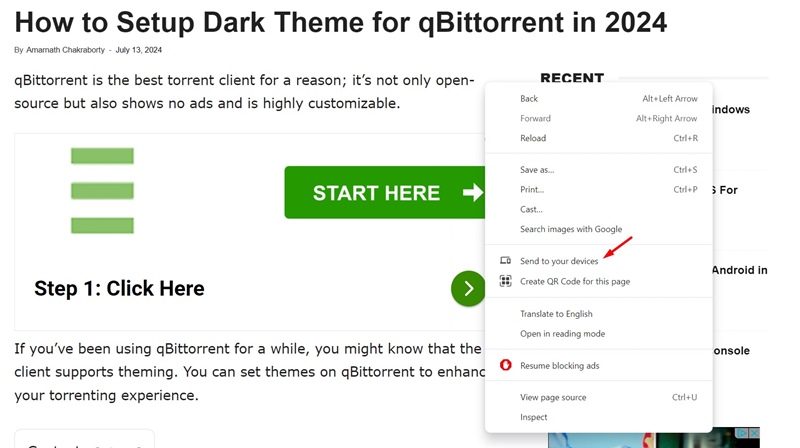
8. Right-click on the tab or anywhere on a blank space on the webpage and select Send to Devices.
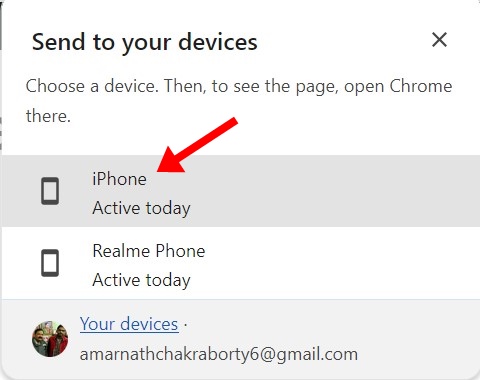
9. Click on your iPhone from the list of available devices.
10. On your iPhone, you will receive a ‘Tab received’ notification. Tap Open to open the webpage.
How to Transfer Chrome Tabs from iPhone to PC?
Ensure that Sync is enabled on both Chrome for desktop & iPhone, and you’re using the same Google account on both devices.
1. Open a website on your Google Chrome browser for iPhone.
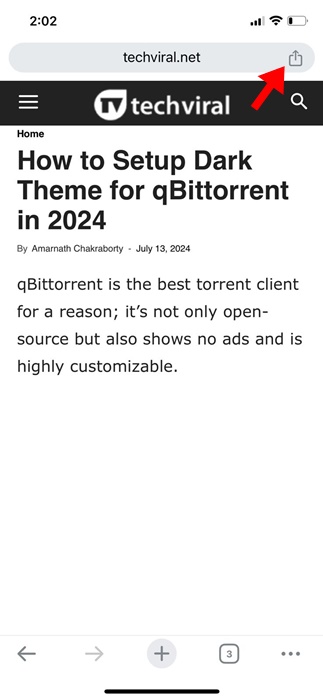
2. Tap the share icon on the address bar.
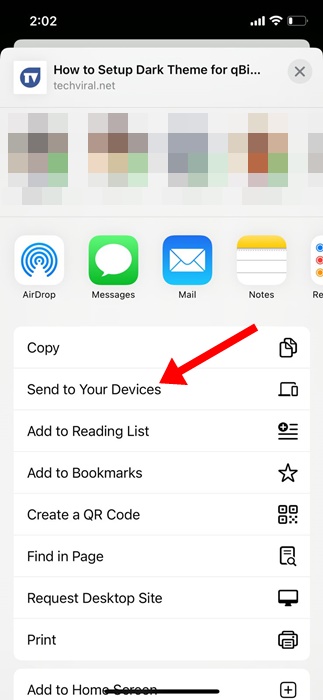
3. Select Send to your devices.
4. Select your PC and tap on the Send to your device button.
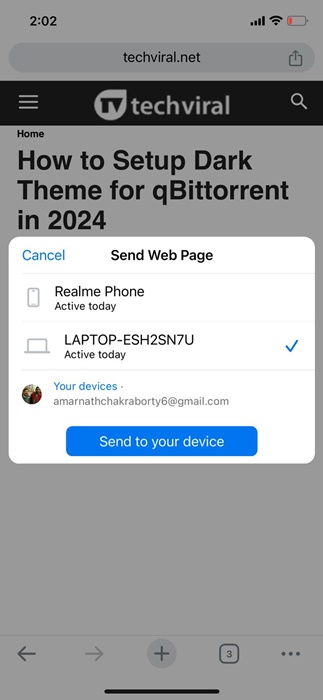
5. You will receive a notification on your Google Chrome browser for desktop. Click on Open to open the webpage.
How to See Tabs from Other Devices?
On the desktop, you can quickly check which tabs are active on other devices. To do so, click on the three dots at the top right of Chrome and select History.
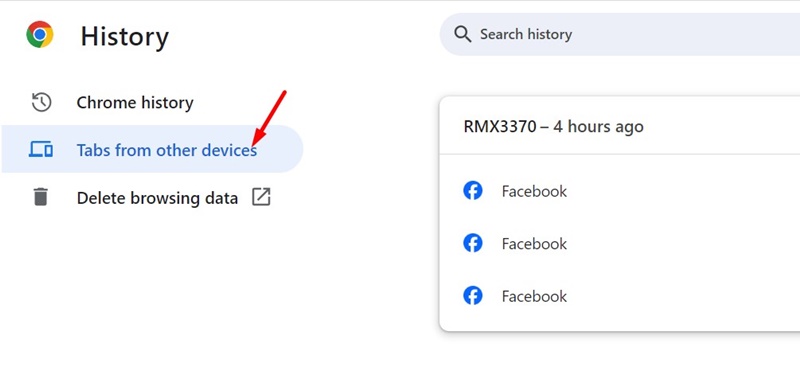
On the left side, click Tabs from other devices. You can also do the same on Google Chrome for iPhone to check which tabs are active on your PC.
These are simple steps to transfer Chrome tabs between your PC and iPhone. Let us know if you need more help on this topic in the comments.